先选一条使用路线Choose your workflow
这份教程只对应 Android 版。第一次使用,按“安装 → 设置 → 选择连接方式 → 扫码 → 历史与导出”完成;只想在手机保存扫码结果,可以跳过连接电脑。This guide covers the Android app. For a first session, follow installation → settings → connection → scanning → history and export. You can skip the computer connection if you only need local records.
| 用途Goal | 选择Mode | 准备条件Requirements |
|---|---|---|
| 手机识别与保存Scan and save on the phone | 本地扫码,无需连接Local scanning, no connection | Android 6.0 及以上、相机权限;相册识别使用系统选图器Android 6.0+, camera permission; gallery scanning uses the system image picker |
| 数字、英文、商品条码录入电脑Type numbers, English text or product codes on a computer | 蓝牙 HIDBluetooth HID | Android 9 及以上、电脑支持蓝牙键盘;无需安装电脑端Android 9+, a computer that supports Bluetooth keyboards; no desktop app required |
| 中文、混合文字或局域网录入Send Chinese or mixed text over a local network | Wi-FiWi-Fi | 电脑运行手机扫码枪桌面端,双方位于可互通的同一局域网Run Scan Input Desktop on the computer; both devices must be reachable on the same local network |
截图采集自小米 Mi 10,Android 13,手机扫码枪 1.0.0 中文界面。截图可点击打开原图。不同品牌系统的权限按钮、蓝牙设置和系统分享面板可能不同;请按文字说明寻找对应入口。设备名、IP 地址、端口和示例条码均以你自己的界面为准。Screenshots were captured on a Xiaomi Mi 10 running Android 13 with Scan Input 1.0.0 in Chinese. Click a screenshot to open its full-size image. Permission buttons, Bluetooth settings and the share sheet vary by device. Use your own device name, IP address, port and code values.
下载、首次启动与权限Install, launch and grant permissions
从官方 Google Play 页面安装Install from the official Google Play page
在 Android 手机上打开 Google Play 官方页面,核对应用后点击“安装”,完成后点“打开”。官网当前不提供 APK 直链。Open the official Google Play page on your Android phone, check the app, tap Install, then Open. The website currently does not offer a direct APK download.
阅读首次欢迎弹窗中的协议Read the first-launch agreement
首次打开时可点击“查看用户协议”和“查看隐私政策”阅读正文。阅读并决定接受后,点击“同意并继续”;选择“不同意并退出”会退出应用。之后的教程提示可选“查看使用教程”或“稍后查看”。On first launch, use View User Agreement and View Privacy Policy to read the documents. If you decide to accept, tap Agree and continue. Decline and exit closes the app. The following guide prompt offers View user guide or View later.
点击底部中央扫码按钮,允许相机Open the scanner and allow the camera
进入主界面后点击底部中央的圆形扫码按钮。Android 弹出相机授权时,选择“仅在使用中允许”或系统对应的“使用应用时允许”。相机用于识别条形码和二维码;画面在手机端处理。From the main screen, tap the round scan button at the bottom center. When Android asks for camera access, choose While using the app or the equivalent option. The camera recognizes barcodes and QR codes on the phone.
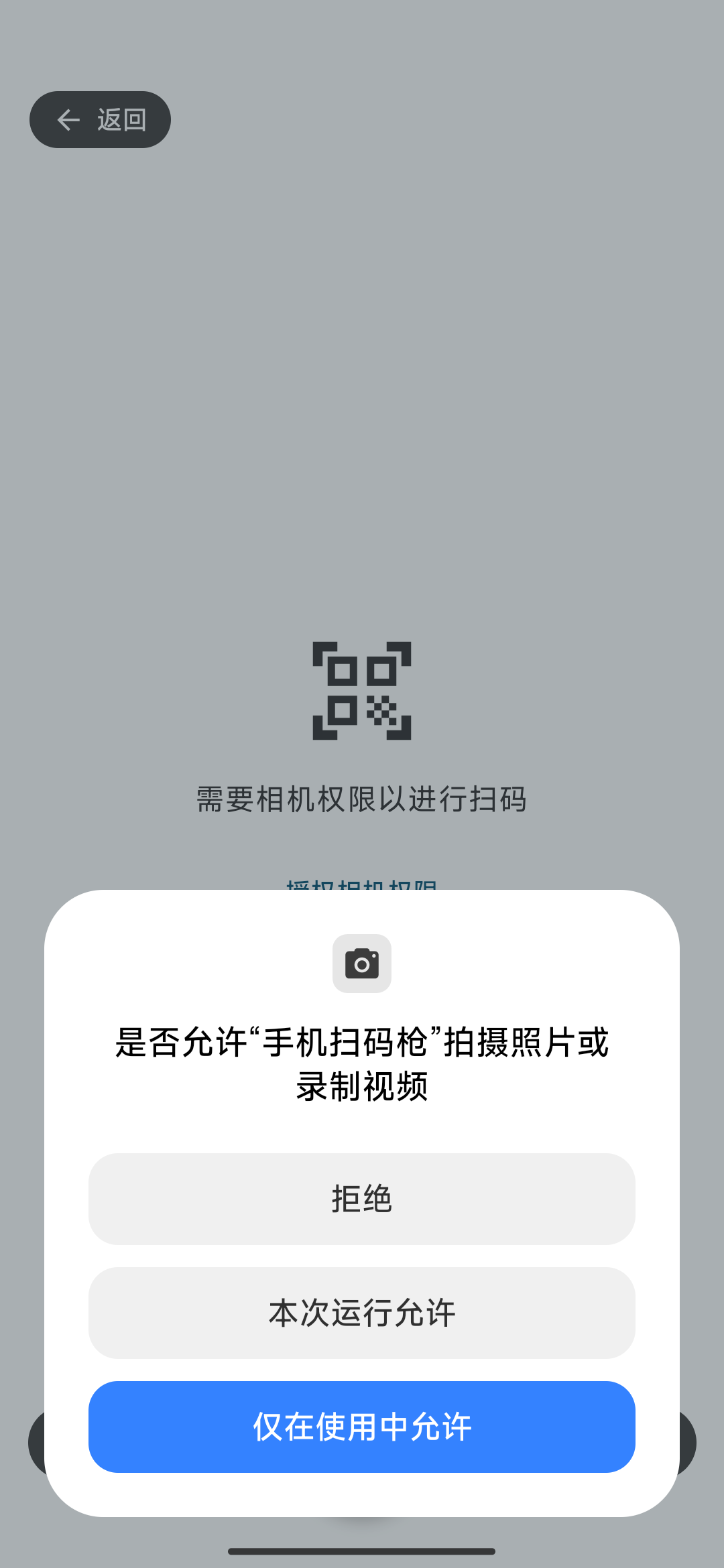

扫码页会显示“需要相机权限以进行扫码”和“授权相机权限”。点击后重新授权;如果系统不再弹窗,打开手机“设置 → 应用 → 手机扫码枪 → 权限”,允许相机,再回到扫码页。附近设备权限只在使用蓝牙功能时按需申请。The scanner displays a camera-permission message and an Grant camera permission button. Tap it to retry. If Android no longer prompts, open system Settings → Apps → Scan Input → Permissions, allow the camera and return. Nearby devices permission is requested when you use Bluetooth.
底部能看到“历史”和“设置”,中央按钮能打开相机预览,“设置”页可查看应用版本。本教程适用 1.0.0;不同版本若出现不同按钮,请以实际界面为准。Check that History and Settings are available, the center button opens the camera preview, and Settings shows the version. This guide describes 1.0.0; follow the actual controls if your version differs.
认识主界面Find the main controls
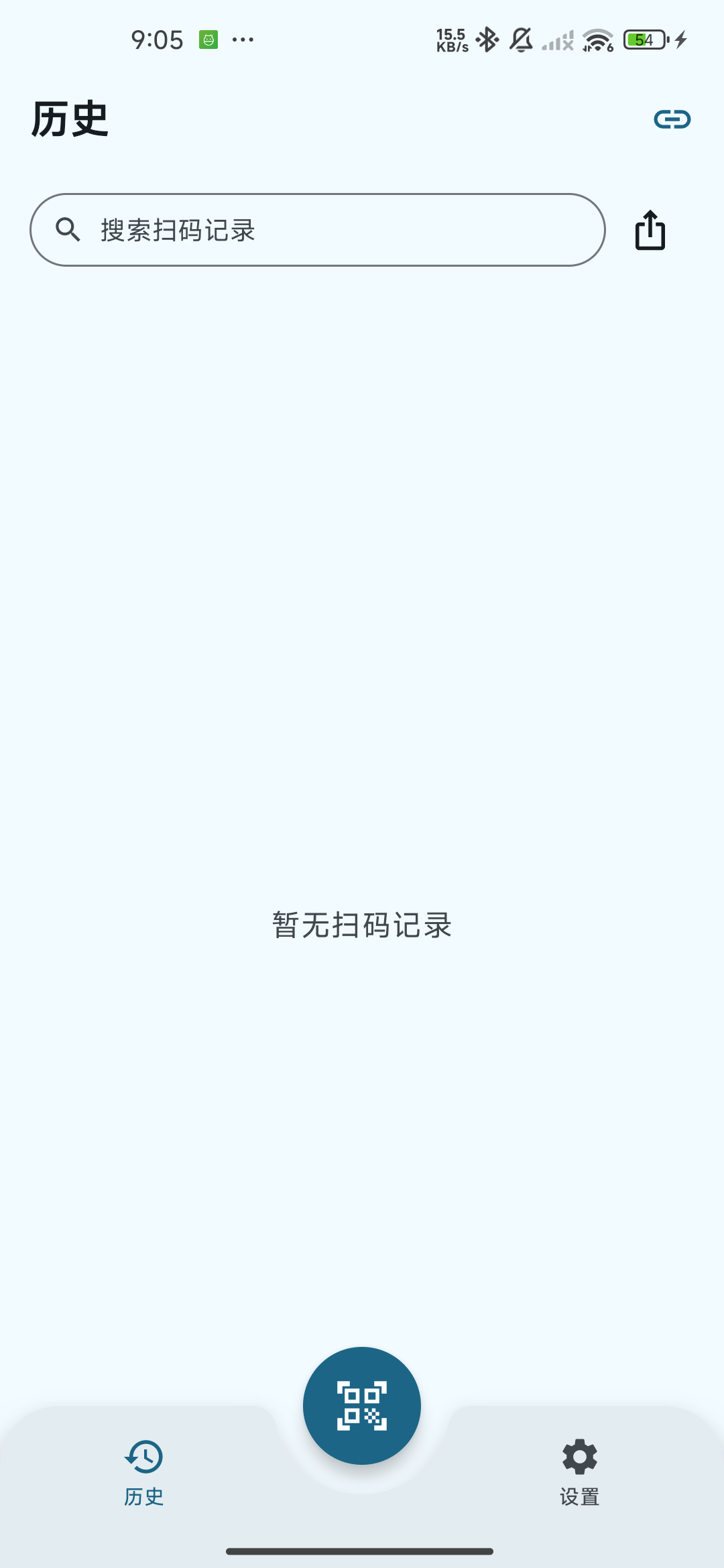
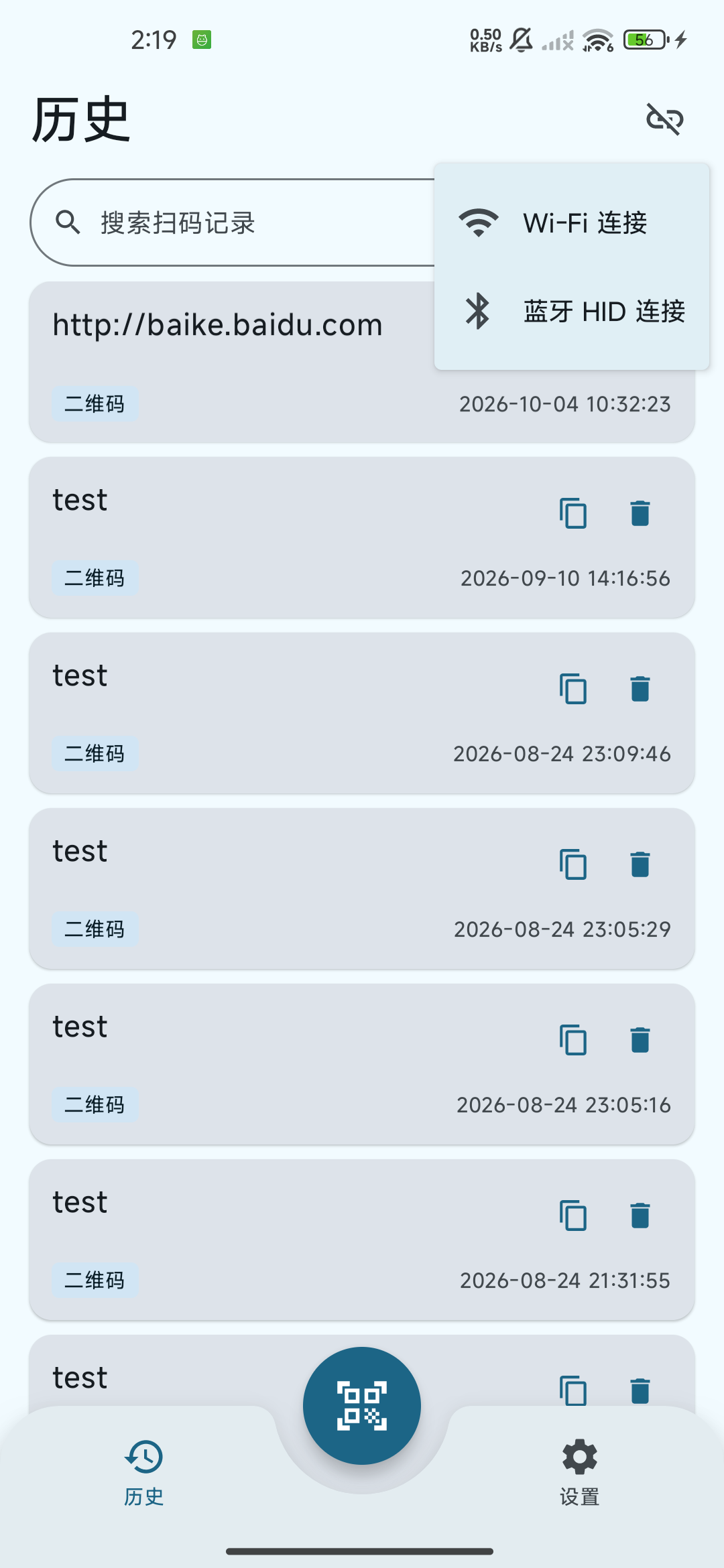
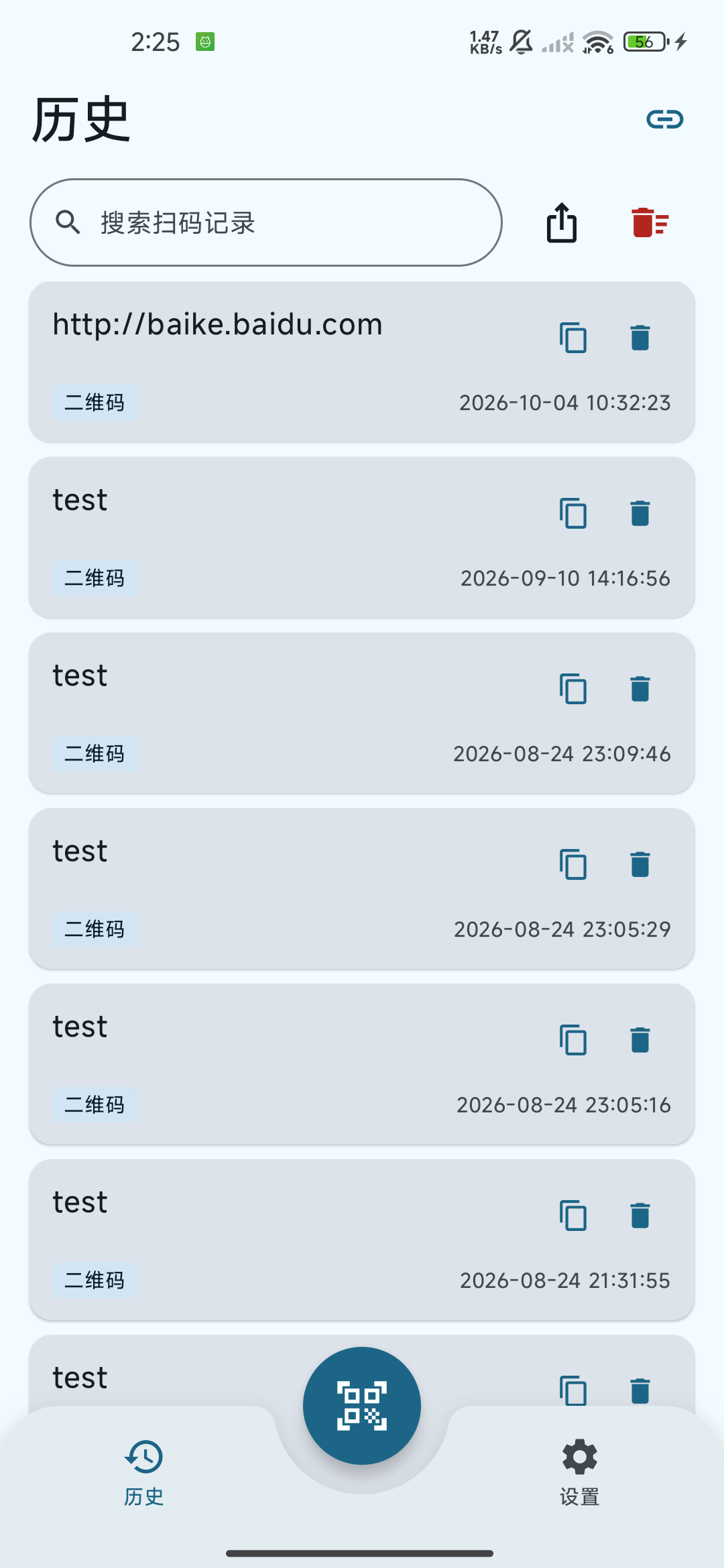
- “历史”:按时间倒序显示已识别的内容,支持搜索、复制、删除和导出。History lists recognized content newest first and provides search, copy, delete and export.
- 底部中央“扫码”:进入全屏相机页,也可从相册选图识别。The center Scan button opens the full-screen camera and gallery recognition.
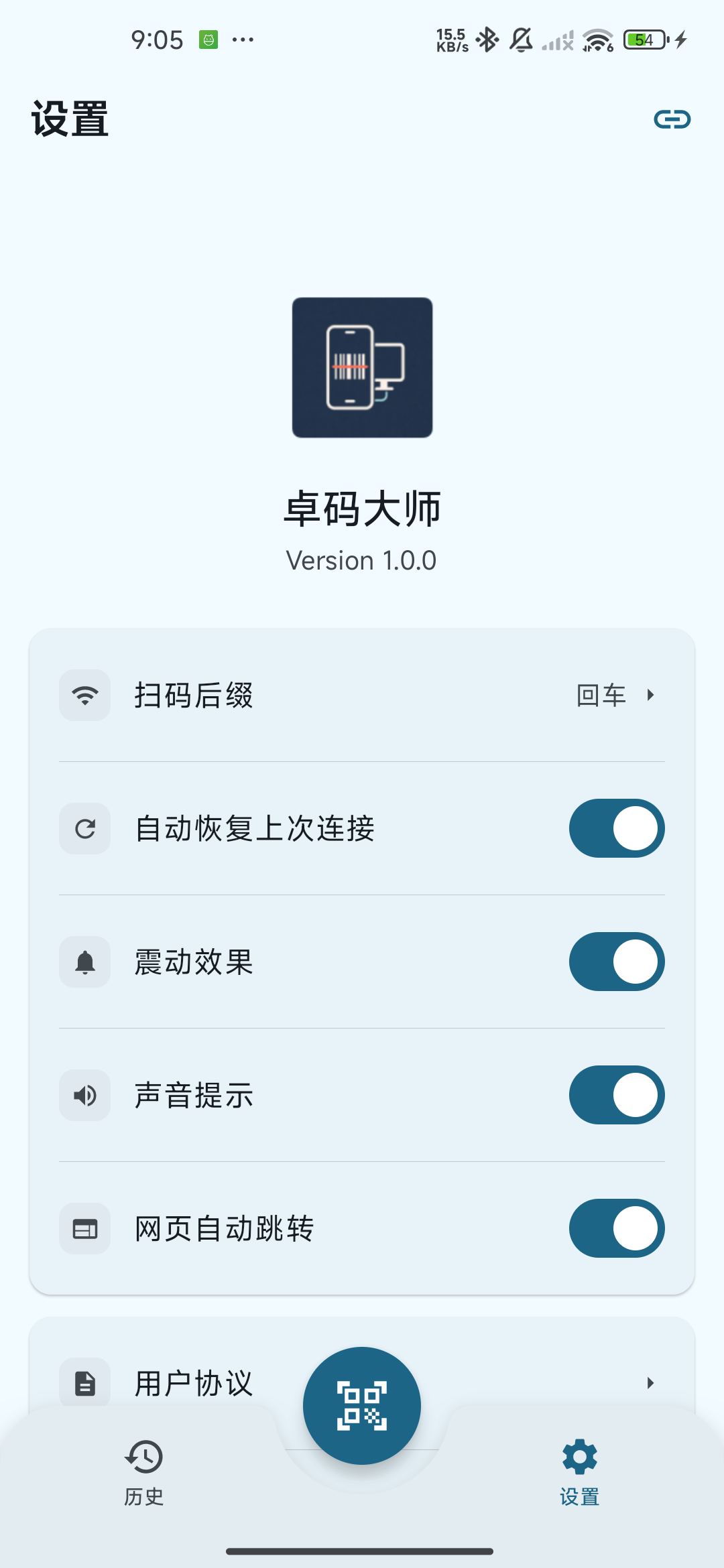
- “设置”:扫码后缀、自动恢复上次连接、震动、声音、网页跳转,以及协议和官网入口。Settings provides scan suffix, connection restore, vibration, sound, webpage opening, legal documents and website links.
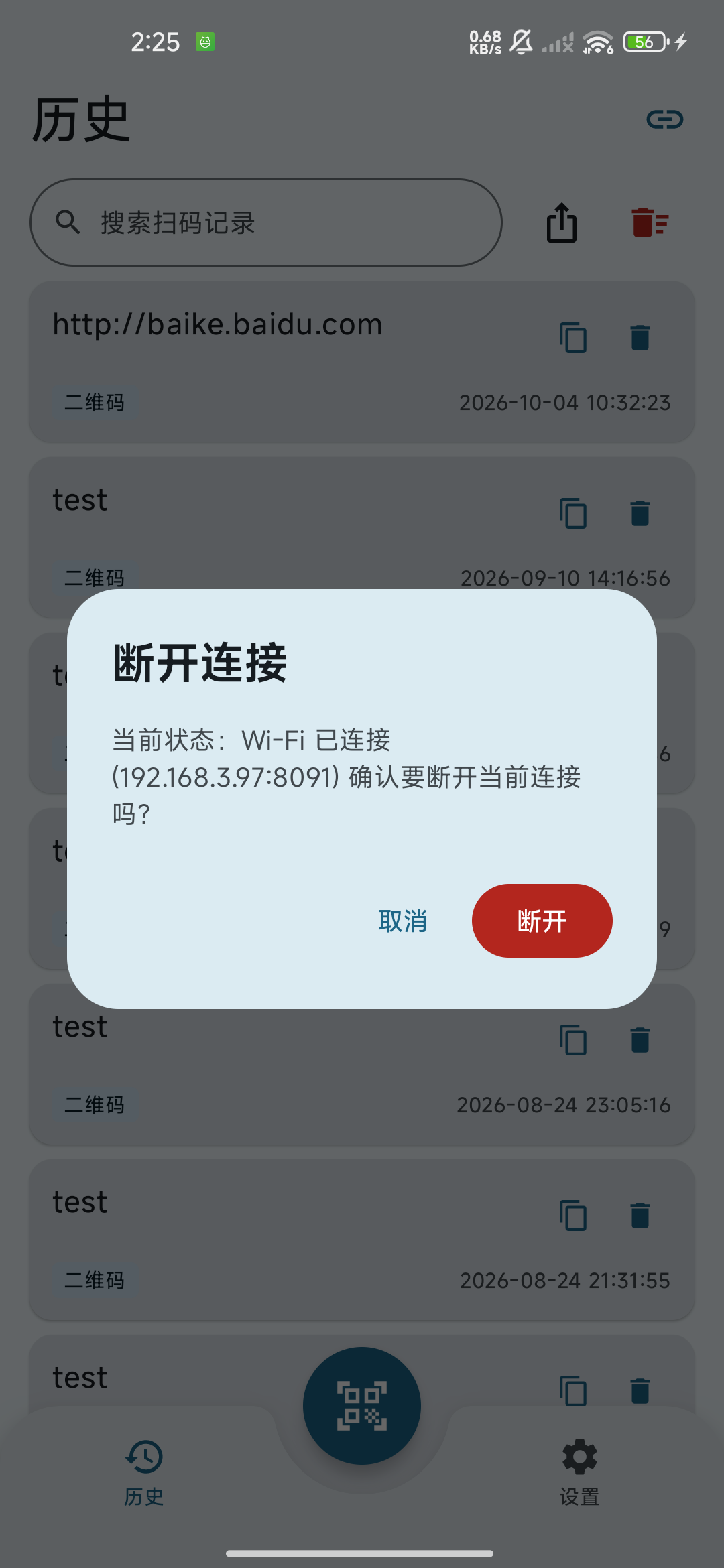
- 右上角链环:断开的链环表示未连接,转圈表示连接中,蓝色闭合链环表示已有连接。点击已连接图标会显示当前状态和断开确认。The top-right link is broken when disconnected, spins while connecting, and is blue and closed when connected. Tap a connected link to view the status and disconnect confirmation.
即使没有连接电脑,也能识别并保存历史。声音、震动或“识别成功”只说明手机识别到内容;是否输入电脑,应查看电脑目标输入框的实际结果。You can recognize codes and save history without a connection. Sound, vibration or recognition feedback confirms phone recognition. Check the target field on the computer to confirm input.
先设置后缀和扫码反馈Set the suffix and feedback
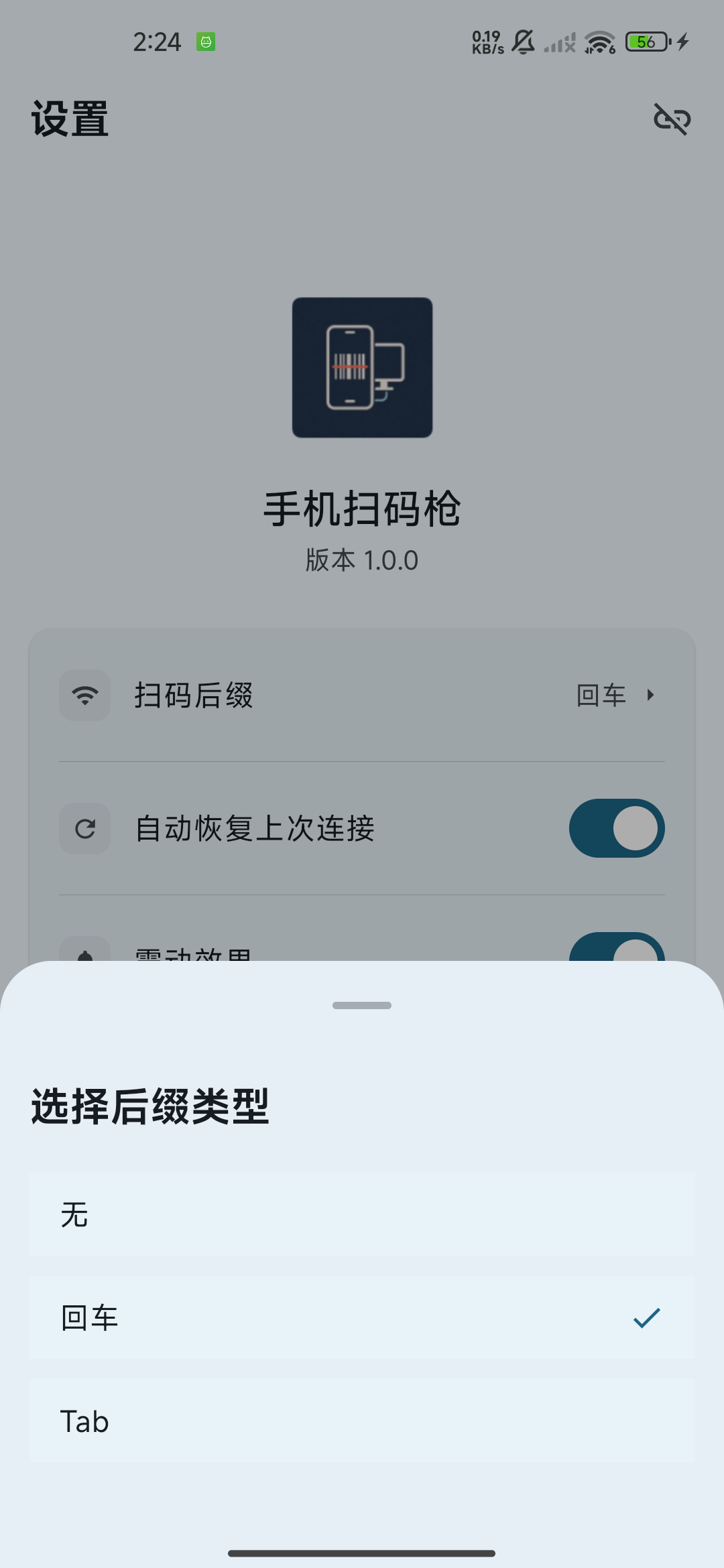
在“设置 → 扫码后缀”选择输出方式Choose Settings → Scan suffix
逐行录入表格时选“回车”;需要向下一个输入框或下一列移动时选“Tab”;只要文字、不希望自动移动或提交时选“无”。是否换行、跳格或提交,取决于电脑当前应用对按键的处理。Choose Enter for row-by-row entry, Tab for the next field or column, or None when you only want text. The computer application decides whether the key moves the cursor, inserts a line or submits a form.
| 设置Setting | 默认Default | 操作与效果Behavior |
|---|---|---|
| 扫码后缀Scan suffix | 回车Enter | 只追加到发送给电脑的内容;历史和复制保留原文。Appended only to computer output; history and copied text retain the original content. |
| 自动恢复上次连接Restore last connection | 开启On | 回到 App 前台、当前无连接时尝试恢复上次成功连接;手动断开后需主动连接,不会一直在后台重连。Tries the last successful connection when the app returns to the foreground with no connection. After a manual disconnect, connect again yourself. It does not continuously reconnect in the background. |
| 震动效果Vibration | 开启On | 识别时提供震动反馈。Provides vibration feedback on recognition. |
| 声音提示Sound | 开启On | 识别时播放提示音,受系统通知音量影响。Plays a recognition sound, subject to system notification volume. |
| 网页自动跳转Open webpages automatically | 关闭Off | 开启后识别到有效 HTTP/HTTPS 网页地址会调用系统浏览器。批量录入网址时可保持关闭,以便留在扫码页。When enabled, valid HTTP/HTTPS web addresses open in the system browser. Keep it off when entering many URLs so you can stay in the scanner. |
蓝牙 HID:手机作为键盘Bluetooth HID: use the phone as a keyboard
准备 Android 9 及以上手机,打开两端蓝牙。HID 无需电脑端软件,适合数字、英文和常见键盘符号。首次配对请按目标电脑系统选择以下流程。Use an Android 9+ phone and enable Bluetooth on both devices. HID needs no desktop app and is suited to numbers, English and common keyboard symbols. Choose the first-pairing flow for your computer below.
打开设备列表和连接帮助Open the device list and connection help
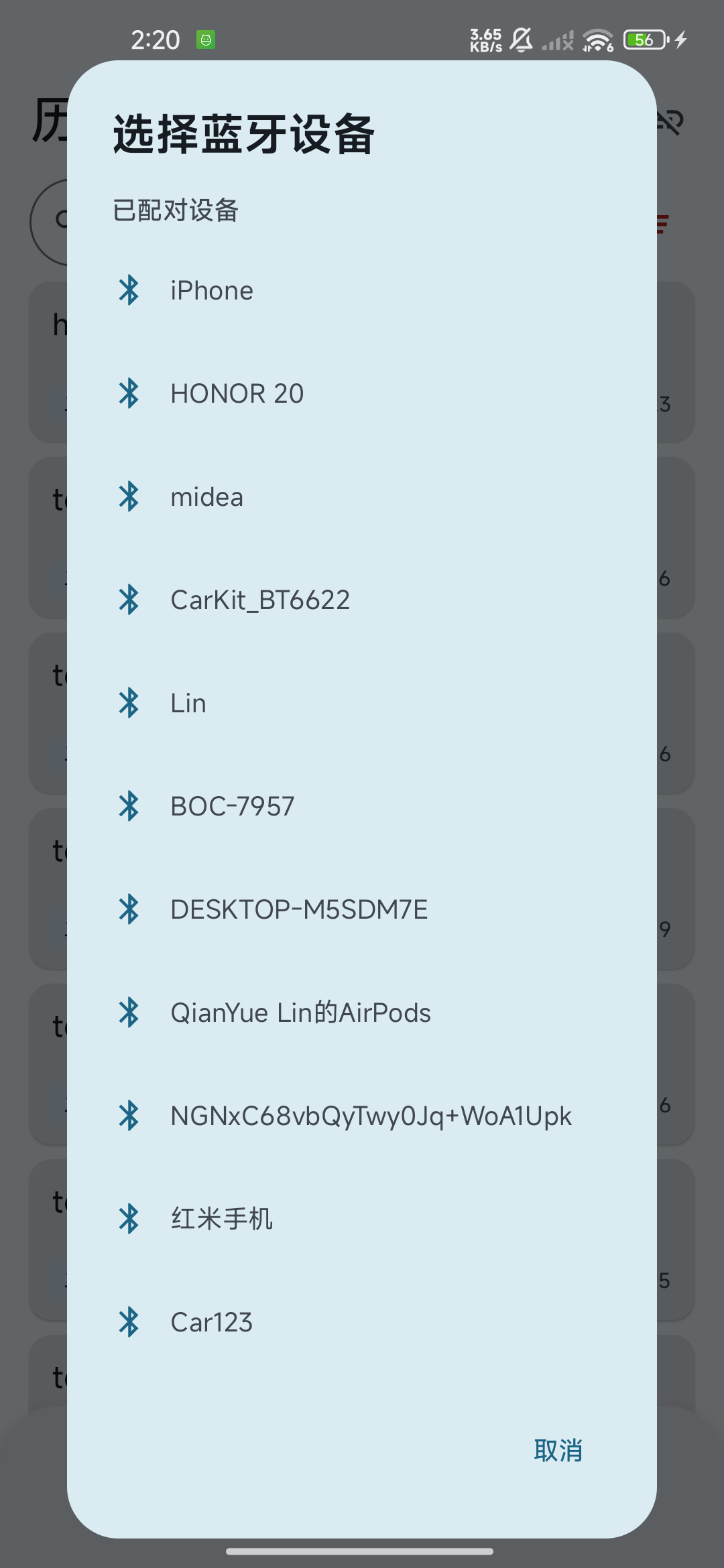
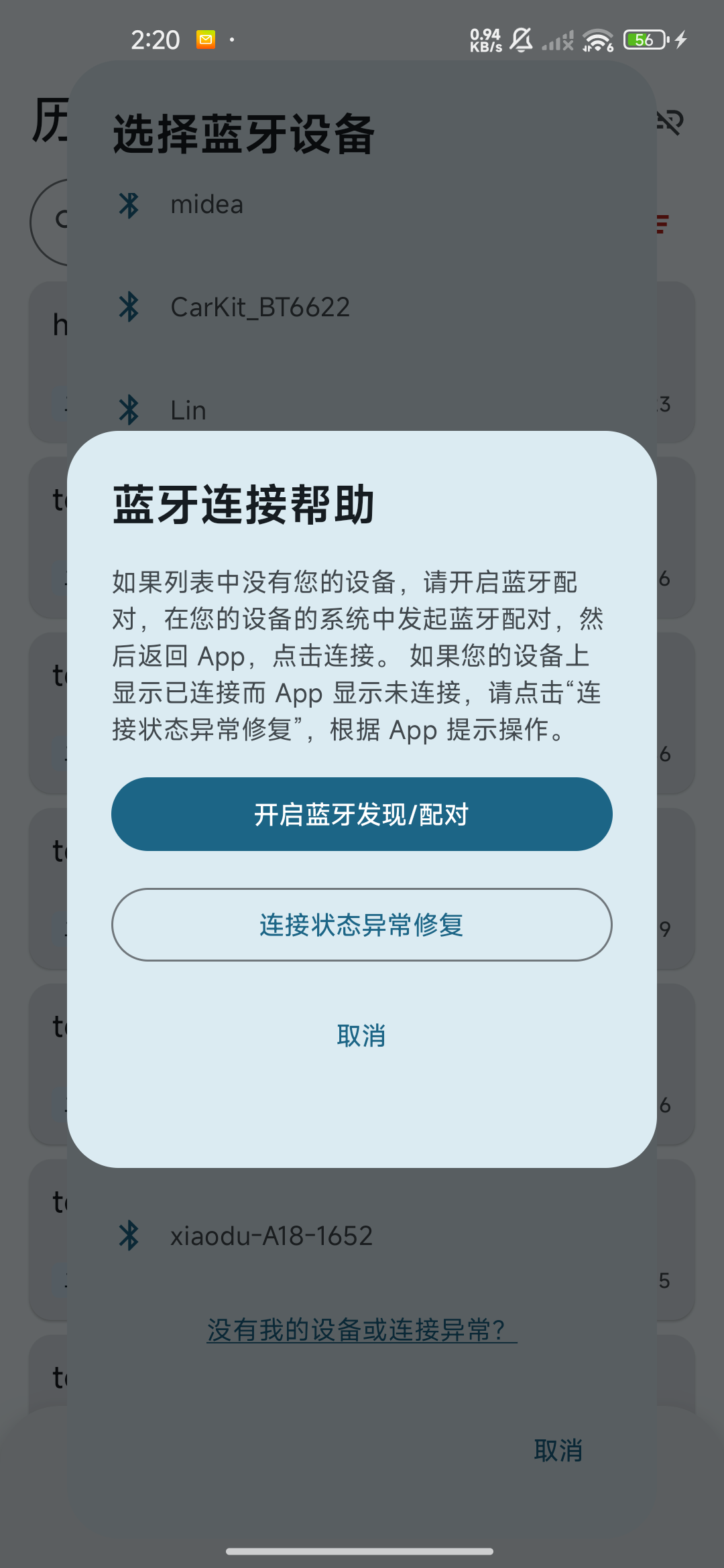
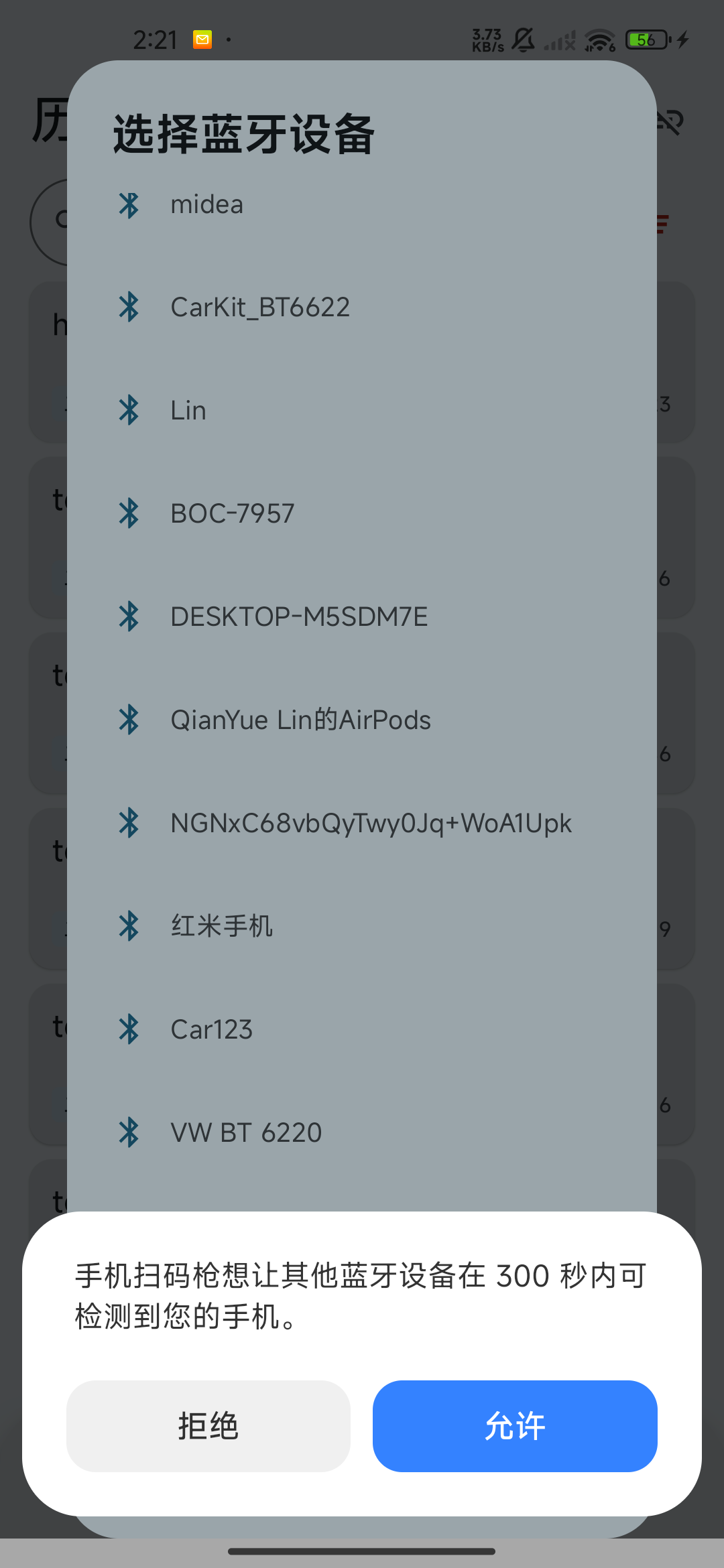
在历史或设置页点击右上角链环 →“蓝牙 HID 连接”。Android 12 及以上按提示允许“附近设备”。“选择蓝牙设备”显示已配对设备;如果列表较长,向上滑到末尾,点击“没有我的设备或连接异常?”。Tap the top-right link in History or Settings → Bluetooth HID connection. On Android 12+, allow Nearby devices when prompted. Select Bluetooth device lists paired devices. Scroll to the end of a long list and tap Can’t find my device or connection is not working? if needed.
连接 Mac:先系统配对,再在 App 建立 HIDConnect a Mac: pair in the system, then connect HID in the app
- 点击“开启蓝牙发现/配对”,系统请求临时可发现时点“允许”。保持 App 打开。Tap Start Bluetooth discovery/pairing and allow temporary discoverability. Keep the app open.
- Mac 打开“系统设置 → 蓝牙”,找到手机在系统蓝牙设置中使用的名称并连接;核对两端提示并确认配对。On the Mac, open System Settings → Bluetooth, find the phone by its system Bluetooth name, connect and confirm the matching pairing prompts on both devices.
- 配对完成后回到手机扫码枪,在“已配对设备”中点击 Mac 名称,等待 App 建立 HID 键盘连接。After system pairing, return to Scan Input and tap the Mac name under Paired devices. Wait for the HID keyboard connection.
- 若早已与这台 Mac 配对,直接点击列表中的 Mac 即可;不要仅凭系统“已配对”判断 App 已连接。If the Mac is already paired, tap its list entry directly. System pairing alone does not confirm the app connection.
连接 Windows:先发布 HID 服务,再配对Connect Windows: publish HID before pairing
- 进入“蓝牙连接帮助”,点击“连接状态异常修复”,等待 HID 绑定检查。Open Bluetooth connection help, tap Fix connection problem and wait for the HID binding check.
- 提示“本机 HID 绑定到了…”时,按 App 提示,在手机系统蓝牙和目标电脑两端清除对应旧配对,再回 App 重新点击修复;只清理需要重配的设备。If the app reports an existing HID binding, follow its instructions to remove the corresponding old pairing on the phone and target computer, then run repair again. Remove only the pairing you need to recreate.
- 无绑定时 App 发布 HID 服务。系统若询问可发现,点“允许”;Windows 打开“设置 → 蓝牙和设备 → 添加设备 → 蓝牙”,选择手机并在两端确认。已有普通旧配对时先按 App 提示删除再添加。With no binding, the app publishes HID. Allow discoverability if prompted. In Windows, open Settings → Bluetooth & devices → Add device → Bluetooth, select the phone and confirm on both ends. If an old ordinary pairing exists, remove it as instructed before adding the phone again.
- 保持手机 App 前台,约 5 分钟等待时间内完成配对,等待 App 显示 HID 已连接。超时则重新开始修复。Windows 的普通“已连接”不等于 HID 键盘通道已建立。Keep the app in the foreground and complete pairing within its roughly five-minute waiting period. Wait for the app to report HID connected. Restart repair if it times out. Windows showing an ordinary connection does not confirm the HID keyboard channel.
先放好电脑光标,再扫一个示例码Focus the computer field, then scan a sample
打开一个空白表格或文本框,点击目标单元格或输入框,切换到合适的英文输入状态。用手机扫描数字/英文示例码,确认电脑出现完整文本以及你选择的回车/Tab 后缀效果。Open a blank spreadsheet or text field, click the target cell or field and use an appropriate English input layout. Scan a numeric or English sample and verify the complete text and the selected Enter/Tab behavior on the computer.
HID 模拟标准键盘。结果含中文、emoji 等不支持的字符时,整条内容无法通过 HID 输出;手机仍会保存识别记录。切换 Wi-Fi 后重新扫描,或从历史复制内容后自行传到电脑粘贴。HID simulates a standard keyboard. If a result contains unsupported characters such as Chinese or emoji, the complete result cannot be sent through HID, although the record is still saved. Switch to Wi-Fi and scan again, or copy the record and transfer it yourself for pasting.
需要更细的首次配对和 Windows 修复步骤,继续看 Android 蓝牙 HID 专题。For additional pairing and Windows repair details, see the Android Bluetooth HID guide.
Wi-Fi:连接电脑端Wi-Fi: connect the desktop app
安装并启动适合电脑的桌面端Install and start the desktop app
从官网下载区选择你的电脑系统。手机和电脑接入同一局域网;电脑可用网线连接同一路由器,手机使用 Wi-Fi。Choose your computer system in the website download section. Both devices must share a reachable local network; the computer can use Ethernet to the same router while the phone uses Wi-Fi.
| 电脑Computer | 安装和启动Install and launch | 输入条件Typing requirement |
|---|---|---|
| macOSmacOS | 按 Apple 芯片/Intel 选择 DMG,打开后将应用拖到 Applications,再启动。Choose the Apple silicon or Intel DMG, open it, drag the app to Applications and launch it. | 需要系统键盘模拟权限时,在“系统设置 → 隐私与安全性 → 辅助功能”中允许桌面端。When keyboard simulation requires permission, allow the desktop app under System Settings → Privacy & Security → Accessibility. |
| WindowsWindows | 完整解压 ZIP,保留依赖文件,运行 DroidCodeScannerPC.exe。Extract the entire ZIP, retain its dependencies and run DroidCodeScannerPC.exe. | 防火墙提示时允许在你使用的局域网访问;测试时先用普通文本框。If prompted by the firewall, allow access on your local network. Start with a normal text field for testing. |
| LinuxLinux | 解压安装包,按包内 AppImage 或 AppDir 的可执行程序启动;需要时授予执行权限。Extract the package and run its AppImage or the executable inside its AppDir, granting executable permission if needed. | ydotool 需可用的 ydotoold 服务、socket 与输入权限;仅当 ydotool 无法启动时回退到 X11 下的 xdotool。Wayland 使用配置好的 ydotool。ydotool requires a working ydotoold service, socket and input permissions. Only when ydotool cannot start does the app fall back to xdotool on X11. Wayland requires a configured ydotool setup. |
确认电脑服务已运行Check the desktop service
打开电脑端“连接服务”页,确认显示“服务运行中”,记录显示的 IP 地址和监听端口,找到连接二维码。默认端口是 9876;若已改过端口,以电脑当前显示值为准。显示“服务已停止”时先点击“开启服务”;修改端口后点击“应用端口”。Open Connection service on the desktop, confirm the service is running, note its displayed IP and listening port and find the connection QR code. The default port is 9876; use the displayed value if changed. If stopped, start the service. After changing a port, apply it.
推荐:识别电脑端连接二维码Recommended: scan the desktop connection QR code
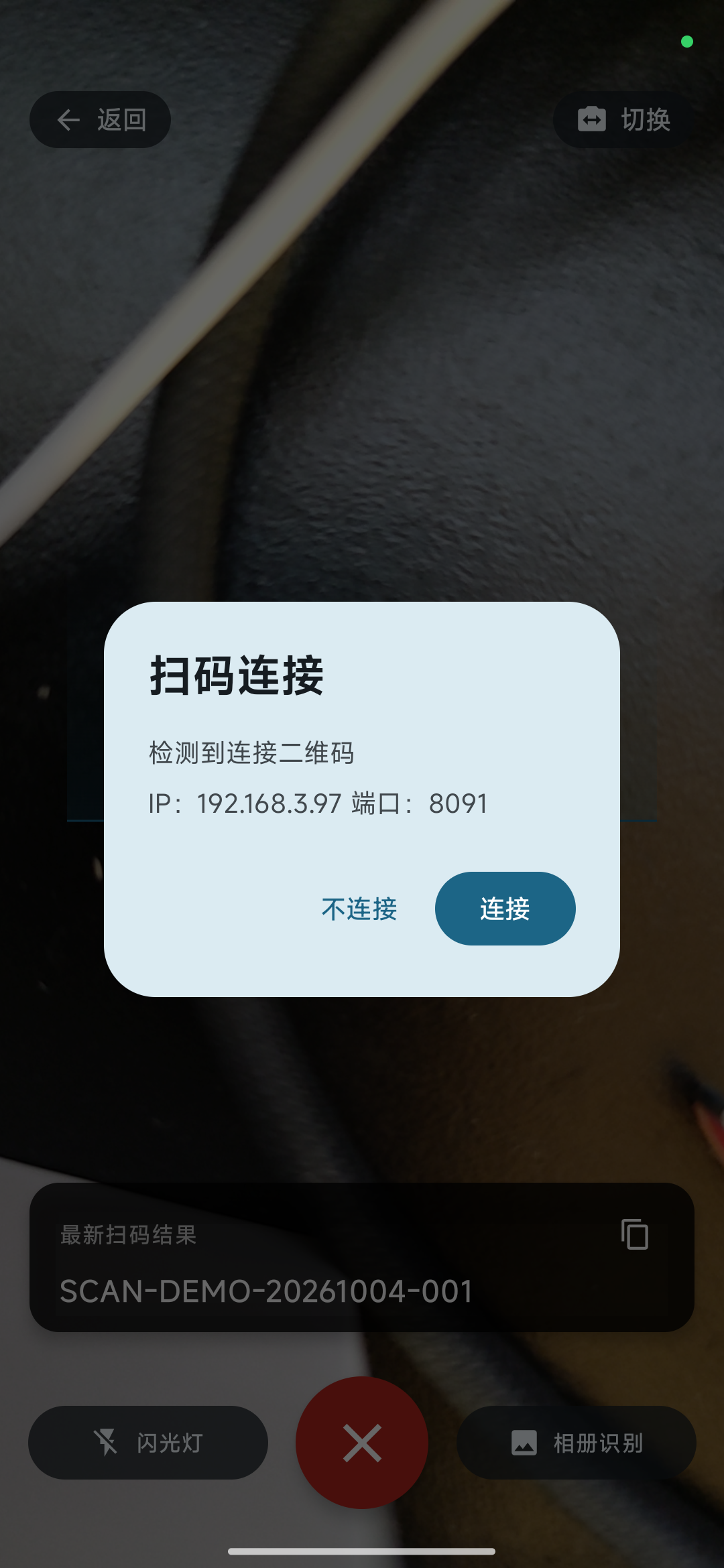
在手机打开扫码页,对准电脑端连接二维码。弹出“扫码连接”后核对 IP 和端口,点击“连接”;选“不连接”可取消。如果当前有连接,弹窗会提示连接新设备将断开当前连接。连接二维码不会作为普通扫码内容保存或输入电脑。Open the phone scanner and aim at the desktop connection QR code. In Connect from scan, check the IP and port and tap Connect, or choose Don’t connect to cancel. If already connected, the dialog warns that the new connection will replace the current one. Connection QR codes are not stored or typed as normal scan results.
备用:手动填写 IP 和端口Alternative: enter the IP and port manually
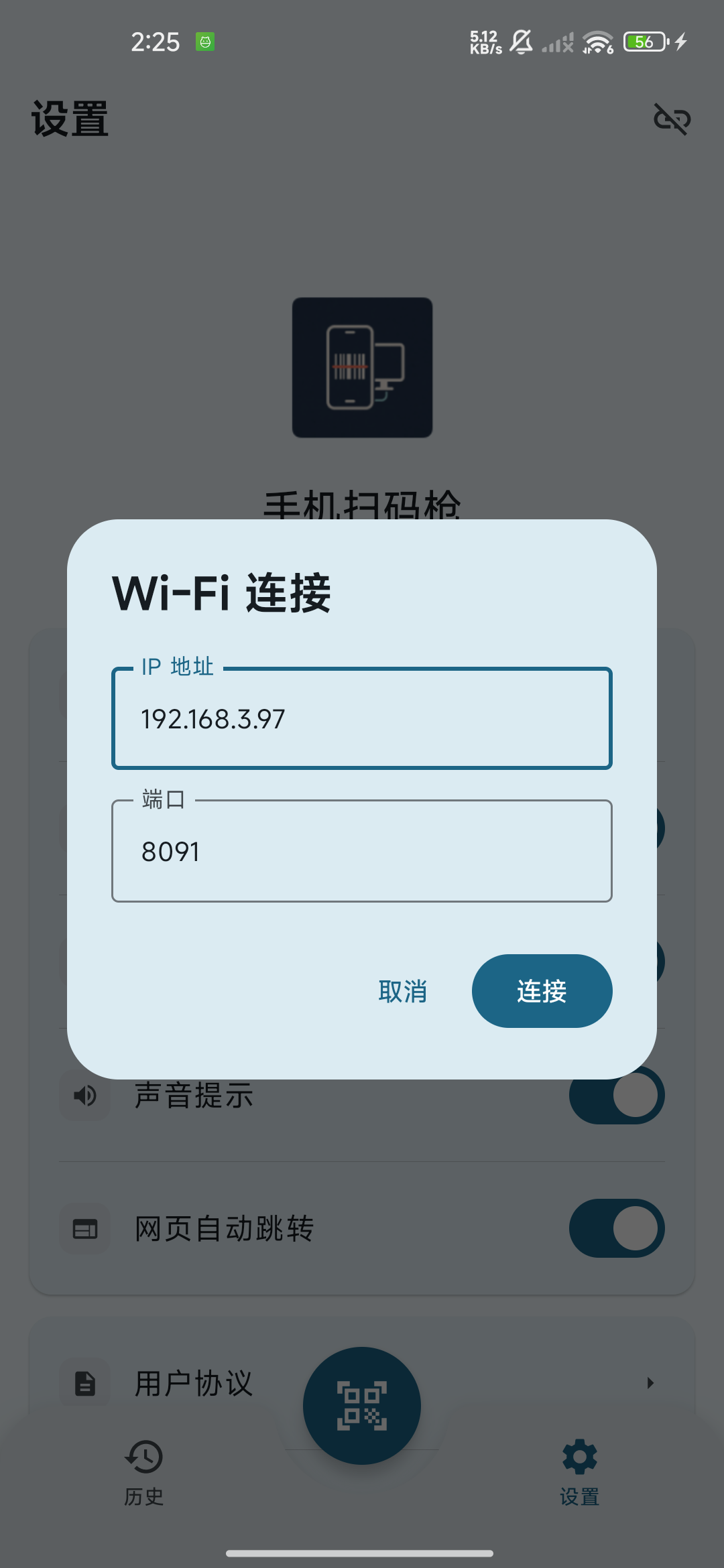
回到历史或设置页,点击链环 →“Wi-Fi 连接”。填写电脑端显示的“IP 地址”和“端口”,点“连接”。如果键盘挡住按钮,先收起键盘。上次成功连接的信息会回填,换电脑后请重新核对。Return to History or Settings, tap the link → Wi-Fi connection, enter the desktop IP address and port and tap Connect. Hide the keyboard if it covers the button. Values from the last successful connection are prefilled, so recheck them when switching computers.
在电脑目标输入框验收Verify the target field on the computer
将光标放入空白文本框或表格单元格,扫描一条测试内容。确认文字、中文和后缀实际进入目标位置。电脑端收到记录但目标框没有输入时,优先检查焦点、辅助功能权限或 Linux 输入工具。Focus a blank text field or spreadsheet cell and scan a test value. Verify the actual text, Unicode content and suffix at the destination. If the desktop receives a record but the field stays empty, check focus, Accessibility permission or Linux input tools first.
相同 Wi-Fi 名称不一定表示设备互通。访客网络、AP 隔离、VPN、多网卡或防火墙可能阻止连接。核对电脑当前 IP、实际端口和运行状态,选择可互通的局域网后重试;无需开放互联网端口。The same Wi-Fi name does not guarantee connectivity. Guest networks, access-point isolation, VPNs, multiple network adapters or firewalls may block it. Recheck the current computer IP, actual port and service state and retry on a reachable local network; no Internet port forwarding is needed.
三种电脑系统的安装、权限和排错细节见 Android Wi-Fi 连接专题。See the Android Wi-Fi guide for installation, permissions and troubleshooting on all three computer systems.
相机扫码与连续录入Camera scanning and continuous entry
让一个条码完整进入画面Place one complete code in view
点击中央扫码按钮,使用后置相机,将完整条形码或二维码放入画面。条形码左右留出空白,避免反光、裁切和过度靠近;保持手机稳定,必要时调整距离或打开“闪光灯”。Tap the center scan button and use the rear camera. Keep the entire barcode or QR code in view, with space around its edges. Avoid glare, cropping and being too close; hold the phone steady and adjust the distance or use the flashlight if needed.
核对最新结果,扫完移开Check the latest result, then move the code away
识别后,扫码页底部出现“最新扫码结果”;可点复制图标,长文本可“展开/收起”。记录保存到历史,有连接时同时尝试输出。App 会停留在扫码页,可继续扫下一个码。扫完请移开上一条码,避免重复记录或重复输入。After recognition, Latest scan result appears at the bottom. Use its copy icon and Expand/Collapse for long text. The app saves the record and attempts output if connected. It stays in the scanner for the next code. Move the previous code out of view to avoid repeat records or repeated typing.
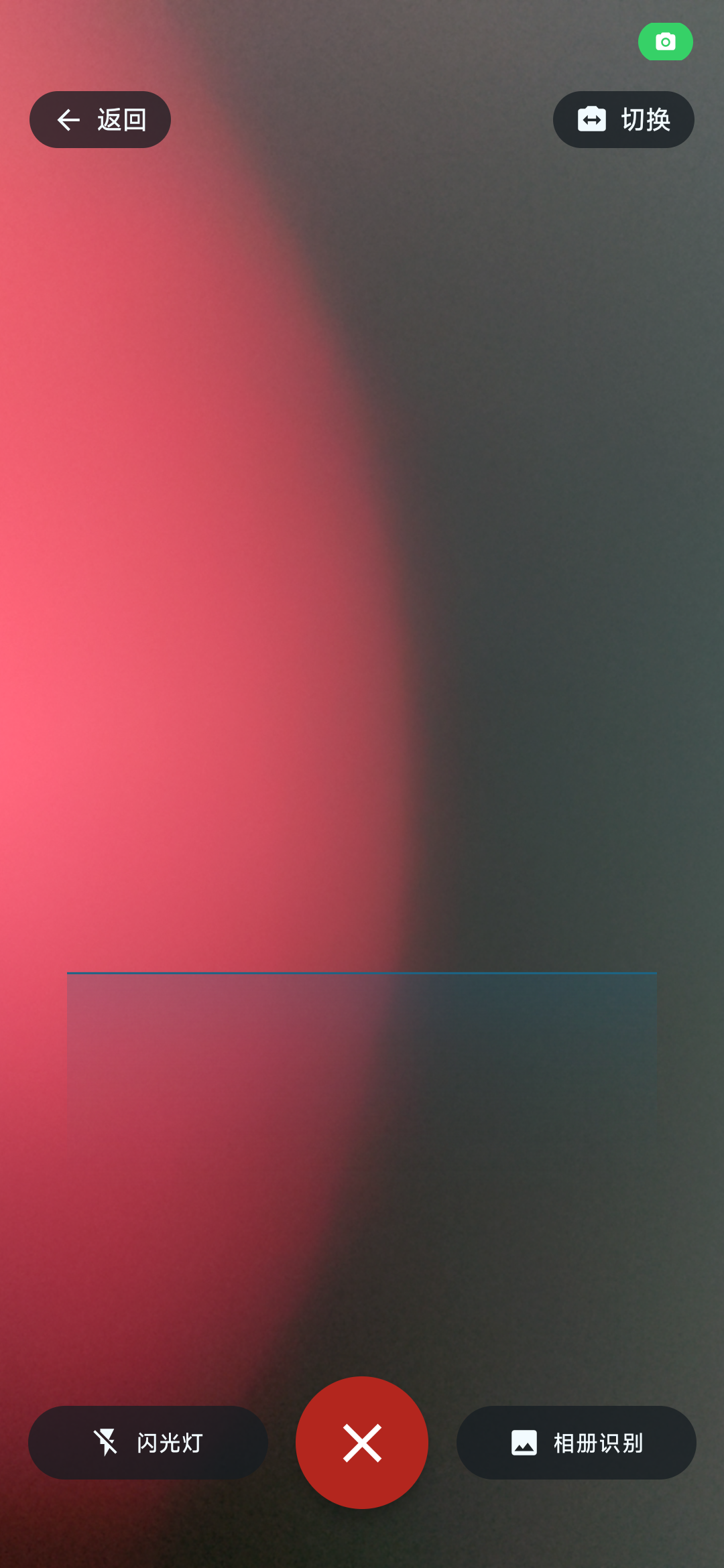
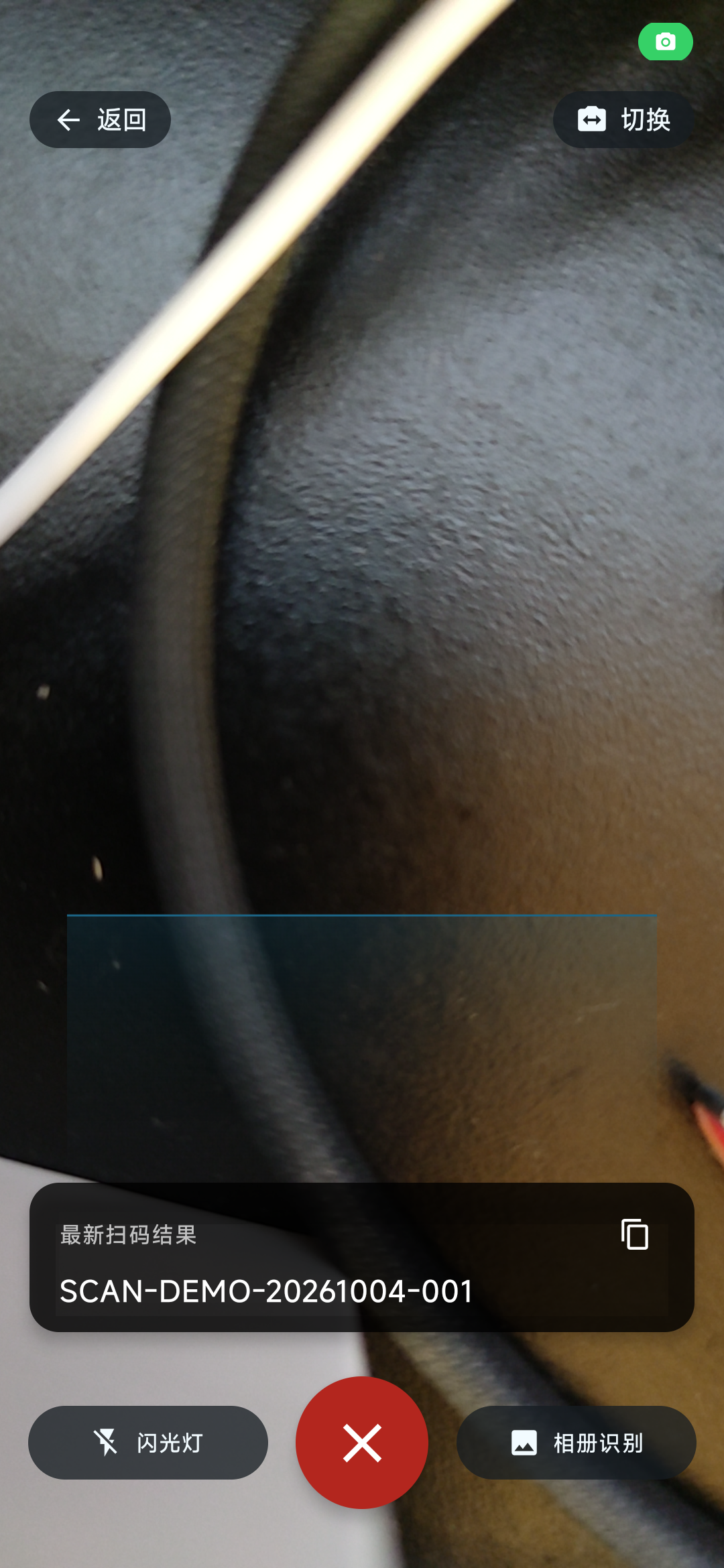
- “切换”用于前后摄像头切换;没有前置摄像头时不可用,前置摄像头模式下闪光灯不可用。Switch changes front/rear cameras. It is unavailable without a front camera; the flashlight is unavailable in front-camera mode.
- 左上“返回”或底部红色关闭按钮退出扫码,返回历史或设置页。Use Back at the top left or the red close button at the bottom to return to History or Settings.
- 短时间内同一码有防抖,但持续留在镜头里仍可能再次识别。防抖不能代替每次扫完移开。The app suppresses very rapid duplicates, but a code left in view may be recognized again. Move it away after each scan.
同一画面有多个码时When multiple codes are in one camera frame
等待冻结画面完成识别Wait for the frozen frame to finish recognition
相机同时发现多个码时自动冻结。先显示“已冻结 · 正在完整识别…”,完成后显示“已冻结 · 请选择一个码(数量)”,各个码位置出现编号框。When the camera finds multiple codes, it freezes the frame. A recognition-in-progress message appears first, followed by a prompt to select one code, with numbered boxes on the detected codes.
点选你需要的一个码Select the one code you want
点击目标码的编号框。只处理被选中的码,随后恢复相机预览。需要换一帧时点击“重新扫描”;冻结状态下常规底部扫码按钮会隐藏。想录入多个商品时,选择一个后再继续扫描下一条。Tap the numbered box on your target code. Only that code is processed, then the live preview resumes. Tap Scan again to discard the frame and try again. The usual bottom controls are hidden while frozen. Select one item and continue scanning for the next.
相机多码会让你选一个;相册选中的单张图片如果含多个可识别码,则会逐个处理全部结果。只想录入其中一个时,优先用相机点选,或先准备仅包含所需条码的图片。The camera lets you select one code. A selected gallery image containing multiple detectable codes processes all results one by one. If you need just one, use camera selection or prepare an image containing only that code.
从相册或截图识别Recognize a gallery image or screenshot
在扫码页点“相册识别”Tap Scan from gallery in the scanner
点击右下角“相册识别”,进入 Android 系统图片选择器。根据系统选择“图片”“相册”或文件来源,找到含有条码的原图或截图,点击一张图片。一次只选择一张;返回或取消则不处理。Tap Scan from gallery at the bottom right to open the Android image picker. Choose Images, Gallery or the appropriate source, find the original image or screenshot and select one image. One image is selected at a time; backing out cancels recognition.

核对结果数量与输出位置Check the results and output destination
系统返回后,App 识别该图片中的条形码和二维码,逐个处理并保存普通结果;已连接时也会尝试发送,请在电脑逐条核对。重复内容可能受短时防抖影响。多码图片不会弹出相机那样的点选框。回到“历史”核对每条记录;扫码页的“最新扫码结果”只展示最新一条。After selection, the app recognizes barcodes and QR codes in the image and processes normal results individually for saving. If connected, it also attempts output; check each result on the computer. Duplicate content may be suppressed by the short debounce period. Gallery images do not show the camera selection boxes. Check each record in History; Latest scan result displays only the latest one.
优先使用清晰原图,保留条码四周空白,避免压缩、过小或裁切。提示“未识别到二维码”时也可能是条形码不清晰;提示“无法解码图片”时换一张有效图片重试。此流程使用系统选图,不需要给 App 访问整个相册的存储权限。Use a clear original image, keep space around the code and avoid compression, tiny images or cropping. The no-QR-code message can also mean a barcode was unreadable. If decoding fails, try another valid image. The system picker does not require access to the entire photo library.
搜索、复制与删除历史Search, copy and delete history
搜索你要处理的记录Search for the records you need
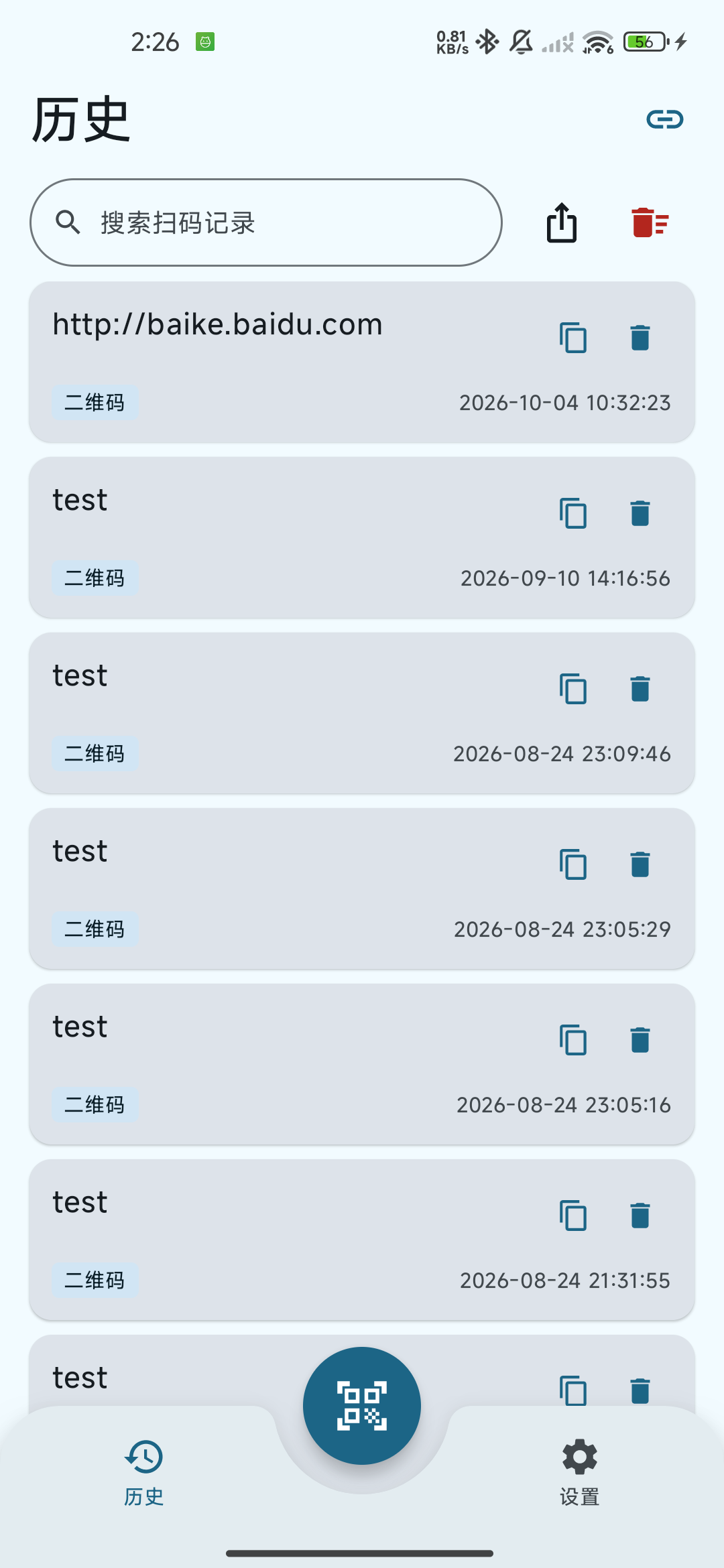
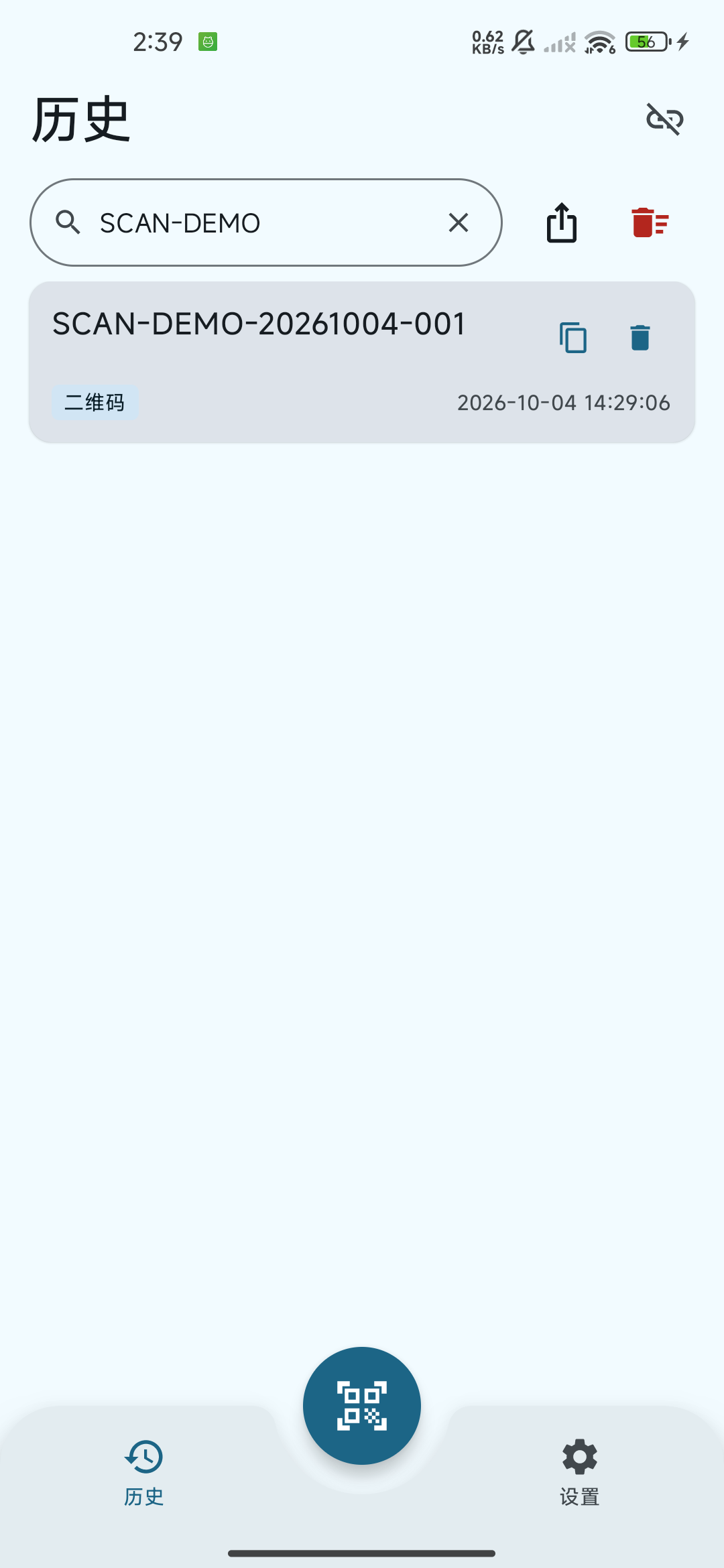
回到“历史”,在“搜索扫码记录”输入条码内容、关键词或码类型,列表随输入筛选。清除搜索内容可回到全部记录。记录包含内容、条码/二维码类型和识别时间,按最新在前显示。Return to History and type code content, a keyword or a code type in Search scan records. The list filters as you type. Clear the query to restore all records. Each record shows content, barcode/QR type and recognition time, newest first.
复制原文;删除前核对目标Copy the original text; check before deleting
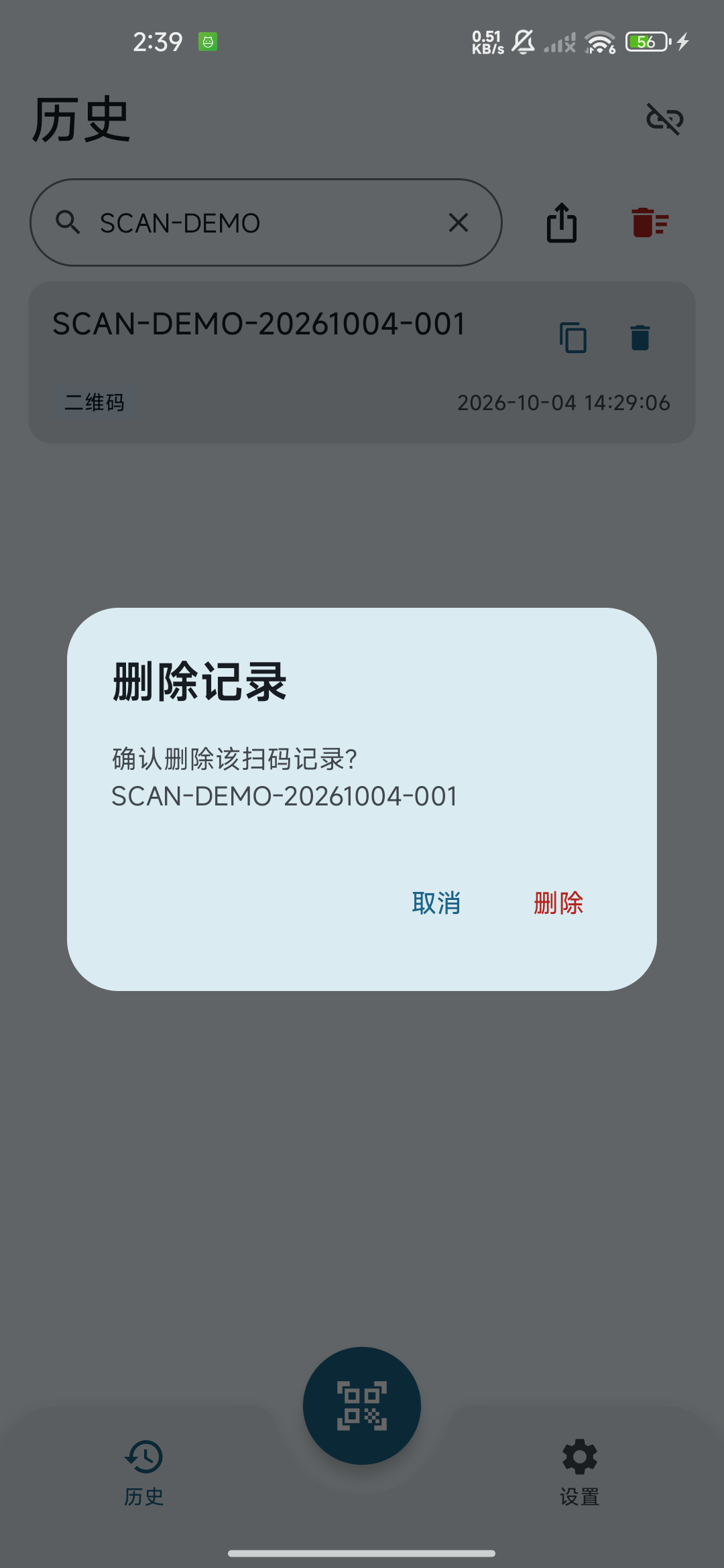
点记录右侧复制图标可复制内容,再到目标位置粘贴。点击删除图标打开“删除记录”确认,核对内容后才删除;选“取消”保留记录。当前历史页没有重发按钮,需要再次录入电脑时可重新扫描。Tap the copy icon on a record to copy its content, then paste at your destination. The delete icon opens a Delete record confirmation; verify the target before deleting, or cancel to keep it. History currently has no resend button; scan again if you need another computer entry.
“清空全部”的范围要特别核对Check the scope of Clear all
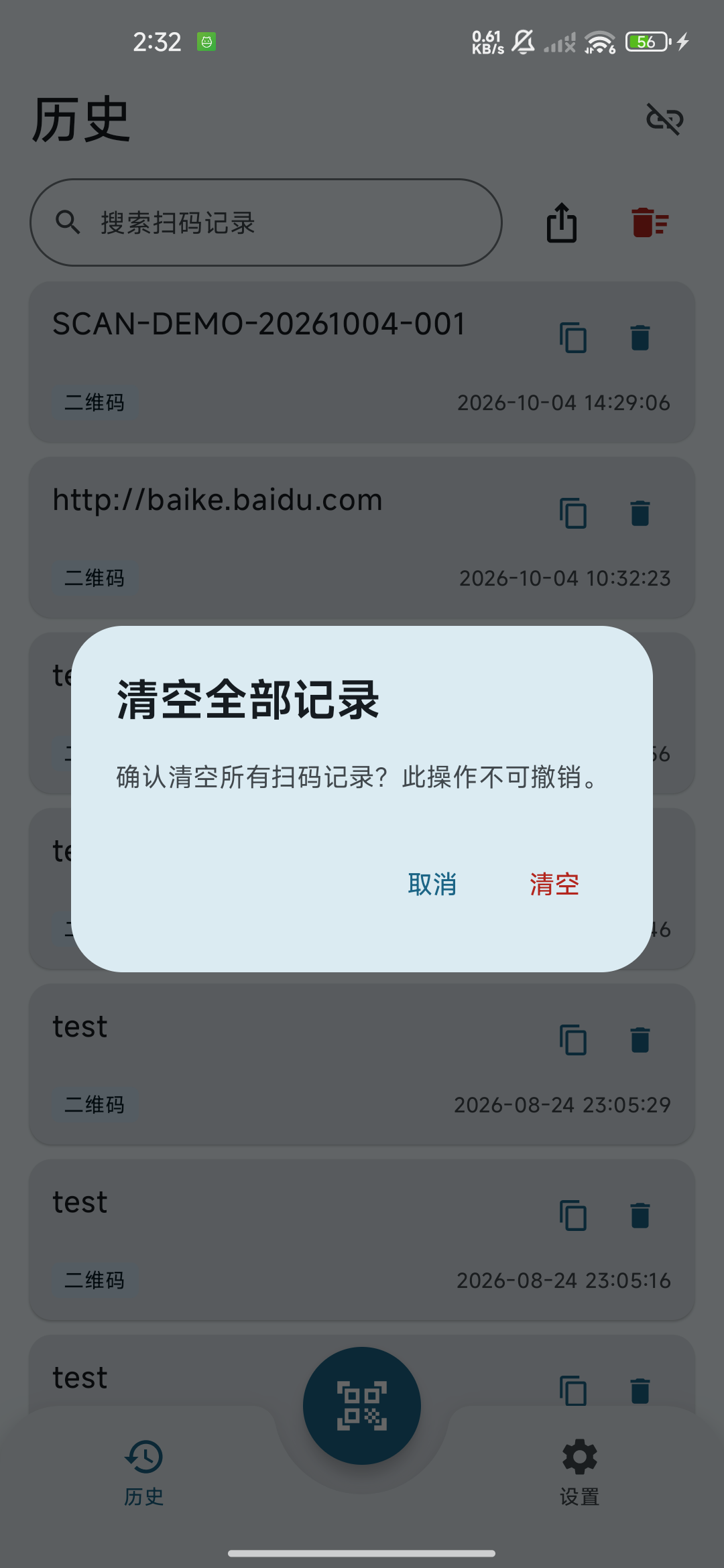
列表顶部可点“清空全部”;向下滚动后,导出和清空入口可能收进搜索栏右侧“更多”菜单。清空全部会打开确认弹窗,即使正在搜索,也会删除全部历史,不只是当前匹配记录。需要保留数据时先导出,或选择逐条删除。Use Clear all at the top of the list. After scrolling, export and clear may move into More beside the search box. Clear all asks for confirmation and deletes the complete history even when a search is active. Export first if you need a copy, or delete individual records instead.
导出 CSV 或 Excel 表格Export CSV or an Excel-readable table
勾选“记住选择,不再提示”并点“继续”,以后搜索时会直接按所选范围进入格式选择;取消范围对话框不会导出,也不会保存本次选择。记住的范围只作用于搜索中的列表,无搜索时仍导出全部。需要修改或恢复提示时,到“设置 → 搜索时导出范围”选择“每次询问”“全部记录”或“搜索结果”。已记住“搜索结果”但本次无匹配时会提示无法导出,不会改为全部记录。Check Remember my choice and don’t ask again and tap Continue to use that scope directly during future searches. Cancelling the scope dialog neither exports nor saves the choice. A remembered scope applies only while searching; without a filter, all history is exported. Use Settings → Export scope while searching to choose Ask every time, All records or Search results. A remembered Search results scope with no matches reports that nothing can be exported instead of switching to all records.
先决定导出的范围Choose the export scope first
没有搜索条件时直接选择 CSV 或 Excel,导出全部历史。有搜索条件时,先在“选择导出范围”中选择“全部记录”或“搜索结果”,核对记录数,再点“继续”选择格式。导出包含所选范围内的所有记录,不限于屏幕上可见的几条;CSV 与 Excel 使用相同范围。Without a search filter, choose CSV or Excel to export all history. With a filter, use Choose export scope to select All records or Search results, check the counts, then tap Continue to choose a format. Every record in the chosen scope is included, including rows outside the screen. CSV and Excel use the same scope.
点击导出图标,选择格式Tap export and choose a format
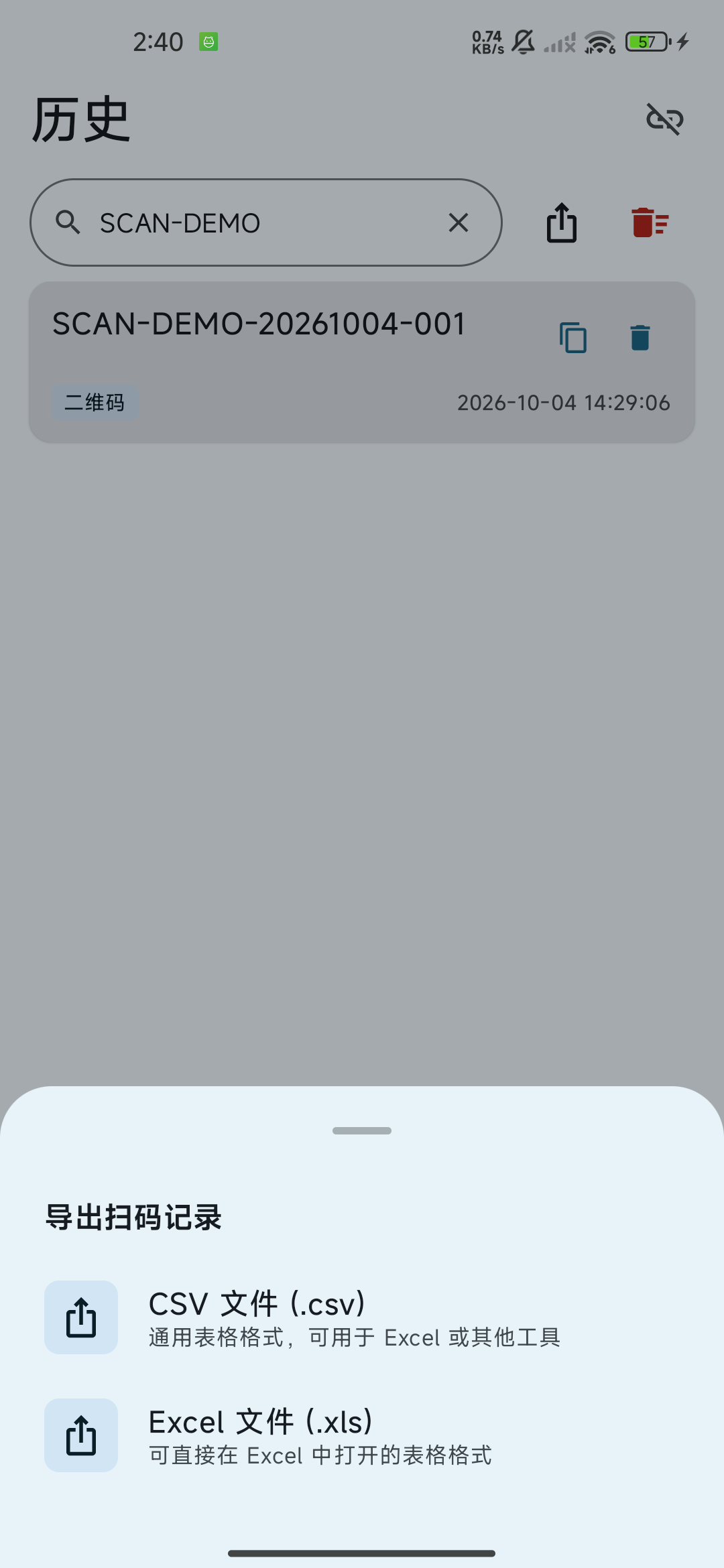
点历史页的导出图标(入口收起时从“更多”打开)。搜索中先确认导出范围,再选择“CSV 文件 (.csv)”或“Excel 文件 (.xls)”。没有任何历史时无法导出;搜索无匹配时仍可明确选择“全部记录”,不会生成空的搜索结果文件。Tap the export icon in History, or open it from More if collapsed. During a search, confirm the export scope before choosing CSV file (.csv) or Excel file (.xls). Empty history cannot be exported. With no search matches, you can explicitly choose All records; no empty search-results file is created.
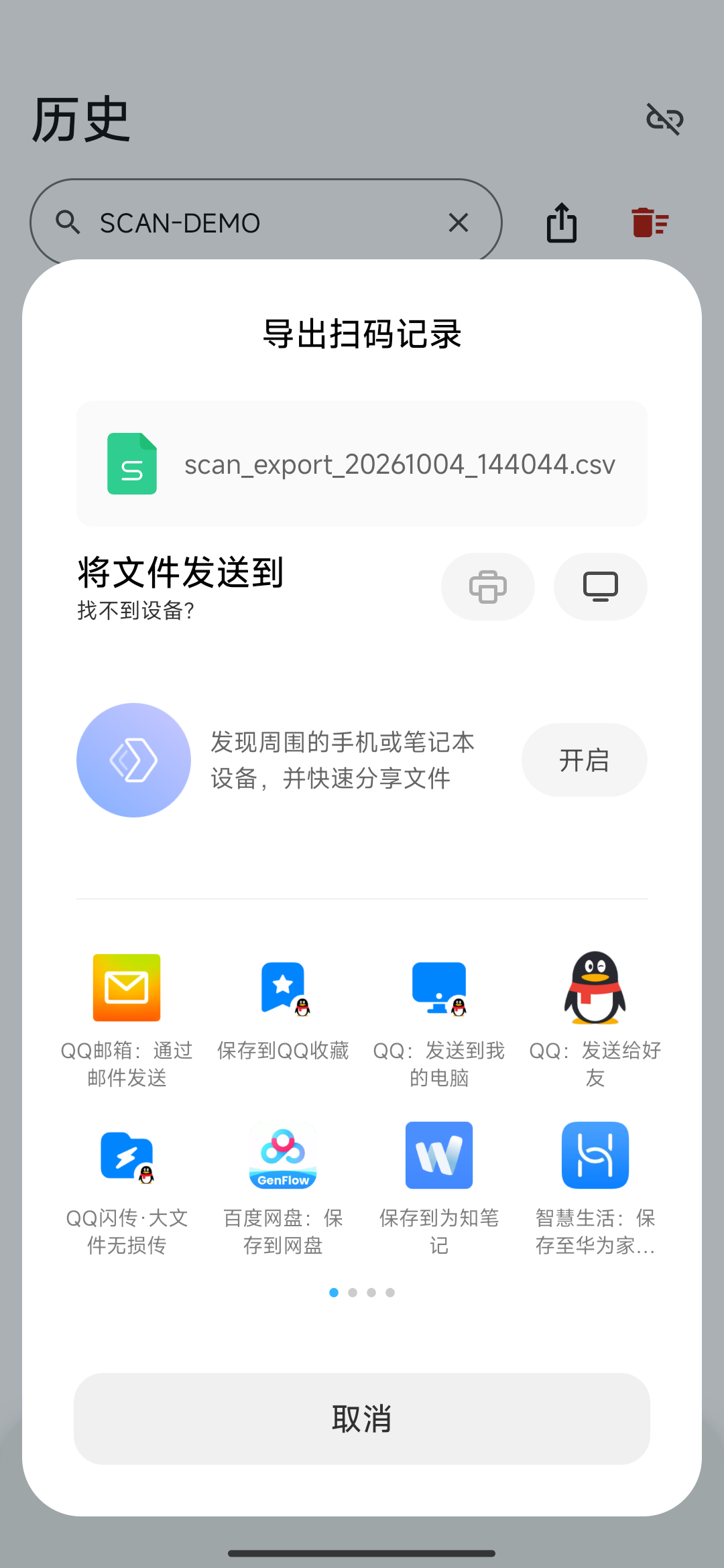
在系统面板选择保存或分享目标Choose a save or share destination in the system sheet
在系统分享面板选择你要使用的文件保存、文档或分享应用,再按该应用提示完成。手机扫码枪本身没有选择保存路径的页面;取消分享不代表已经保存了一份文件。Choose your file-saving, document or sharing app in the system sheet, then complete its flow. Scan Input has no built-in save-path page. Cancelling the share sheet does not confirm that a file was saved.
打开文件,核对列和记录数Open the file and check columns and count
在电脑或表格应用中打开导出文件,核对“序号、内容、格式、时间”四列,以及记录数和中文显示。CSV 导入时可将商品编号等列设为文本,避免前导零被表格当作数字去掉。Open the exported file on a computer or in a spreadsheet app. Check the No., Content, Format and Time columns, row count and Unicode text. When importing CSV, set product-code columns to text to preserve leading zeros.
当前 .xls 是 Excel 可打开的 HTML 表格,不是 .xlsx 工作簿。表格软件可能提示文件格式与扩展名不一致;核对文件来自你刚刚的导出后,按软件提示打开,或改用 CSV。不要把这个导出当作原生 .xlsx。The current .xls file is an HTML table readable by Excel, not an .xlsx workbook. A spreadsheet app may warn that its format and extension differ. Check that it is your export, follow the app’s opening prompt, or use CSV. It is not a native .xlsx file.
更多扫描与文件处理细节见 Android 扫码、历史与导出专题。See the Android scanning, history and export guide for further details.
遇到问题按现象排查Troubleshoot by symptom
相机黑屏或无法扫码Camera preview is black or scanning fails
确认相机权限已允许,退出扫码再进入;清洁镜头,换到光线均匀的环境,让条码完整、清晰地进入画面。Check camera permission, reopen the scanner, clean the lens and use even light with the full code clearly visible.
蓝牙列表没有我的电脑My computer is missing from Bluetooth
列表只显示已配对设备。滚动到底部打开帮助,按 Mac 或 Windows 对应流程配对;Android 12 及以上还需允许附近设备权限。The list contains paired devices. Open help at the bottom and follow the Mac or Windows pairing flow. Android 12+ also needs Nearby devices permission.
电脑蓝牙已连接,App 仍未连接Computer Bluetooth is connected but the app is not
普通蓝牙连接不等于 HID 通道。Windows 按“连接状态异常修复”检查绑定、发布服务和重配;Mac 完成系统配对后回 App 点击电脑名称。An ordinary Bluetooth link is not the HID channel. On Windows, use repair to check binding, publish the service and pair again. On Mac, finish system pairing and tap the computer in the app.
有历史记录,电脑没有文字The record is saved but the computer has no text
先确认 App 链环已连接、电脑光标在目标框。HID 含中文等不支持字符时改用 Wi-Fi;Wi-Fi 已收到但不输入时检查电脑输入权限。Check the app connection and focus the target field. Use Wi-Fi for characters unsupported by HID. If Wi-Fi receives records but does not type, check desktop typing permission.
Wi-Fi 连接失败Wi-Fi connection fails
确认桌面端服务运行、当前 IP 和端口正确;手机与电脑应互通,检查访客网络、隔离、VPN、多网卡和防火墙。电脑换网络后刷新 IP,重新扫码连接。Check the service, current IP and port, network reachability, guest-network isolation, VPNs, adapters and firewall. After the computer changes networks, refresh its IP and scan the connection QR again.
换电脑或切换连接方式Switch computers or connection mode
点击已连接的链环,查看当前目标后点“断开”,再选择新连接。扫码识别新的 Wi-Fi 连接二维码时也可按确认弹窗切换;当前只使用一种输出连接。Tap the connected link, inspect the target and disconnect before choosing a new connection. A new Wi-Fi connection QR can also switch the target through its confirmation. Only one output connection is active.
一条码被重复录入A code is entered repeatedly
短时防抖不能阻止长时间留在画面的码再次识别。扫完立即移开,核对电脑结果;多码场景按编号选择,避免不断对准同一码。Rapid-duplicate suppression does not stop recognition of a code left in view. Move it away after scanning and check the computer result. Use numbered selection for multi-code frames.
开启声音但没有提示音Sound is enabled but silent
检查系统通知音量、静音和勿扰状态;App 内声音开关已开启不代表系统音量可听。Check notification volume, silent mode and Do Not Disturb. An enabled app sound switch does not guarantee audible system volume.
导出记录比预期少或没有文件Export has fewer rows or no saved file
检查本次或记住的导出范围。需要完整历史时选择“全部记录”;要重新显示范围确认,到“设置 → 搜索时导出范围”改为“每次询问”。完成系统分享或保存流程后,到目标位置确认文件;仅关闭面板不算保存成功。Check the chosen or remembered export scope. Choose All records for a complete history, or restore Ask every time in Settings → Export scope while searching. Complete the destination save/share flow and verify the file there; closing the sheet does not save it.
安装并允许相机 → 选择后缀 → 用一种方式连接电脑 → 将光标放入目标框 → 扫一条示例码并核对文字 → 在历史搜索这条记录 → 导出并打开文件核对四列。完成后按需要断开连接。Install and allow the camera → choose a suffix → connect one computer → focus the target field → scan and verify a sample → find it in History → export and open the file to check all four columns. Disconnect when finished if desired.
仍有问题可访问技术支持,提供手机型号、Android 版本、App 版本、连接方式,以及 App 的具体提示,便于定位问题。If the issue persists, visit Support and provide the phone model, Android and app versions, connection mode and exact app message.