CONNECT · BLUETOOTH HID

蓝牙 HID:连接与平台支持。Bluetooth HID: setup and support.

Android 与具备系统能力的鸿蒙设备可作为电脑键盘;iOS 版使用 Wi-Fi。选择平台,查看对应配对、限制和替代路线。Android and capable HarmonyOS devices can act as a computer keyboard; iOS uses Wi-Fi. Choose a platform for its pairing flow, limits and alternative route.

选择与你的手机一致的平台;切换后显示该平台的完整专题步骤。Choose your phone platform to see its complete topic instructions.

开始前:确认 Android 与目标电脑

Before you start: Android and the target computer

  • Android 版手机扫码枪已安装并完成首次协议确认。蓝牙 HID 要求 Android 9 及以上;Android 6~8 使用 Wi-Fi。 Install the Android app and accept its first-launch agreement. Bluetooth HID requires Android 9 or later; on Android 6–8 use Wi-Fi.
  • 手机和电脑开启蓝牙,电脑支持蓝牙键盘。HID 不需要安装或启动手机扫码枪 PC 端。 Enable Bluetooth on both devices. The computer must support Bluetooth keyboards. HID does not require the Scan Input desktop client.
  • 先确定目标是 Mac 还是 Windows:Mac 先普通系统配对,Windows 先发布 HID 服务。首次设置保持手机解锁并靠近电脑。 Choose the correct computer path: pair normally first on a Mac; publish HID first for Windows. Keep the phone unlocked and close to the computer during setup.
根据扫码内容选择连接方式 Choose a connection for your content

数字、英文字母和常见英文键盘符号适合 HID。中文、emoji 等非键盘字符使用 Wi-Fi。手机识别成功与电脑实际收到输入,需要分别检查。

HID suits digits, English letters, and common US keyboard symbols. Use Wi-Fi for Chinese, emoji, and other non-keyboard characters. Check recognition on the phone and actual typing on the computer separately.

打开蓝牙 HID 与授予权限

Open Bluetooth HID and grant permission

01

打开右上角连接菜单

Open the connection menu

在“历史”或“设置”页点右上角断开链环图标,选择“蓝牙 HID 连接”。已连接时点闭合链环会显示“断开连接”;要换目标先点“断开”,再打开菜单。

On History or Settings, tap the broken-link icon at the top right and choose Bluetooth HID connection. If already connected, the link opens Disconnect. Disconnect before reopening the menu for another target.
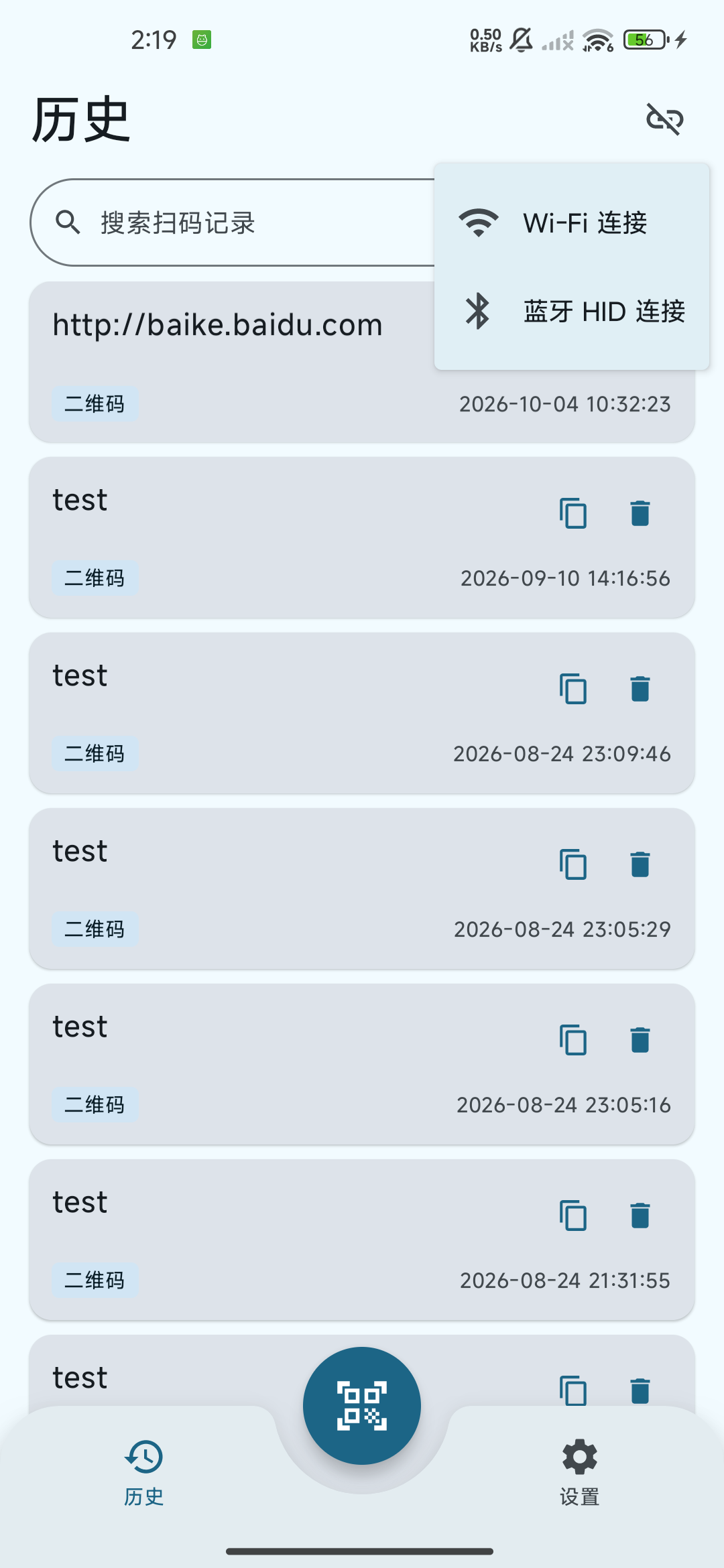
Android connection menu with Wi-Fi and Bluetooth HID options
Android 连接菜单:选择“蓝牙 HID 连接”。 Android connection menu: choose Bluetooth HID connection.
02

允许附近设备访问

Allow nearby-device access

Android 12 及以上会申请蓝牙连接与广播权限,按系统提示允许“附近设备”。曾拒绝时,到系统“设置 → 应用 → 手机扫码枪 → 权限”重新允许,随后返回 App。蓝牙开关需在系统中开启。

On Android 12 or later, allow the requested Nearby devices permission for Bluetooth connection and advertising. If previously denied, enable it in system Settings → Apps → Scan Input → Permissions, then return. Enable the Bluetooth switch in the system.
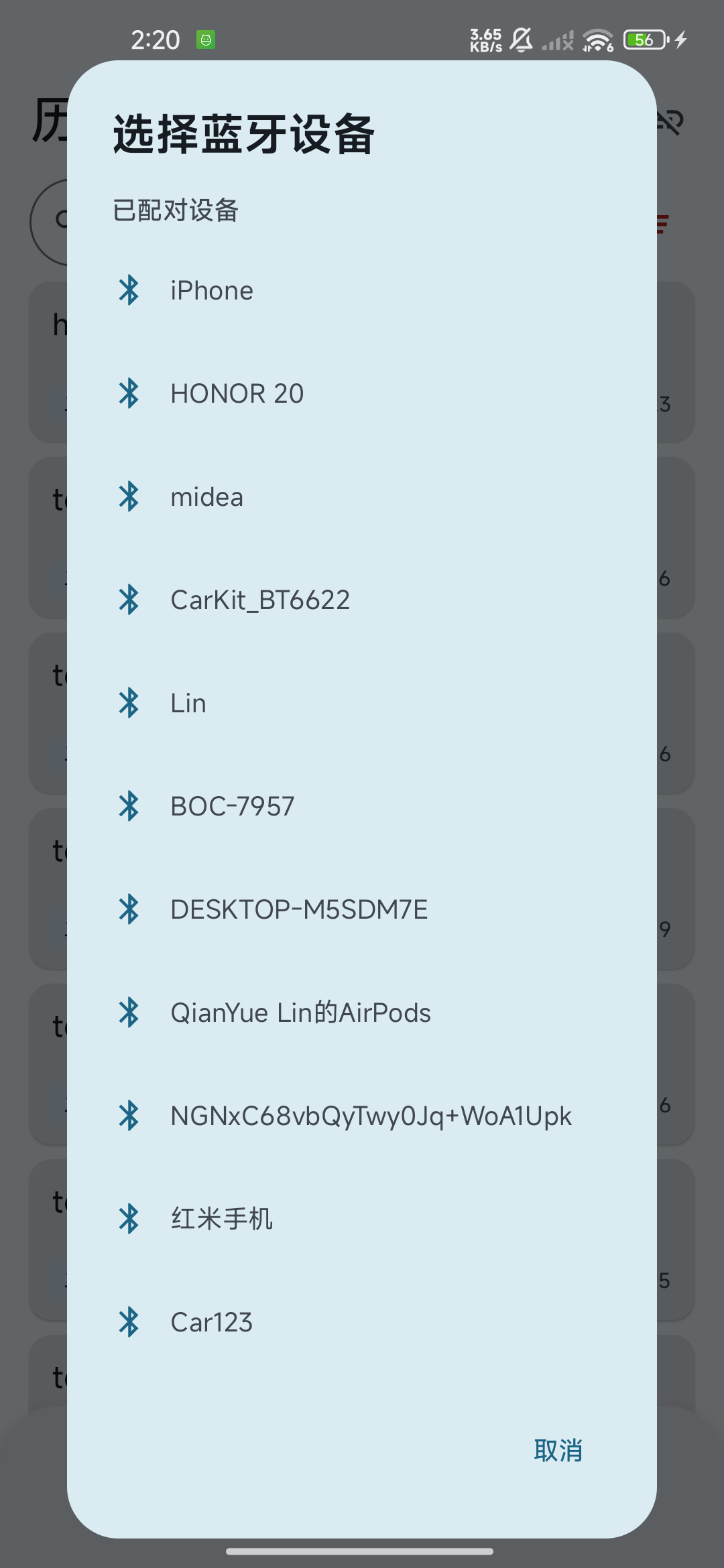
Android paired Bluetooth device picker
“选择蓝牙设备”列出已配对设备;点设备名称直接连接,没有额外“连接”按钮。 Select Bluetooth device lists paired devices. Tap a device name to connect; there is no separate Connect button.

已有目标设备时可先到启用 HID。Windows 已普通配对但 App 未连接时,使用下方 Windows 配对/修复流程。

For a listed target, continue to Enable HID. If Windows is normally paired but the app is disconnected, use the Windows pairing/repair path below.

Mac 首次连接:先普通系统配对

First Mac connection: pair in the system first

M1

选择“开启蓝牙发现/配对”

Start Bluetooth discovery/pairing

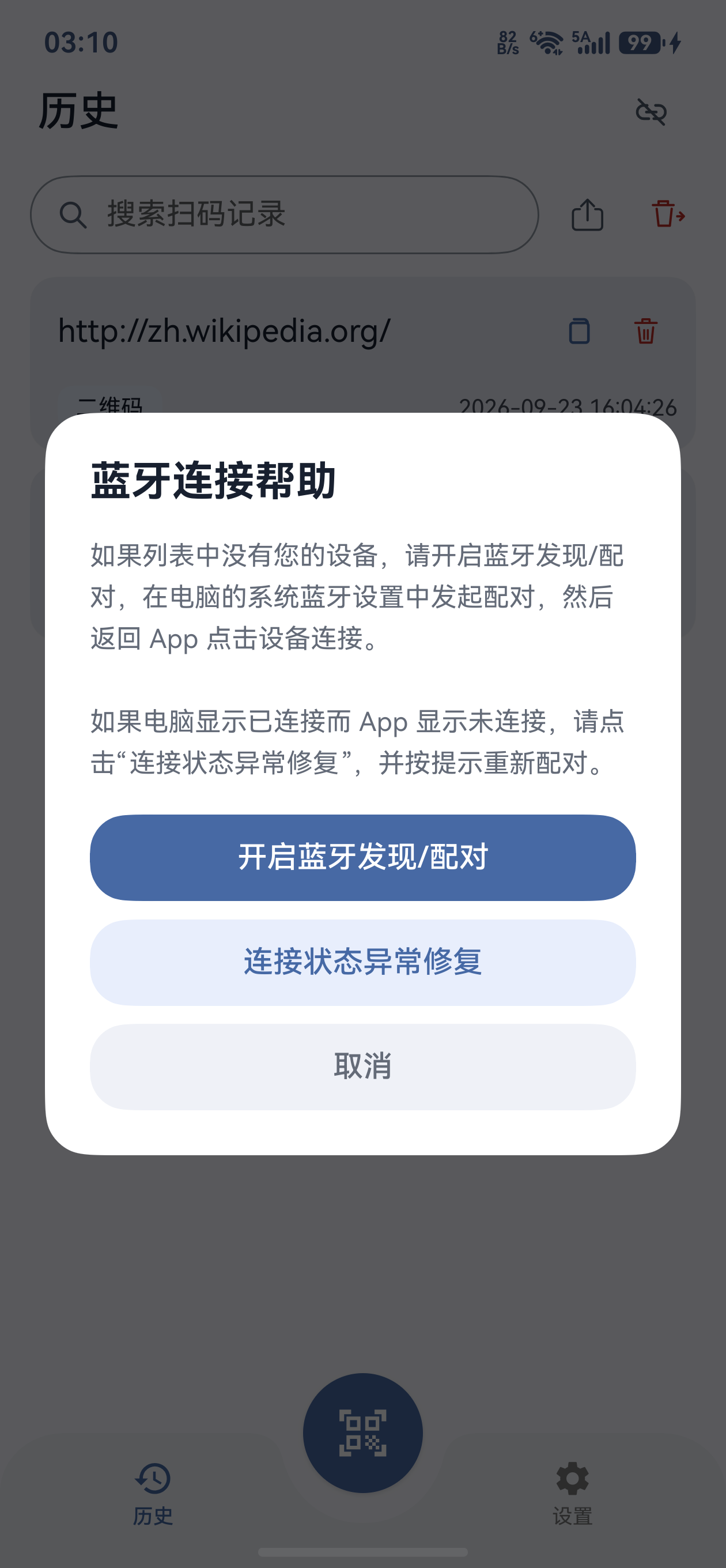
在“选择蓝牙设备”点“没有我的设备或连接异常?”,进入“蓝牙连接帮助”,再点“开启蓝牙发现/配对”。此流程先普通配对,再注册键盘服务。

In Select Bluetooth device, tap Can’t find my device or connection is not working? to open Bluetooth connection help, then Start Bluetooth discovery/pairing. This path pairs normally before registering the keyboard service.
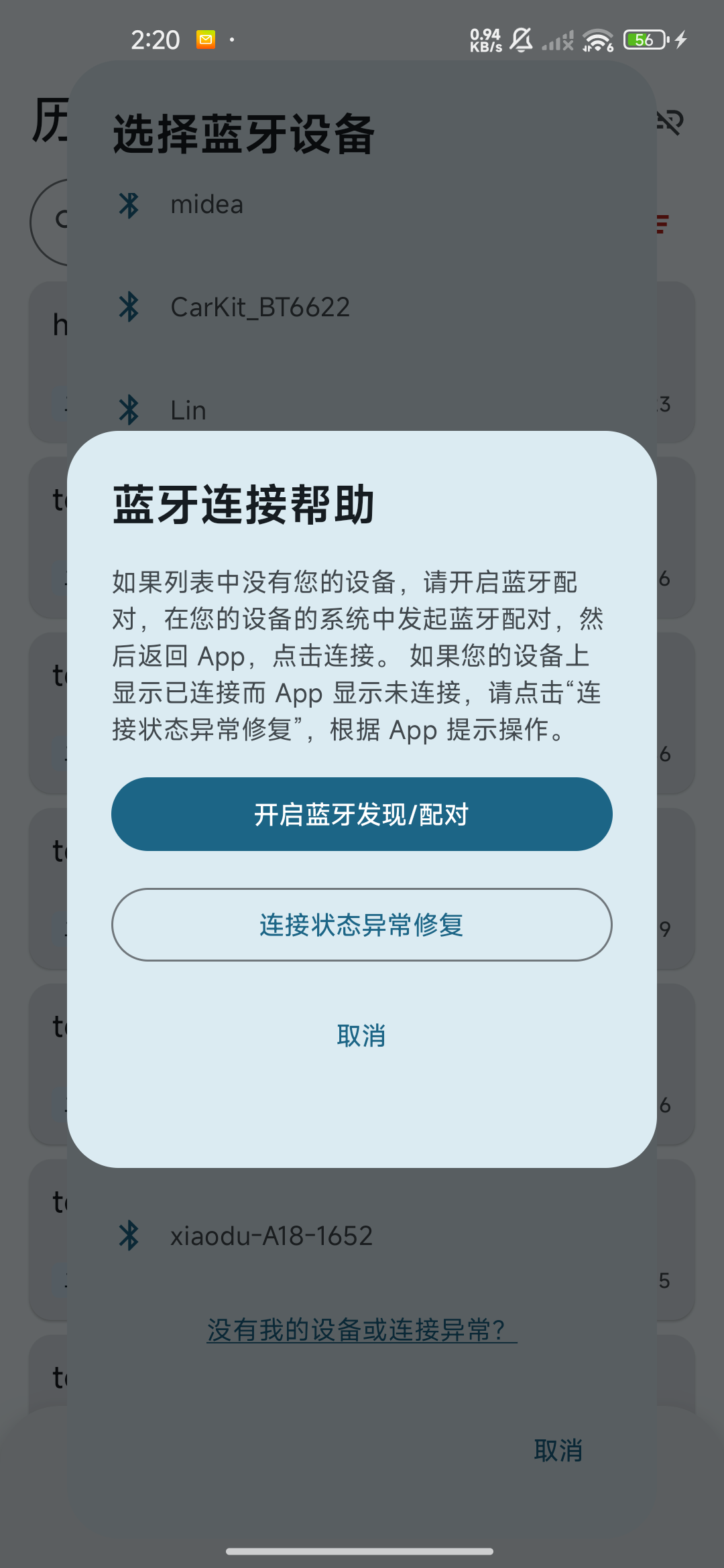
Android Bluetooth connection help showing pairing and repair actions
Mac 首次配对用“开启蓝牙发现/配对”;Windows 用“连接状态异常修复”。 Use Start Bluetooth discovery/pairing for initial Mac pairing and Fix connection problem for Windows.
M2

允许手机临时被发现

Allow temporary discoverability

在系统蓝牙可发现提示中选择允许。App 请求约 5 分钟,以本机系统显示为准;请在时间内从 Mac 发起配对。

Allow the system Bluetooth discoverability prompt. The app requests about five minutes; follow your phone’s displayed duration and start pairing from the Mac within that time.
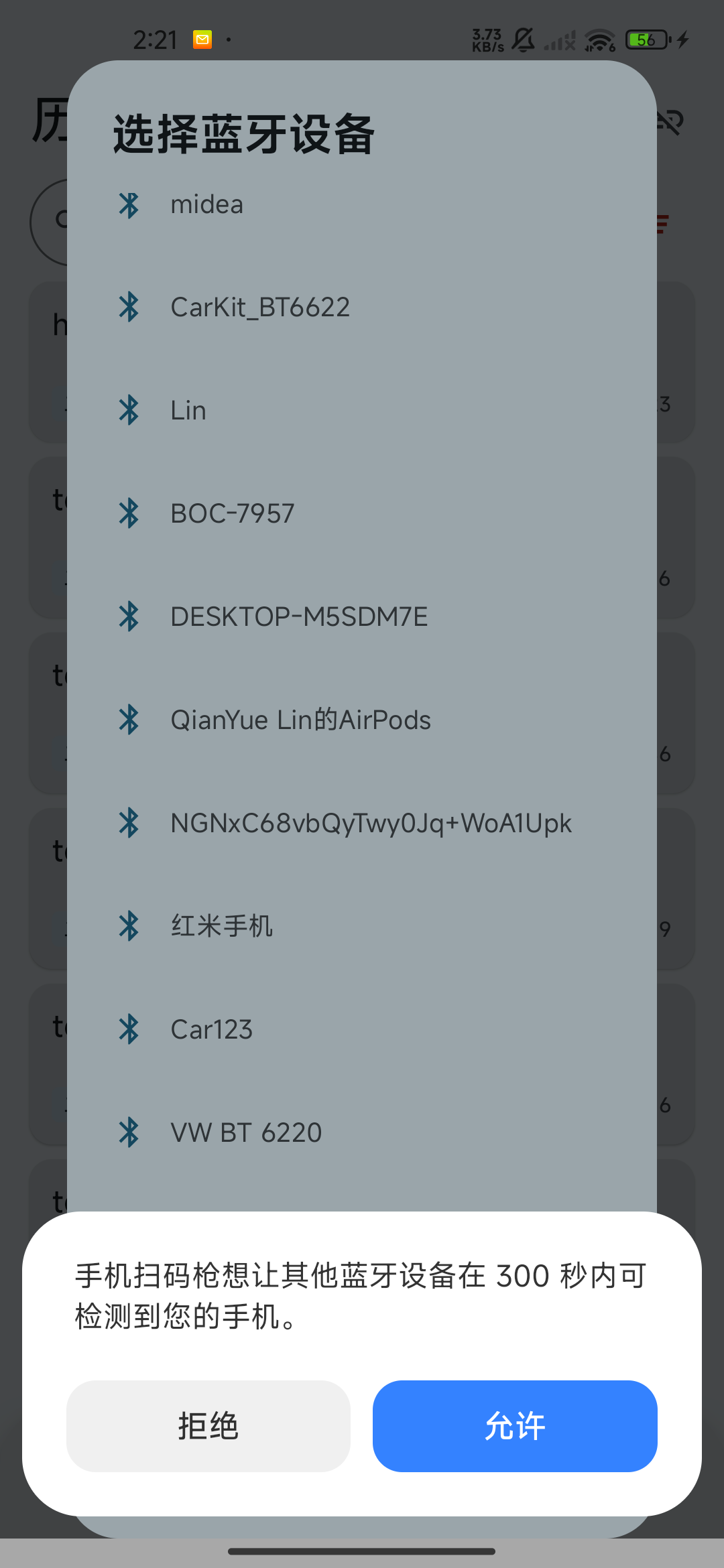
Android system Bluetooth discoverability prompt
系统弹窗会随手机品牌和 Android 版本不同;允许后到电脑蓝牙设置配对。 The system dialog varies by Android version and manufacturer. Pair from the computer after allowing discovery.
M3

从 Mac 配对,并在两端确认

Pair from the Mac and confirm on both devices

打开 Mac“系统设置 → 蓝牙”,找到手机蓝牙名称并点“连接”。核对系统配对提示,在手机和电脑两端确认;设备名称以手机蓝牙设置为准。

Open System Settings → Bluetooth on the Mac, find the phone’s Bluetooth name, and click Connect. Check and confirm the pairing prompts on both devices. Use the name in your phone’s Bluetooth settings.

Mac 要求在“键盘上输入验证码”时 If the Mac asks to type a pairing code on the keyboard

首次配对前发布 HID 键盘可能导致 Mac 要求手机输入验证码,但此时尚不能发送 HID 按键。取消失败配对,在两端移除失败设备,再按“开启蓝牙发现/配对”普通配对,完成后才到 App 点电脑名称。

Publishing keyboard HID before the initial pairing can make the Mac request a code typed by the phone, while HID cannot send keys yet. Cancel the attempt, remove the failed pairing on both devices, repeat normal discovery/pairing, and select the computer in the app only afterward.

Windows 首次配对与连接异常修复

Windows initial pairing and connection repair

Windows 系统“已连接”可能只有普通蓝牙链路,并没有 HID 键盘通道。首次连接及“电脑已连接、App 未连接”都按以下顺序:先发布 HID 服务,再从 Windows 重新配对。

Windows may show Connected for an ordinary Bluetooth link without a HID keyboard channel. For initial setup or a system connection the app does not recognize, publish HID first and then pair again from Windows.

W1

进入“连接状态异常修复”

Start Fix connection problem

如 App 已有连接先“断开”。重新进入“蓝牙 HID 连接 → 没有我的设备或连接异常? → 连接状态异常修复”,等待“正在检查 HID 绑定状态…”完成。

Disconnect an existing app connection first. Open Bluetooth HID connection → Can’t find my device or connection is not working? → Fix connection problem, and wait for the HID binding check.

W2

根据绑定提示处理两端旧配对

Follow the binding result and clear stale pairing

提示“本机 HID 绑定到了‘设备名’”时,在 Android 系统蓝牙页和目标电脑中移除旧配对,回 App 再点一次修复。提示“本机 HID 没有绑定设备”时,按提示清除两端旧配对,并允许系统可发现;App 此时已发布服务等待目标设备。

If HID is bound to a named device, remove the old pairing on both the Android phone and target computer, then run repair again. If no device is bound, follow the instruction to clear old pairings on both sides and allow discoverability; the service is published and waiting for a host.

W3

从 Windows 重新添加手机

Add the phone again from Windows

在 Windows 蓝牙设置选择“添加设备 → 蓝牙”,找到手机,按两端提示完成新配对。保持 App 在前台等待,最长约 5 分钟;超时请重新开启修复。Windows 10/11 的设置文字可能略有区别。

In Windows Bluetooth settings, choose Add device → Bluetooth, select the phone, and confirm the new pairing on both devices. Keep the app in the foreground while it waits up to about five minutes. Restart repair if it times out. Labels differ slightly between Windows 10 and 11.

入站 HID 建立后设备选择框会自动关闭;若未连接,按绑定/超时提示继续处理。不要只依据 Windows 的“已配对”或“已连接”判断手机已经能输入。

An incoming HID connection closes the device picker automatically. Otherwise follow the binding or timeout message. Windows showing Paired or Connected alone does not prove that phone typing is ready.

启用 HID 并核对状态

Enable HID and inspect the connection

03

点击已配对电脑名称

Tap the paired computer

Mac 普通配对完成后回“选择蓝牙设备”,等列表刷新,点击电脑名称。已有配对的设备也可直接点名称。选择框关闭后右上角转圈,请等待结果;Windows 修复若已自动建立连接,无需重复点选。

After normal Mac pairing, return to Select Bluetooth device, wait for the list to refresh, and tap the computer name. Existing pairings can also be selected directly. Wait for the top-right progress indicator. If Windows repair connected automatically, do not repeat selection.
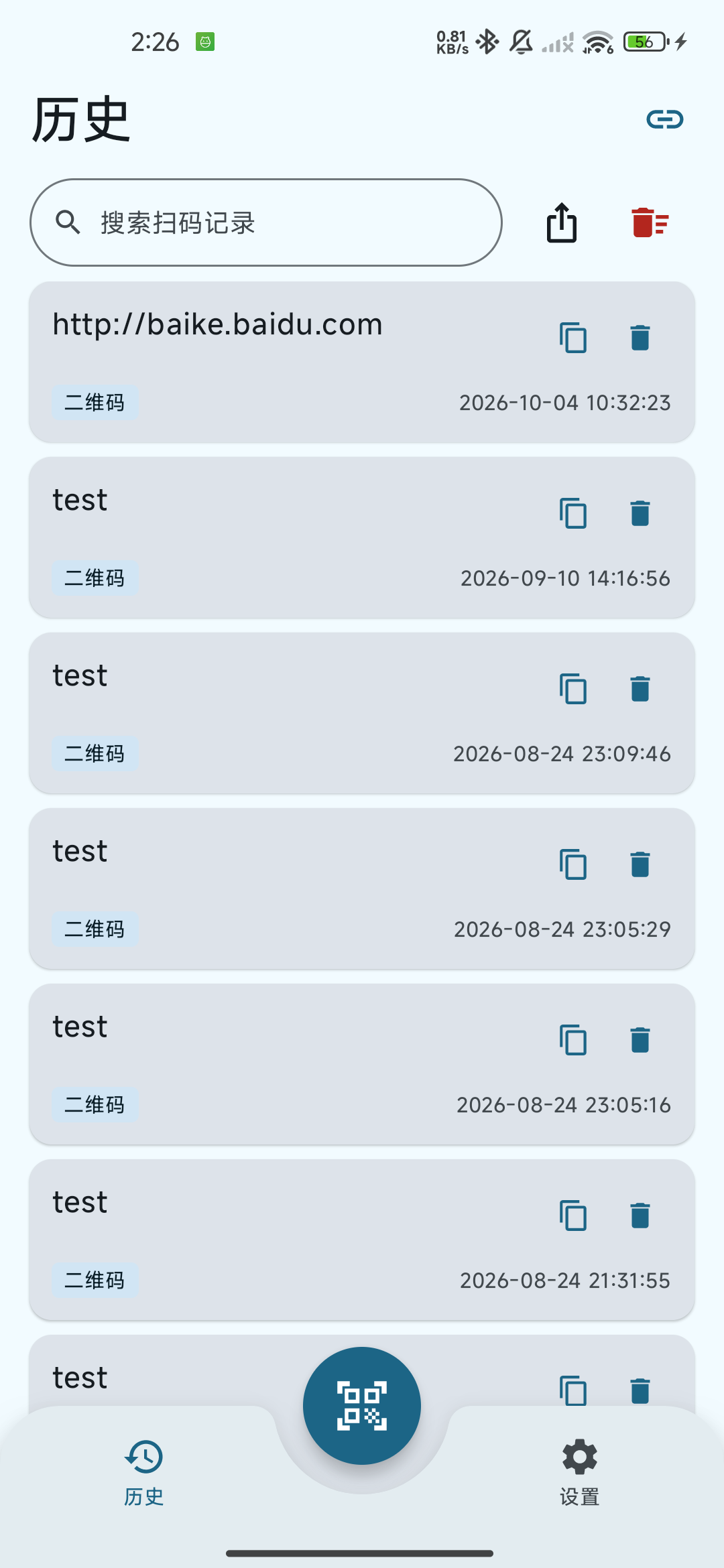
Android Bluetooth HID connected state dialog
点闭合链环可核对“蓝牙 HID 已连接(设备名)”,并选择断开或取消。 Tap the connected link to inspect Bluetooth HID connected (device name), then Disconnect or Cancel.
连接后还要验证实际输入 Check actual typing after connecting

App“连接成功”提示和闭合链环表示连接已建立。随后在电脑普通文本编辑器中扫描一个已知内容的条码,核对文本与后缀。截图说明操作界面,实际输入以你的电脑测试为准。

Connected and the closed-link icon indicate an app connection. Scan a known code into a plain text editor and compare its text and suffix. Screenshots illustrate the interface; verify actual typing on your own computer.

先选择电脑输入位置,再扫码

Focus the computer field, then scan

04

点选可编辑输入框或单元格

Focus an editable field or cell

在电脑文本编辑器、表格或业务系统中单击要录入的位置,使用合适的英文输入状态/US 键盘布局。HID 发出键盘按键,目标输入法与键盘布局影响最终文字。

Click the intended field in an editor, spreadsheet, or business app. Use a suitable English input state and US keyboard layout. HID sends physical keys; the receiving layout and input method affect the resulting characters.

05

打开手机“扫码”并对准条码

Open Scan and point at a code

点手机底部中央“扫码”,首次按提示授权相机。让条形码或二维码完整清晰地出现在镜头内。识别后显示“最新扫码结果”,同时保存历史并尝试向电脑输入;相机页保持打开,可继续扫下一条。

Tap Scan at the bottom center and grant camera access when prompted. Keep the full barcode or QR code in focus. The app shows Latest scan result, saves history, and attempts computer typing. The scanner stays open for further codes.
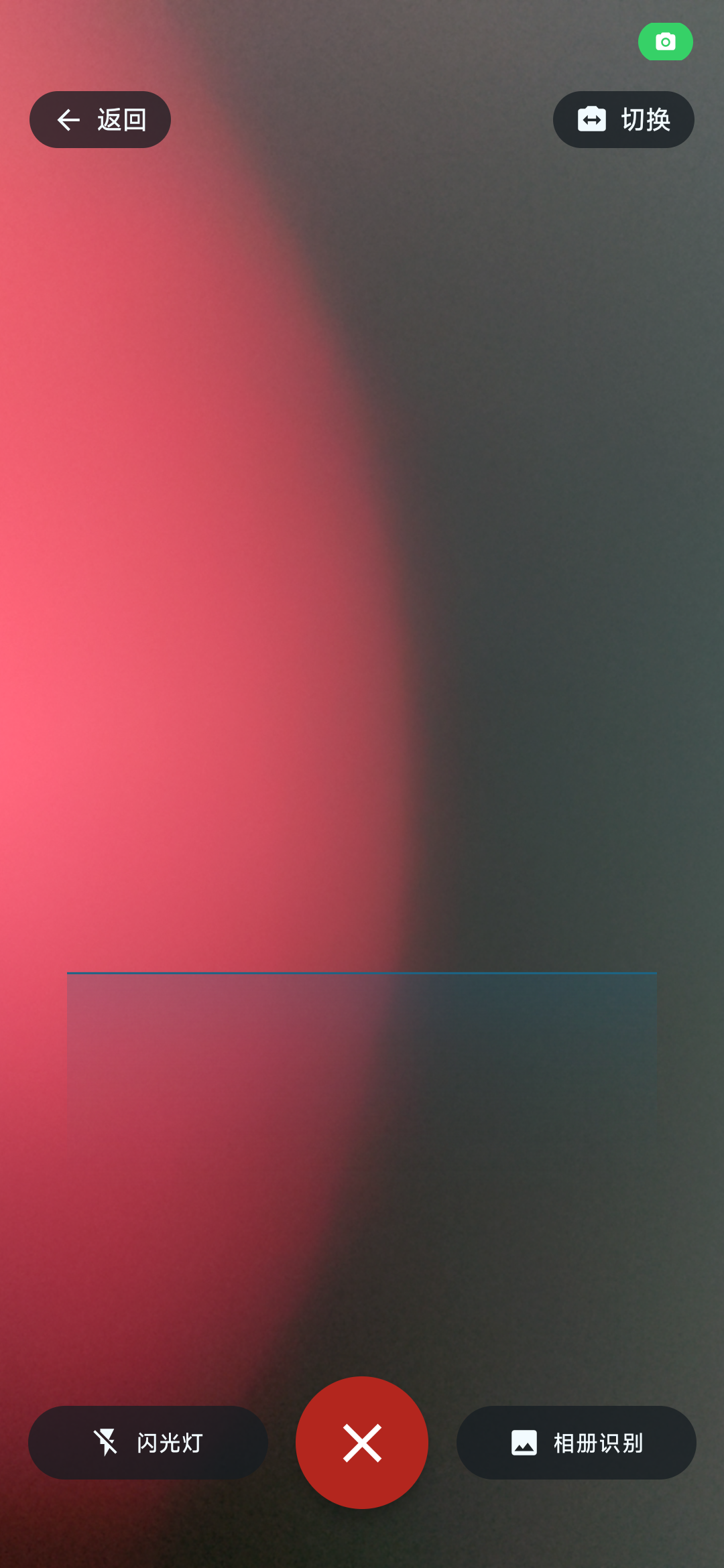
Android live scanner with camera switch, flashlight, and scan from gallery
扫码页支持“切换”“闪光灯”“相册识别”;左上“返回”或底部圆形关闭按钮退出扫码。 The scanner has Switch, Flashlight, and Scan from gallery. Exit with Back or the round close button.

扫完移开镜头:短时间同码有防抖,但持续对准仍可能再次输入。相机多码会冻结,让你点选一个编号框;“重新扫描”取消选择。相册识别会处理选中单张图片中的全部解码结果。完整操作见 Android 全流程。

Move the camera away after each scan. Brief debouncing does not prevent another entry if the code remains in view. Multiple live codes freeze for choosing one numbered box; Scan again cancels selection. Scan from gallery processes all decoded results in the chosen single image. See the Android walkthrough.

“扫码成功,但发送失败,请检查连接”仍会保留手机记录。恢复连接后重新扫描,或到历史复制并自行粘贴;Android 当前没有历史“重发”按钮。

A scan is retained on the phone even if sending fails. Reconnect and scan again, or copy it from History and paste manually. Android currently has no Resend history button.

字符、后缀与自动恢复设置

Characters, suffix, and restoration settings

中文与 emoji 使用 Wi-Fi

Use Wi-Fi for Chinese and emoji

HID 支持数字、英文字母、常见英文键盘标点、空格、回车与 Tab。中文、emoji 等不支持字符会触发“蓝牙 HID 不能输入中文等非键盘字符,请改用 Wi-Fi 连接”,整条不会通过 HID 发送,但仍保存手机历史。

HID supports digits, English letters, common US keyboard punctuation, spaces, Enter, and Tab. Unsupported characters such as Chinese or emoji trigger the instruction to use Wi-Fi. The text is not sent through HID, but remains in phone history.

扫码后缀默认“回车”

Enter is the default scan suffix

到“设置 → 扫码后缀 → 选择后缀类型”,选“无”“回车”或“Tab”。目标软件决定回车是提交还是换行、Tab 移到哪里。“无”只输入内容。后缀只用于发送,手机历史/复制保留原文;其他不可输入控制分隔符在输出时变为空格。

Open Settings → Scan suffix → Select suffix type and choose None, Enter, or Tab. The receiving app controls submission, line breaks, and tab movement. None types only the content. Suffixes affect output only; phone history/copy keeps the raw text. Other untypable control separators become spaces in output.

自动恢复在 App 回到前台时尝试

Restoration is attempted when the app returns to the foreground

“自动恢复上次连接”默认开启。App 回前台、未连接且无正在连接时,可尝试最近成功目标;手动“断开”后不会再因回前台自动连回,需主动连接。锁屏、电脑休眠或系统策略可能断开,自动恢复不保证后台持续在线。

Automatic restoration is enabled by default. On returning to the foreground while disconnected and without a connection attempt, the app can retry its last successful target. Manual Disconnect prevents that retry until you connect again. Locking, computer sleep, or system policies can interrupt a connection; restoration does not guarantee background availability.
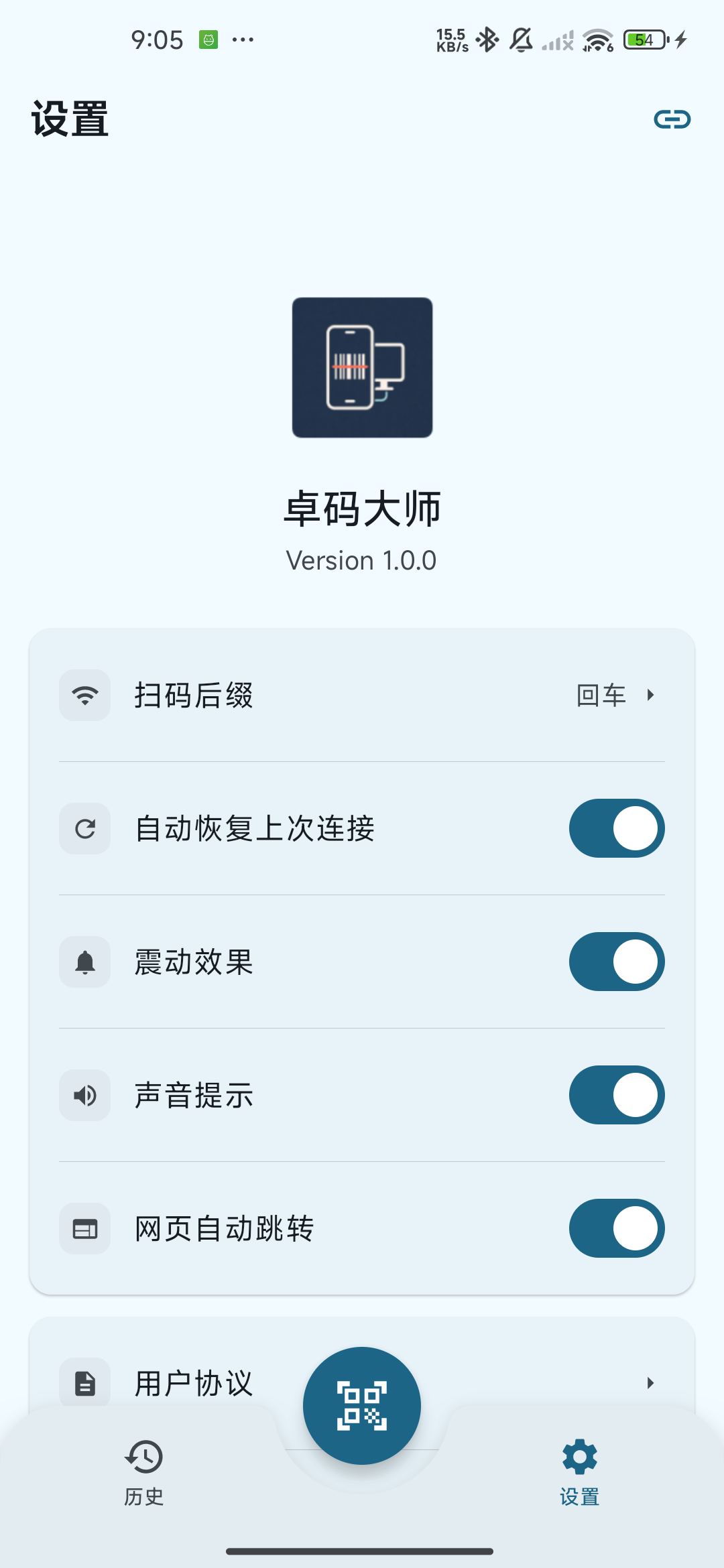
Android scan suffix and connection restoration settings
可按输入场景调整后缀、恢复、震动与声音。 Adjust suffix, restoration, vibration, and sound for your workflow.

按问题逐步排查

Troubleshoot by symptom

电脑找不到手机

The computer cannot discover the phone

检查两端蓝牙和手机附近设备授权,重新允许可发现。Mac 走普通发现/配对;Windows 先修复发布 HID 服务。可发现超时后需重新开启,设备名称以手机设置为准。

Check Bluetooth on both devices and Nearby devices permission, then allow discovery again. Use normal discovery/pairing for Mac and repair to publish HID first for Windows. Restart expired discovery and use the phone’s actual name.

已配对但列表为空

Paired but the list is empty

保持“选择蓝牙设备”打开几秒等待刷新;仍空时确认 Android 系统中已配对,并检查附近设备权限。

Keep the device picker open for several seconds. If still empty, confirm system pairing on Android and check Nearby devices permission.

蓝牙已配对但 HID 通道未建立

Paired but the HID channel is missing

进入“没有我的设备或连接异常?”。Windows 按上方修复清两端旧配对;Mac 重新普通系统配对,完成后点 App 的电脑名称。绑定其他设备时需按提示清旧绑定再试。

Open Can’t find my device or connection is not working?. Remove stale pairings on both sides and repeat Windows repair, or pair normally again on Mac before selecting the computer. Clear an old binding if the app identifies another bound host.

App 已连接但输入框没有内容

Connected but the target field is empty

用普通文本编辑器测试英文/数字,检查焦点、输入法和键盘布局。看手机最新结果与历史区分未识别和未输入;内容不支持时使用 Wi-Fi。手机提示音不表示电脑录入完成。

Test English letters/digits in a plain editor and check focus, input method, and keyboard layout. Inspect the latest phone result and history to distinguish recognition from typing. Use Wi-Fi for unsupported content. A phone beep does not confirm computer input.

停止输入或换电脑

Stop output or switch computers

退出扫码只关闭相机页,不断开已建立连接。到“历史”或“设置”点闭合链环 → “断开”,再按新目标系统流程连接。

Exiting Scan closes the camera without disconnecting. On History or Settings, tap the closed link → Disconnect, then connect using the new target’s appropriate path.
iOS 版当前不提供蓝牙 HID 输出iOS currently has no Bluetooth HID output

手机扫码枪 iOS 版没有“蓝牙 HID 连接”、设备选择或发布键盘服务入口。iPhone 与电脑普通蓝牙配对,不会让此 App 将扫码内容作为键盘输入。Scan Input for iOS has no Bluetooth HID connection, device-picker or keyboard-service publishing control. Ordinary Bluetooth pairing between an iPhone and computer does not make this app type scanned text as a keyboard.

选择 iOS 的电脑录入路线Choose the iOS computer-entry route

需要把扫码文字录入 Mac、Windows 或 Linux 时,使用 Wi-Fi 并运行电脑桌面端;仅在手机保存识别内容,可以直接本地扫码。无需为 iOS 版授予蓝牙权限或尝试 Android / 鸿蒙的配对修复步骤。For entering scans on Mac, Windows or Linux, use Wi-Fi with the desktop client running. Local scanning requires no connection. Do not request Bluetooth access or apply Android/HarmonyOS pairing-repair steps to this iOS app.

改用 Wi-Fi 的完整起步步骤Start computer entry over Wi-Fi

  1. 下载匹配电脑系统的桌面端并启动,确认 TCP 服务运行,记下其局域网 IP 和端口(默认 9876)。Download and start the desktop client for your computer, confirm its TCP service is running and note the LAN IP and port (default 9876).
  2. 手机与电脑接入可互通的局域网,在 iOS App 点右上连接状态图标,填入 IP 与端口,点“连接”,按系统提示允许本地网络。Put phone and computer on a reachable local network. Tap the top-right connection status icon in the iOS app, enter IP/port, tap Connect and allow Local Network when prompted.
  3. 状态显示连接后点“完成”。在电脑输入框放好光标,手机扫一条已知码,分别核对手机历史、电脑收到记录与目标框内容。After connected status appears, tap Done. Focus the computer field, scan known content and independently check phone History, desktop receipt and text in the target field.

Wi-Fi 可传输中文与混合文字,仍需设置 macOS 辅助功能或其他系统的自动输入条件。详细桌面安装、二维码确认、断开与恢复见 iOS Wi-Fi 专题。Wi-Fi carries Chinese and mixed text, but desktop typing still needs macOS Accessibility or the appropriate conditions on other systems. See the iOS Wi-Fi topic for desktop setup, QR confirmation, disconnecting and restoration.

不连接电脑时照常扫码与导出Scan and export without a computer

  1. 点底部“扫码”,在未连接提醒中选“继续扫码”,或按需勾选“不再提示”。Tap Scan and choose Continue scanning in the disconnected reminder; optionally select Don’t remind me again.
  2. 允许相机或选择一张相册图片。多个码时点选一个识别框,仅选中结果保存;随后到“历史”搜索、复制或删除。Allow the camera or choose one gallery image. If multiple codes appear, select one box; only that result is saved. Search, copy or delete it in History.
  3. 点导出;有搜索条件时先选择“全部记录”或“搜索结果”,可勾选“记住选择,不再提示”并点“继续”,再选 CSV 或 Excel,通过系统分享表选择“保存到‘文件’”(部分 iOS 版本称“存储到文件”)。无搜索时导出全部;清空全部始终影响全部历史。Tap Export. During a search, first choose All records or Search results, optionally check Remember my choice and don’t ask again, and tap Continue. Then choose CSV or Excel and select Save to Files in the system share sheet. Without a search, export includes all records; Clear all always affects the entire history.

查看 iOS 扫码、历史与导出,了解相册多码单选、筛选范围和保存检查。See iOS scanning, history and export for gallery multi-code selection, filtered scope and save checks.

蓝牙 HID:手机作为电脑键盘Bluetooth HID: use the phone as a keyboard

06

打开蓝牙入口并允许附近设备权限Open Bluetooth and allow nearby-device access

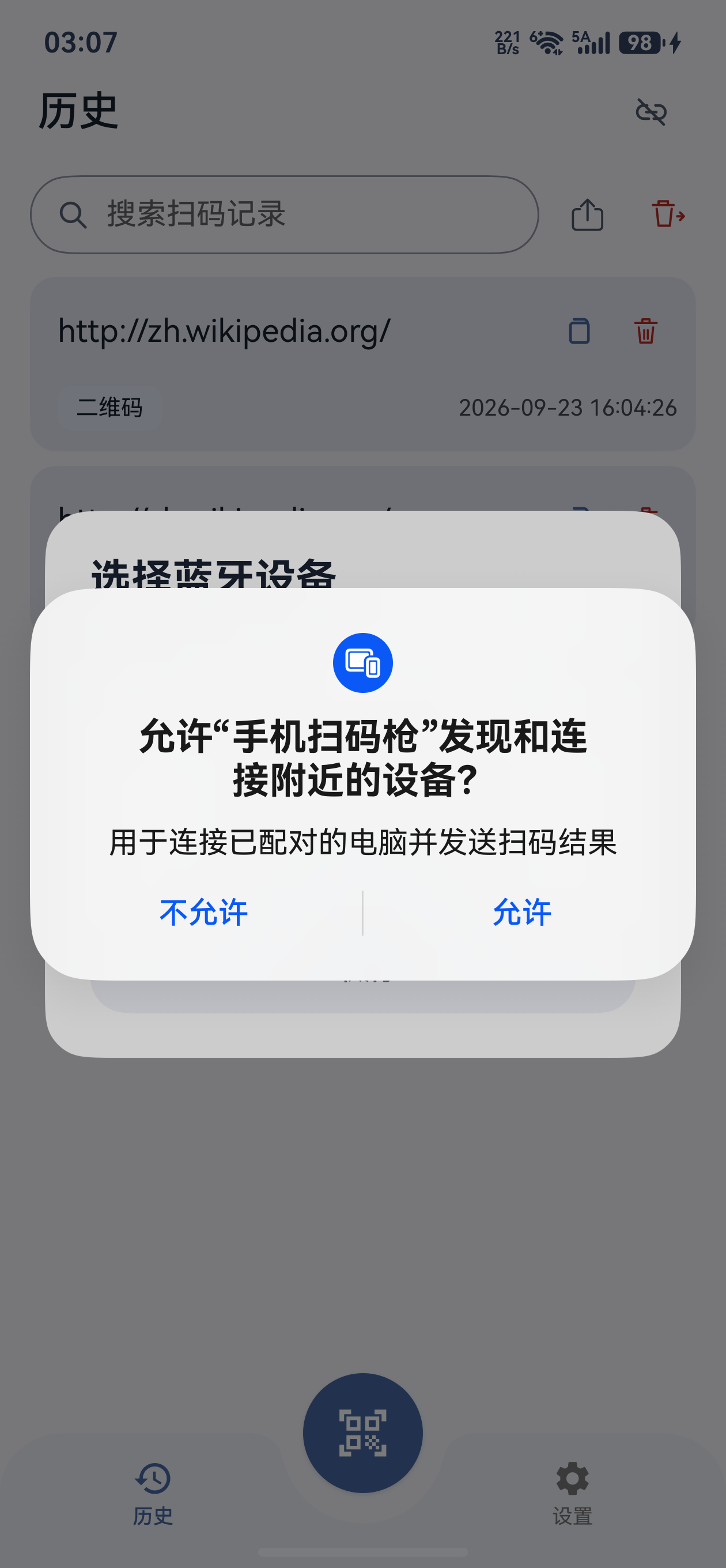
开启手机和电脑蓝牙。在 App 点右上角链环 →“蓝牙 HID 连接”。第一次出现“允许‘手机扫码枪’发现和连接附近的设备?”时点“允许”,用于读取已配对设备并建立输出连接。拒绝后到系统应用权限中允许蓝牙,再重新打开列表。Enable Bluetooth on the phone and computer. In the app, tap the top-right link → Bluetooth HID. On the first nearby-device permission prompt, tap Allow so the app can read paired devices and connect for output. If denied, allow Bluetooth in system app permissions and reopen the list.

鸿蒙系统附近设备权限弹窗
允许发现和连接附近设备;不使用蓝牙时无需通过这一步。Allow nearby-device discovery and connection. Skip this step if you do not use Bluetooth.
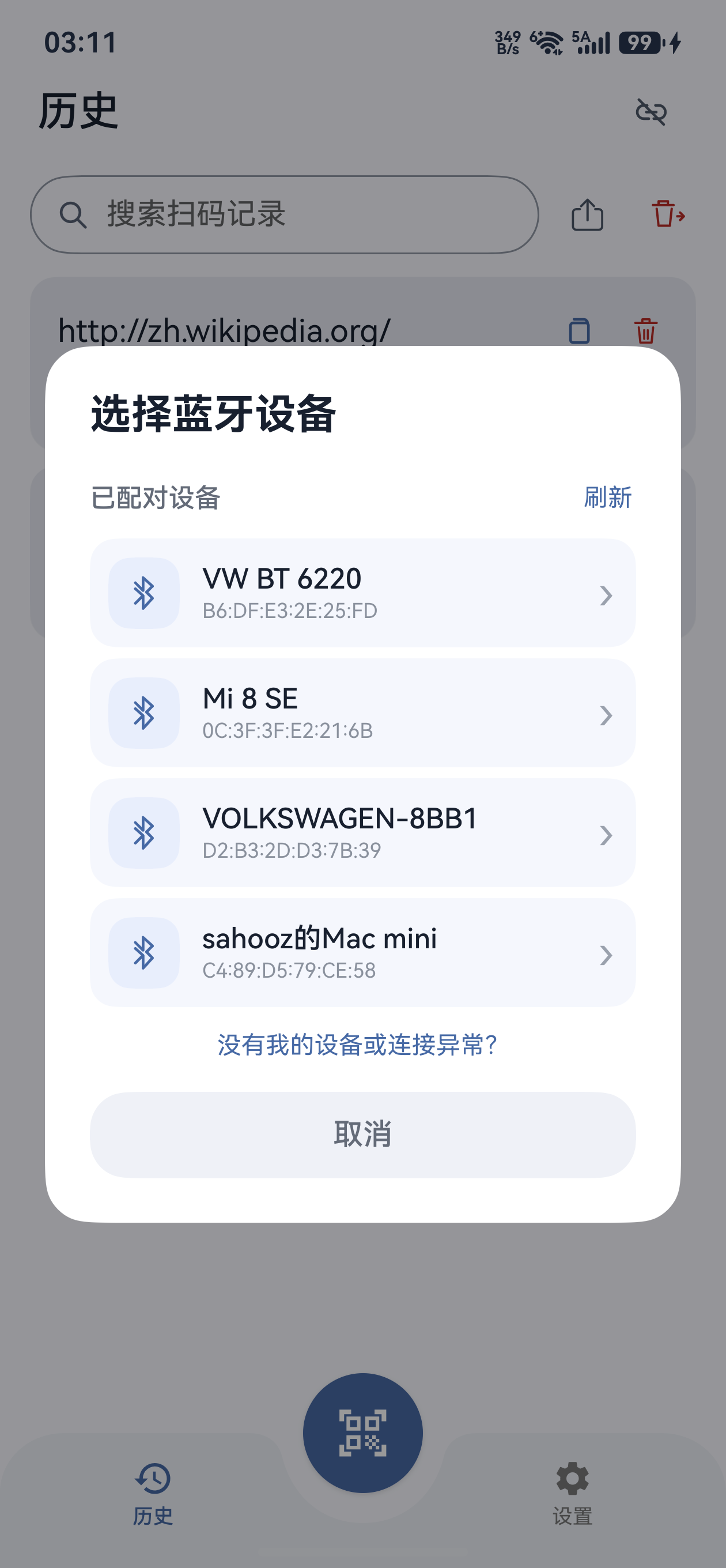
鸿蒙已配对蓝牙设备选择窗口
列表显示系统已经配对的设备;找到自己的电脑,点击设备名称。The list contains devices already paired through the system. Find and tap your computer name.
07

列表没有电脑时,先完成系统配对Pair through the system if the computer is missing

点“没有我的设备或连接异常?”→“开启蓝牙发现/配对”。手机会在一段时间内可被发现。随后在电脑系统蓝牙设置中添加这台手机,核对并确认两端的系统配对提示,再回 App 的“选择蓝牙设备”点“刷新”,点击电脑名称。当前列表提供设备选择,不需要手动填写 MAC 地址。Tap My device is missing or connection is abnormal → Start Bluetooth discovery/pairing. The phone becomes discoverable for a limited time. Add it from the computer’s system Bluetooth settings, check and confirm both pairing prompts, then return to Select Bluetooth device, tap Refresh and select the computer. This list selects devices directly; it does not require manual MAC entry.

  1. macOS:打开“系统设置 → 蓝牙”,在附近设备中找到手机并连接,按屏幕提示完成配对。macOS: open System Settings → Bluetooth, find the phone under nearby devices, connect and complete the pairing prompts.
  2. Windows:打开“设置 → 蓝牙和设备 → 添加设备 → 蓝牙”,选择手机并确认配对。不同系统版本的名称略有差异。Windows: open Settings → Bluetooth & devices → Add device → Bluetooth, select the phone and confirm pairing. Labels vary by system version.
  3. 通过普通发现入口配对后,返回 App 点击对应电脑。修复模式重新配对后可能自动建立 HID,先查看 App 状态;系统“已配对/已连接”不等于 App 已建立 HID 通道。After pairing through normal discovery, return to the app and tap the computer. Repair mode may establish HID automatically after pairing again, so check the app status first. System Paired/Connected does not prove that the app has an HID channel.
鸿蒙蓝牙连接帮助中的配对与修复操作
缺少设备时开启发现与配对;系统已连接但 App 未连接时使用修复入口。Start discovery/pairing for a missing device. Use repair when the system is connected but the app is not.
08

已配对但 HID 通道未建立时使用修复Repair a pairing without an HID channel

若提示“蓝牙已配对但 HID 通道未建立”,回到“没有我的设备或连接异常?”点“连接状态异常修复”。看到“HID 服务已发布,请在电脑中删除旧设备后重新发起配对”后,在电脑系统蓝牙设置移除这台手机的旧配对项,再重新搜索并完成两端确认。回 App 查看连接状态;修复模式可能在配对后自动完成 HID 连接,已显示连接成功时直接测试输入。若超时或仍失败,再重新打开设备列表,刷新并点击电脑名称。If the app reports that Bluetooth is paired but the HID channel is not established, open My device is missing or connection is abnormal → Repair connection state. After the HID-service-published prompt, remove this phone’s old pairing from the computer Bluetooth settings, discover and pair it again with confirmation on both devices. Return to the app and check its status. Repair mode may complete the HID connection automatically after pairing; if connected, test input directly. If it times out or still fails, reopen the device list, refresh and tap the computer.

09

在普通输入框核对实际键盘输出Verify actual keyboard input in a plain field

连接成功应出现“蓝牙 HID 已连接”,点链环可核对设备名。在电脑打开普通文本编辑器或表格,将光标放到目标位置,使用英文输入状态扫描一条已知英文或数字码,核对文字与后缀产生的光标移动。没有成功状态或目标框没有文字时,先按排错部分检查。A successful connection reports Bluetooth HID connected; inspect the device name through the link control. Focus a plain text editor or spreadsheet cell, use an English input mode and scan a known English/numeric code. Check the text and cursor movement from the suffix. If connection success or target text is missing, use troubleshooting first.

中文或混合文本请选择 Wi-FiUse Wi-Fi for Chinese or mixed text

鸿蒙 HID 适合英文、数字和常见 ASCII 字符。遇到不支持的字符会提示“蓝牙 HID 暂不支持部分非英文字符”,并跳过这些字符,剩余可支持文字仍可能输入电脑。因此不要仅凭有文字就认定完整;中文或混合内容请改用 Wi-Fi,并逐字核对。HarmonyOS HID suits English, numbers and common ASCII characters. Unsupported characters trigger a warning and are skipped; supported parts may still be typed. Some output does not prove completeness. Use Wi-Fi for Chinese or mixed text and check the full result.

字符、后缀与自动恢复Characters, suffix and restoration

鸿蒙 HID 适合数字、英文与常见英文键盘符号。遇到不支持的中文、emoji 等字符,当前实现会跳过这些字符,剩余内容仍可能输入,并提示“蓝牙 HID 暂不支持部分非英文字符”。含中文或混合文本请改用 Wi-Fi,避免出现不完整文字。HarmonyOS HID suits digits, English and common US keyboard symbols. Unsupported Chinese, emoji and other characters are skipped, while remaining characters may still be typed; the app warns that some non-English characters are unsupported. Use Wi-Fi for Chinese or mixed text to avoid incomplete output.

  1. 在“设置 → 扫码后缀”选择无、回车或 Tab,默认回车。后缀只影响电脑输入,手机记录和复制保留原文;目标软件决定提交、换行与焦点移动。Choose None, Enter or Tab in Settings → Scan suffix; Enter is the default. This affects computer output only, while records and copies retain raw text. The target software determines submission, line breaks and focus movement.
  2. “自动恢复上次连接”默认开启,当前在 App 启动加载状态时尝试最近成功目标,不保证每次返回前台重连。失去连接时回主界面核对链环,必要时手动选择电脑。Automatic restoration is enabled by default and currently retries the last successful target when app startup loads state; it does not promise reconnection on every foreground return. Check the main-screen link and manually select the computer if needed.
  3. 退出录入前点链环并选择“断开当前连接”。HID 连接状态与电脑实际输入须分别检查;测试已知英文数字文本及后缀后再正式录入。To stop entry, tap the link and choose Disconnect current connection. Verify HID state and actual computer typing separately. Test known English/numeric text and its suffix before real entry.

找不到设备、普通配对与缺字的排查Check discovery, ordinary pairing and missing text

  1. 设备列表只显示系统已配对设备。检查蓝牙开启和附近设备授权,点击“刷新”;尚未配对时从帮助开启发现,在电脑添加手机并确认两端提示,再回 App 点击电脑名称。The list shows system-paired devices only. Check Bluetooth and nearby-device permission, then Refresh. If unpaired, start discovery from Help, add the phone on the computer and confirm both prompts, then select the computer in the app.
  2. 系统显示“已连接”不等于 App 的 HID 通道。点设备等待;提示未建立通道时使用“连接状态异常修复”发布服务,再按提示从目标电脑删除旧配对并重新发起配对。A system Connected label does not prove the app HID channel. Select the device and wait. If the channel is missing, use Fix connection problem to publish the service, then follow its instruction to remove the old pairing on the target computer and pair again.
  3. App 已连接但输入为空:检查电脑焦点、可编辑状态、输入法和 US 键盘布局。缺少中文或符号时改 Wi-Fi,不要将部分输入当成完整录入。If connected without text, check computer focus, editability, input method and US keyboard layout. Switch to Wi-Fi for missing Chinese/symbols rather than accepting partial output.