SCAN · HISTORY · EXPORT

扫码、历史与导出。Scanning, history and export.

三版均支持手机识别与历史管理,多码选择、搜索范围和保存方式各有差异。选择平台,按对应界面完成从识别到文件保存的流程。All three apps support recognition and history. Multi-code selection, search scope and file saving differ. Choose your platform for the complete recognition-to-file workflow.

选择与你的手机一致的平台;切换后显示该平台的完整专题步骤。Choose your phone platform to see its complete topic instructions.

设置扫码后的动作Set scan behavior

01

选择“扫码后缀”Choose a scan suffix

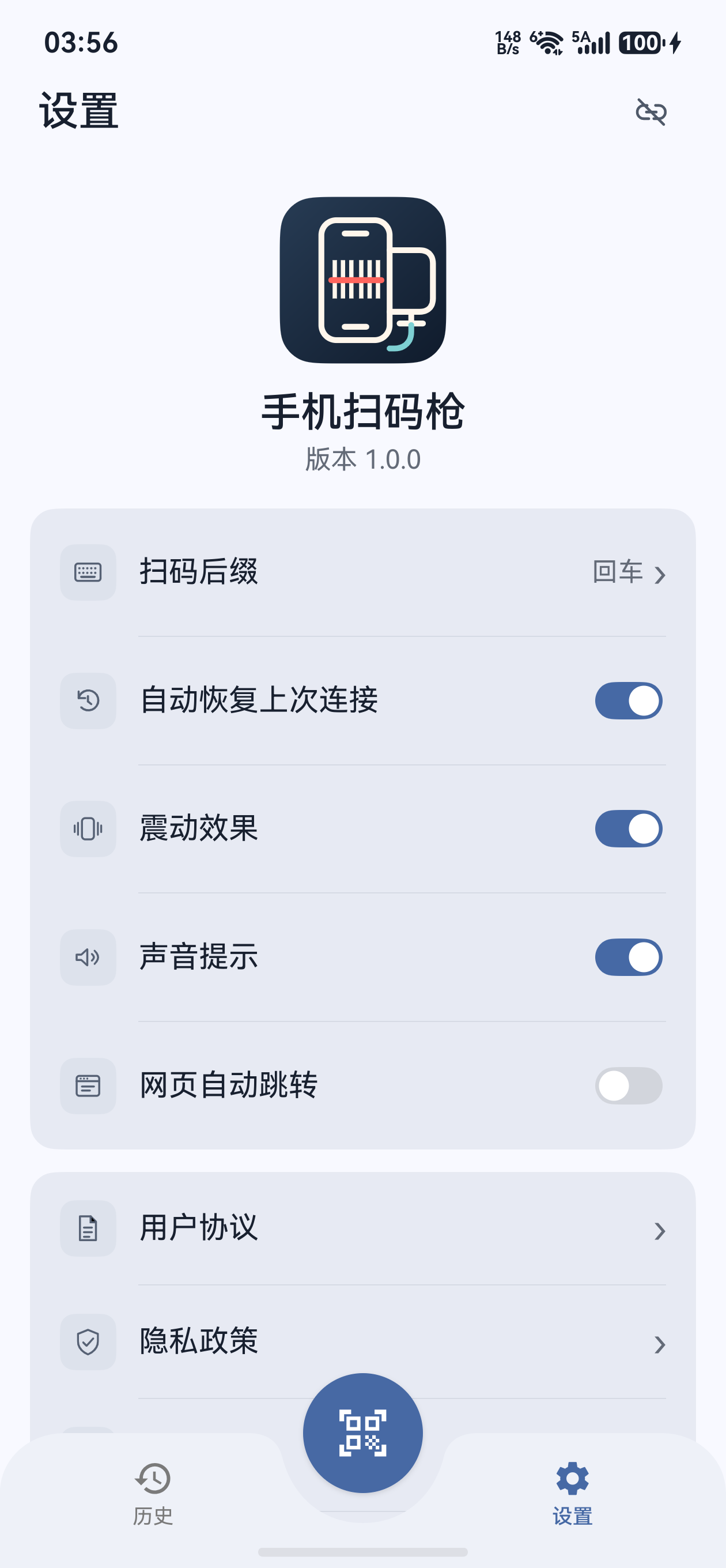
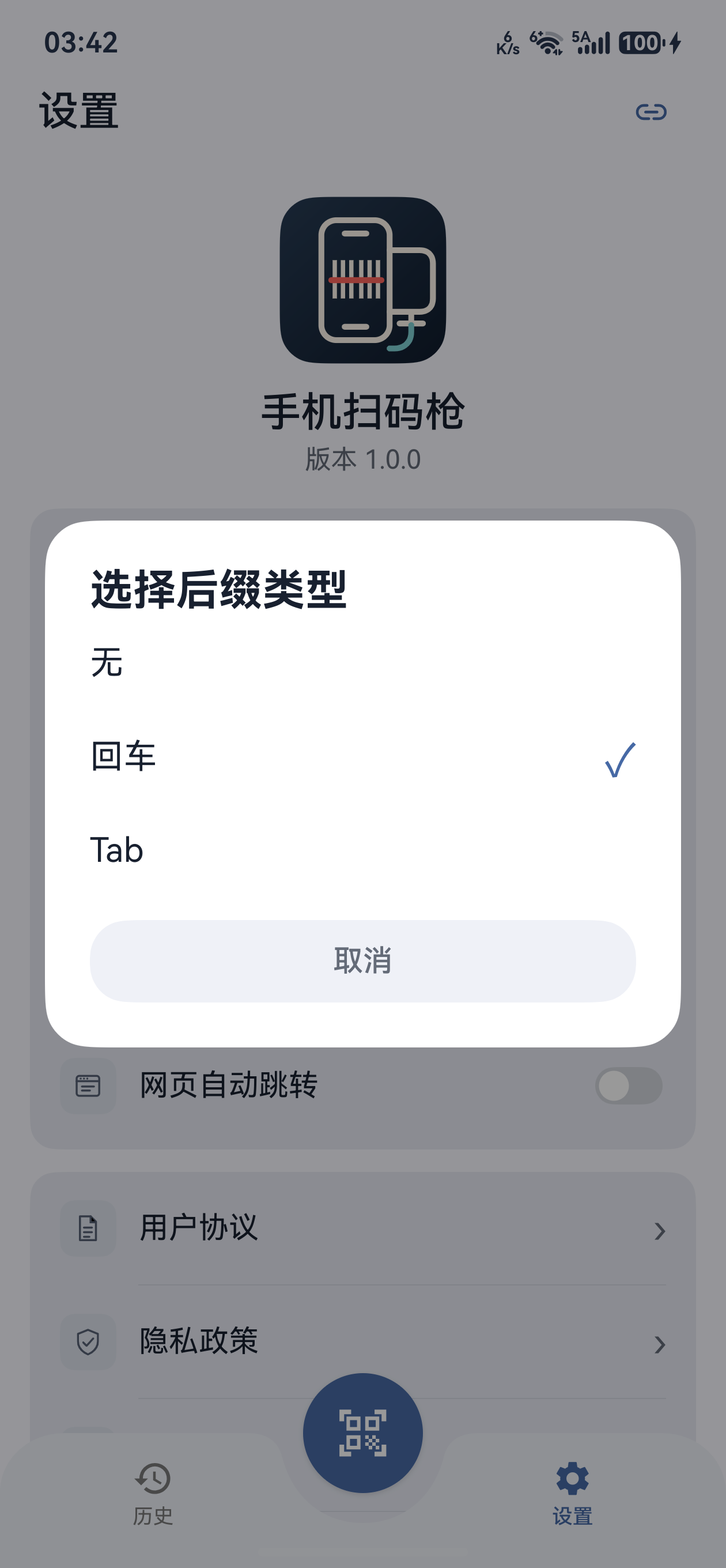
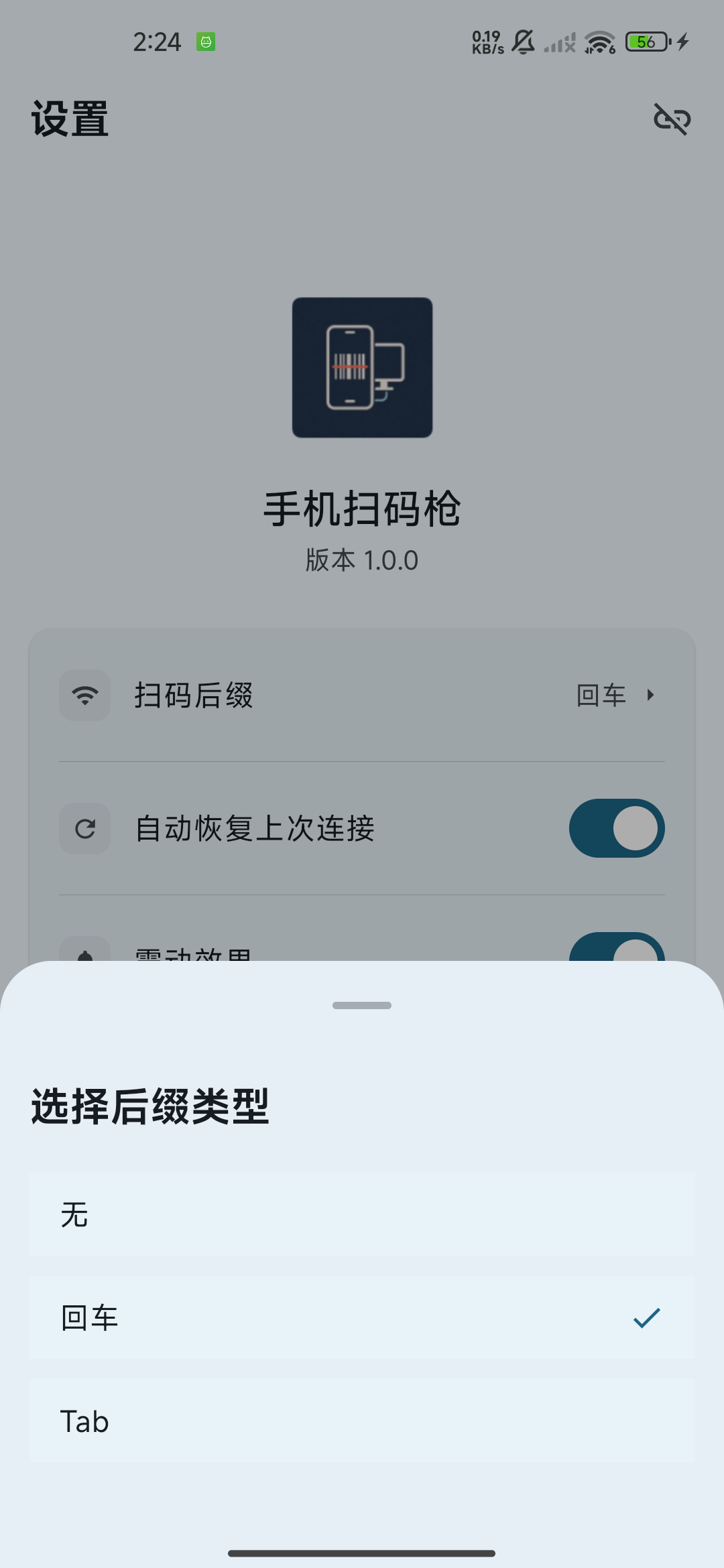
进入底部“设置 → 扫码后缀”,选择“回车”“Tab”或“无”。回车适合连续录入后换行;Tab 适合移到下一个输入位置或表格单元格;无后缀只发送扫码原文。电脑端的具体移动行为取决于当前应用。Open Settings → Scan suffix and choose Enter, Tab, or None. Enter can move to a new line, Tab can move to the next field or spreadsheet cell, and None sends the scan text alone. The exact movement depends on the active computer app.
Scan Input Android scan behavior settings
在设置页调整后缀、连接恢复、震动、声音和网页跳转。Adjust suffix, connection restoration, vibration, sound, and webpage opening in Settings.
Scan Input Android suffix selection dialog
后缀选择:无、回车、Tab,按目标软件的输入流程选择。Choose None, Enter, or Tab to suit the target app’s input workflow.
后缀只影响发送到电脑的内容Suffix affects computer output only

扫码后缀不会修改本地历史中的原文,也不会附加到“复制”的内容中。更改后缀后,下一次发送按新选项处理,旧记录保持原样。The suffix does not change text stored in local history or text copied to the clipboard. After changing it, the next transmission uses the new option; existing records retain their original text.

  • “震动效果”:识别到普通扫码结果时提供震动反馈,可按工作环境开关。Vibration: provides haptic feedback for accepted ordinary scan results; enable or disable it to suit your workspace.
  • “声音提示”:成功扫码提示音跟随系统通知音量;开启后听不到声音时,检查通知音量及静音设置。Sound feedback: the scan beep follows system notification volume. If enabled but inaudible, check notification volume and mute settings.
  • “网页自动跳转”:只有开启该开关且内容为有效 HTTP/HTTPS 地址时,才调用浏览器打开;只采集网址文本时关闭该开关。Open webpages automatically: the browser opens only when this option is enabled and the content is a valid HTTP/HTTPS address. Turn it off when collecting URL text only.
  • “自动恢复上次连接”:应用进入前台时尝试恢复上次连接;手机、目标设备和网络仍需满足连接条件。主动点击“断开”后,自动恢复会被阻止,应从连接入口手动重新连接。Restore last connection automatically: the app tries to restore the last connection when it enters the foreground. The phone, target device, and network must still be ready. After a manual Disconnect, automatic reconnection is blocked; reconnect manually from the connection menu.

相机连续扫码Continuous camera scanning

02

打开扫码页并摆好码Open the scanner and frame the code

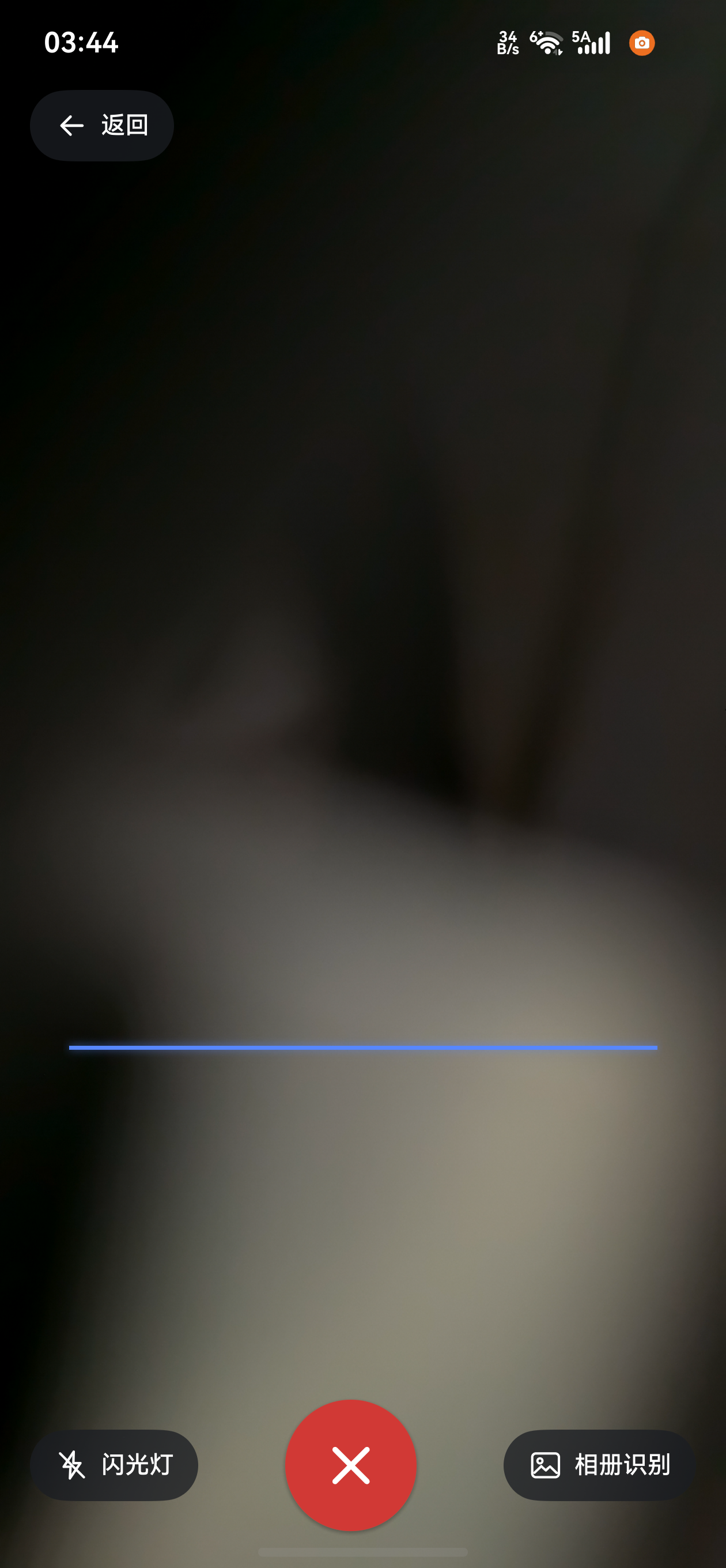
点击底部中央扫码按钮。首次使用时允许相机权限;拒绝后可点击“授权相机权限”,详见安装与首次启动教程。将完整条码或二维码放进相机画面,保持稳定,避开反光。Tap the center scan button. Allow camera access on first use; if denied, tap Grant camera permission, as covered in the installation guide. Place the complete barcode or QR code in view, keep the phone steady, and avoid glare.

03

查看结果,再移向下一个码Check the result, then move to the next code

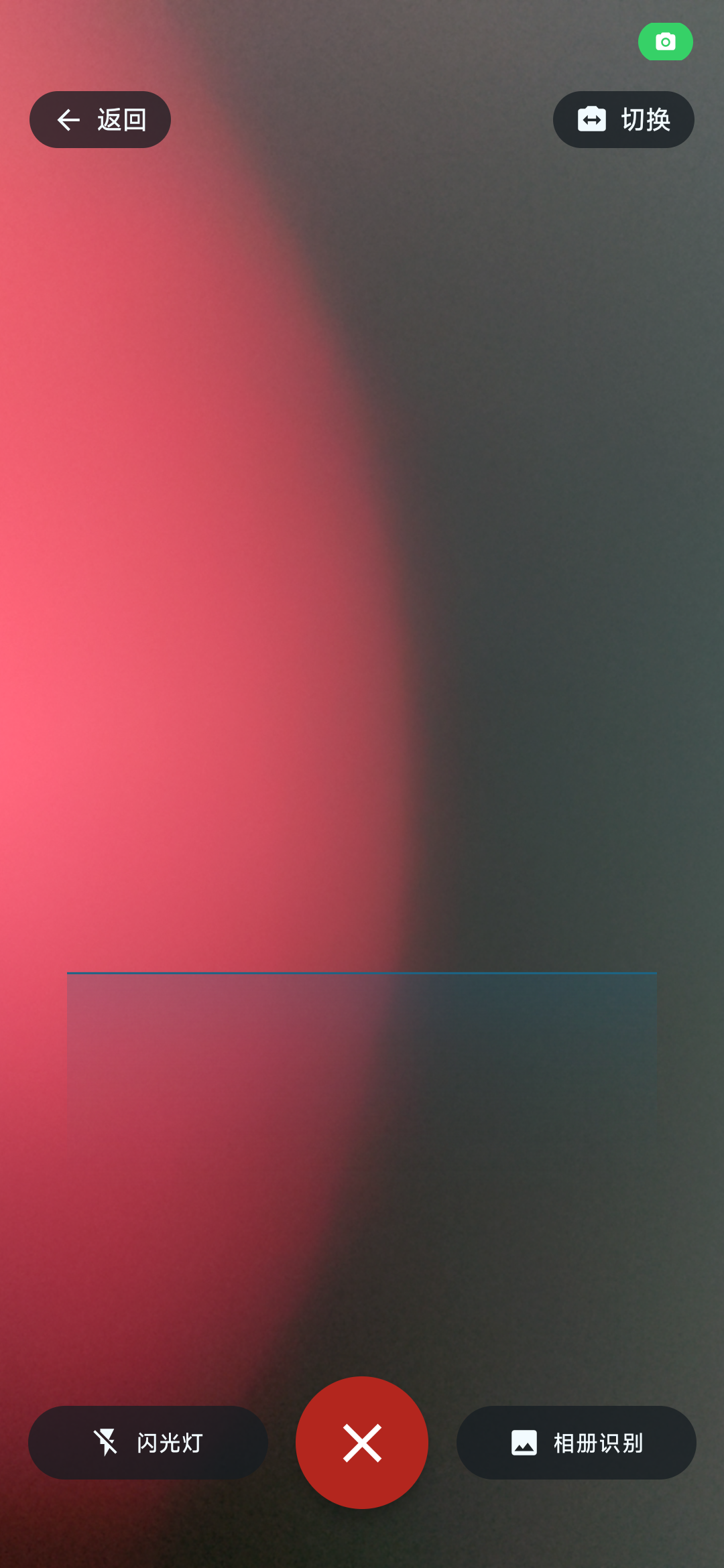
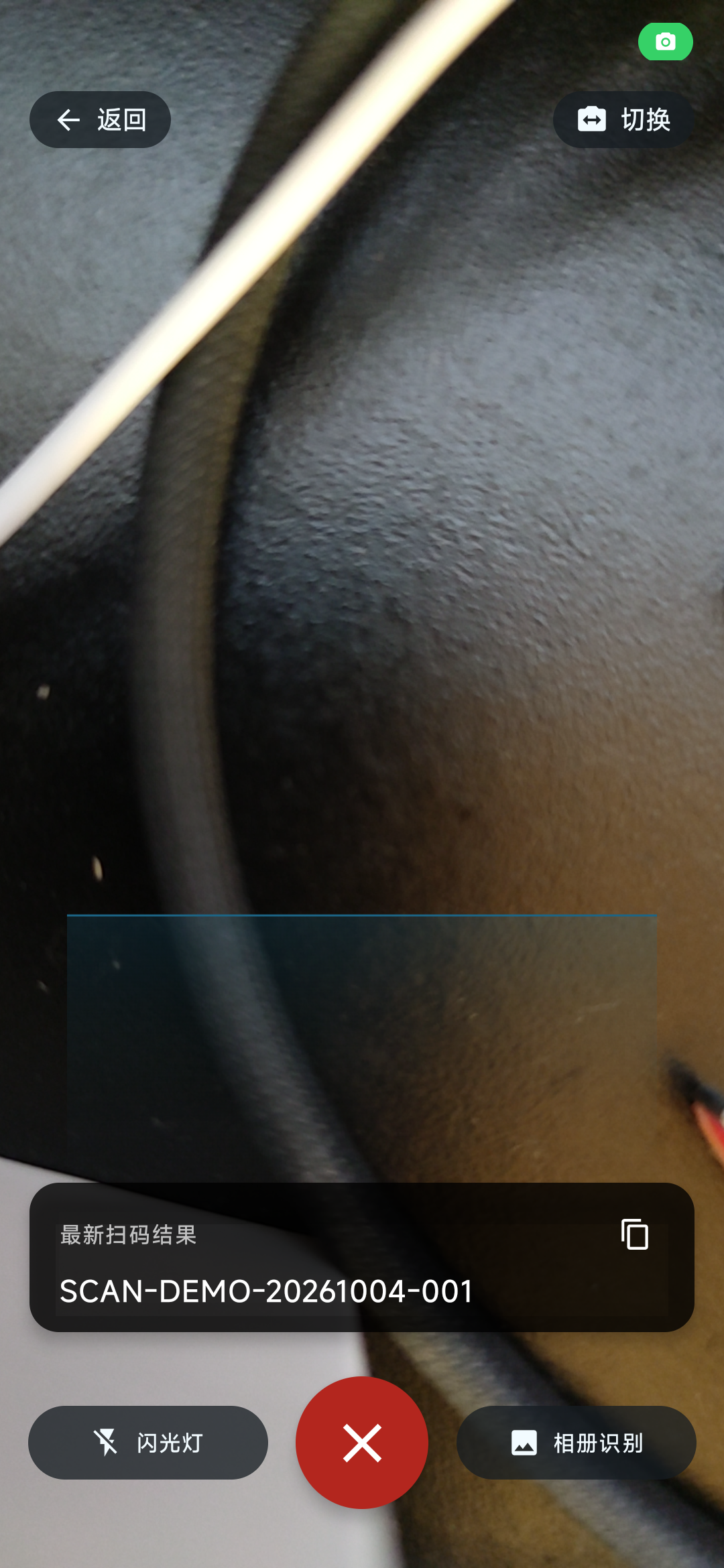
识别成功后,最新结果出现在底部控制区上方,可点击复制;扫码页不会自动退出,可以接着扫描下一项。普通结果会写入本地历史;已连接电脑时也会尝试发送到电脑当前输入光标。请先让电脑目标输入框获得焦点。After a successful scan, the latest result appears above the bottom controls and can be copied. The scanner stays open for the next item. Ordinary results are saved in local history; when a computer is connected, the app also tries to send them to its active input cursor. Focus the target field on the computer first.
Scan Input Android live camera scanner
相机扫码页:上方返回、切换;下方闪光灯、关闭和相册识别。Scanner controls: Back and Switch above; Flashlight, close, and Scan from gallery below.
Scan Input Android scanner showing the latest test scan result
成功后显示本次扫码的最新结果,并提供复制入口。The latest result from the current scan session appears with a copy action.
扫完一项后将它移出画面Move each scanned item out of view

相同内容在短时间内会被防抖,但不会永久去重。同一个码长时间留在画面中,仍可能再次记录和发送。逐件采集时,成功后将当前码移开,再对准下一项;需要重新录入同码时,稍后重新对准。Repeated identical content is suppressed briefly, but is not permanently deduplicated. Leaving the same code in view can create another record and transmission later. Move each completed item away before presenting the next one. To enter the same code again, present it again after a short pause.

  • 光线不足时打开“闪光灯”;切换到前置摄像头时,闪光灯不可用。Use Flashlight in low light; it is unavailable when using the front camera.
  • 点击右上角“切换”在可用的前后摄像头间切换;没有前置摄像头时,该控制不可用。Tap Switch at the top right to change between available rear and front cameras. The control is unavailable without a front camera.
  • 点击左上角“返回”、红色关闭按钮或系统返回,退出扫码页并查看历史。Use Back at the top left, the red close button, or system Back to leave the scanner and review History.

桌面端未连接时,仍可在手机上采集和保存记录。连接二维码用于建立 Wi-Fi 连接,不作为普通扫码记录保存。You can collect and save scans on the phone without a desktop connection. A connection QR code is used to establish Wi-Fi connectivity and is not stored as an ordinary scan record.

多码点选与相册识别Multiple codes and gallery recognition

相机画面中出现多个码Several codes in the camera view

检测到同一画面多个码时,应用会暂停实时识别并冻结画面,对识别结果标出编号。点击你需要的一个识别框,仅处理所选码;处理后会恢复实时扫描。若不想选当前画面,点击“重新扫描”返回取景。When several codes are detected together, the app pauses live recognition, freezes the frame, and numbers the detected results. Tap one outlined code to process only that selection; live scanning resumes afterward. Tap Scan again to return to the viewfinder without selecting the current frame.

多个相邻条码较小或识别框不完整时,靠近一点、调整角度,等待识别结果稳定再选择。冻结点选适用于相机多码画面;相册识别的处理方式见下方。For small adjacent codes or incomplete outlines, move closer, adjust the angle, and wait for detection to settle before selecting. Frozen-frame selection applies to live camera recognition; gallery handling is described below.

04

从“相册识别”选择一张图片Choose one image with Scan from gallery

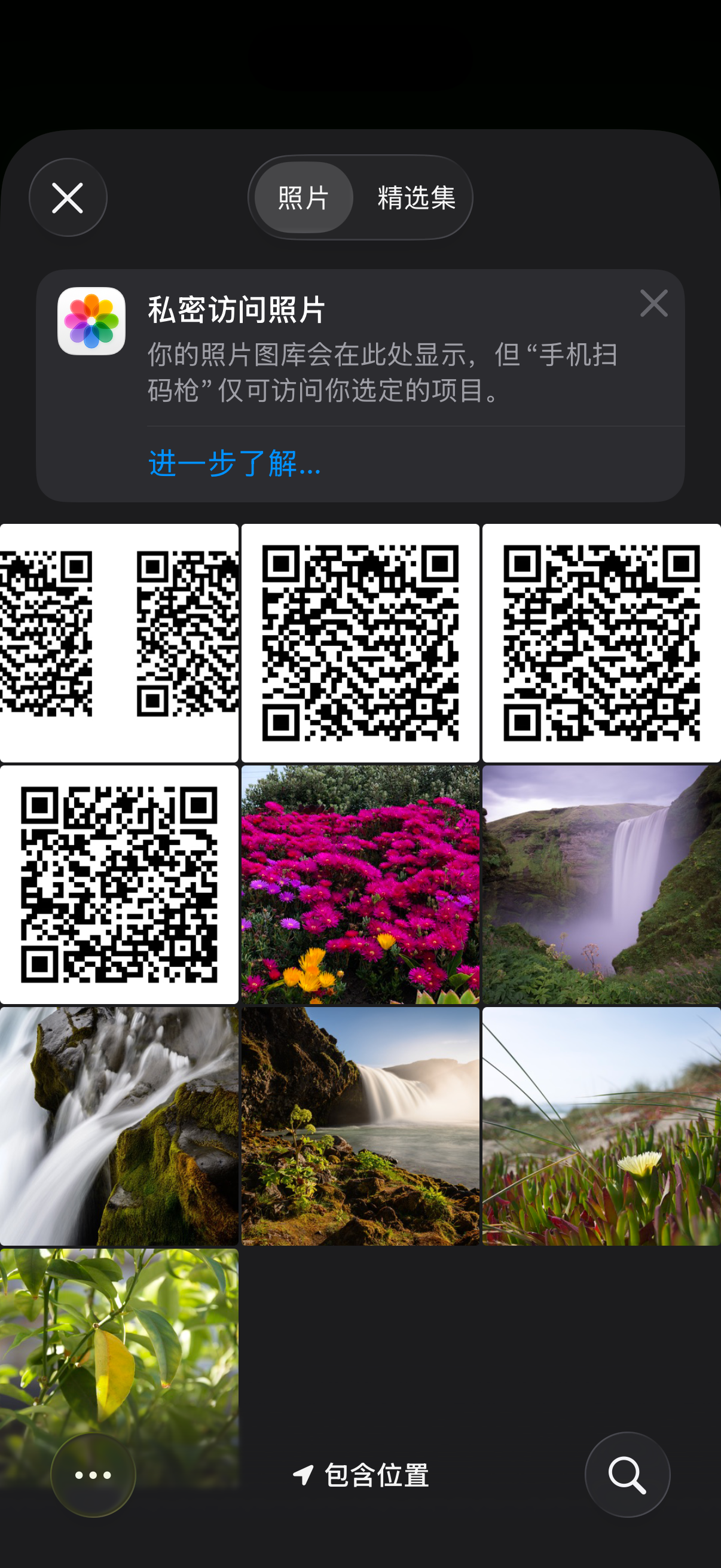
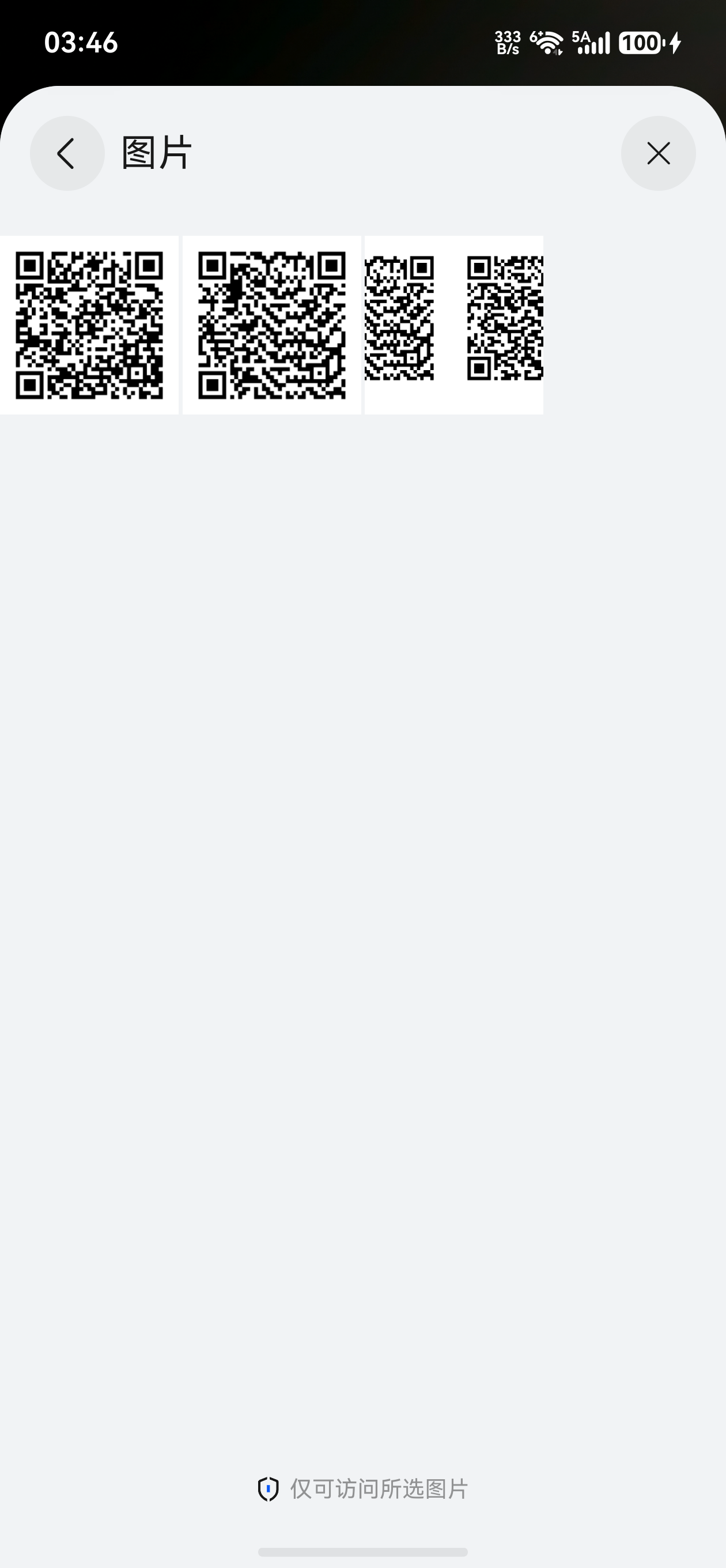
在扫码页右下角点击“相册识别”,从 Android 系统提供的图片或文件选择器中选择一张图片。每次只选择一张;无需授予访问全部照片或全部存储的权限,只把你选中的图片交给应用。选择器中的来源和按钮以手机系统为准。Tap Scan from gallery at the bottom right and choose one image from the Android image or file picker. Select one image per operation; full photo or storage access is unnecessary because the app receives only the selected image. Available sources and buttons depend on your phone.

Android system image picker opened from Scan Input
通过系统选择器选取一张图片;来源和布局取决于系统及已安装应用。Choose one image in the system picker; sources and layout depend on the system and installed apps.

选中图片后在手机端识别。图片中识别到的所有码会逐个进入处理流程,普通结果可记录并在已连接时发送;这一步不会让你逐个点选。识别不到时会提示未发现码,可换一张更清晰的原图再试。取消选择会返回扫码页。Recognition runs on the phone after you choose an image. All detected codes enter processing one by one; ordinary results can be saved and transmitted when connected. This workflow does not ask you to select individual codes. If no code is detected, try a clearer original image. Canceling the picker returns to the scanner.

先检查图片内容Check the image before selecting

相册图片可能包含多个结果,已连接电脑时会尝试发送这些结果,请在电脑逐条核对;重复内容可能受短时防抖影响。需要只录入其中一个码时,先将图片裁剪为只保留目标码,或改用相机多码点选。A gallery image can contain multiple results that the app attempts to send when connected. Check each result on the computer; duplicate content may be suppressed by the short debounce period. To enter only one code, crop the image to the target code first, or use live camera multi-code selection.

搜索、复制和删除历史Search, copy, and delete history

05

返回底部“历史”页Return to History

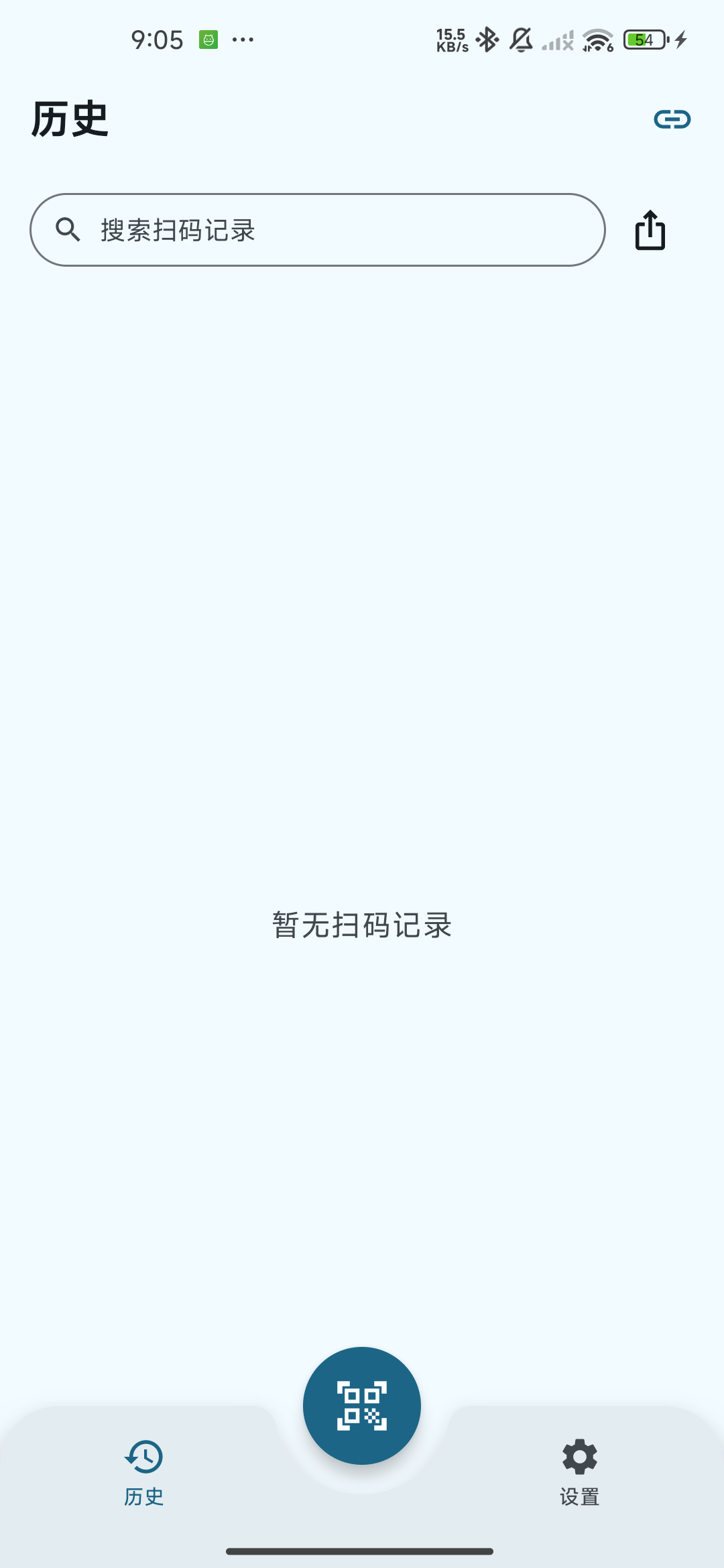
退出扫码页后查看“历史”。记录按扫码时间倒序排列,最新记录在上方;每条显示内容、类型和时间。普通结果保存到本机数据库,重新打开应用仍可查看。Leave the scanner and open History. Records are ordered by scan time with the latest first. Each shows content, type, and time. Ordinary results are stored in the local database and remain available when you reopen the app.
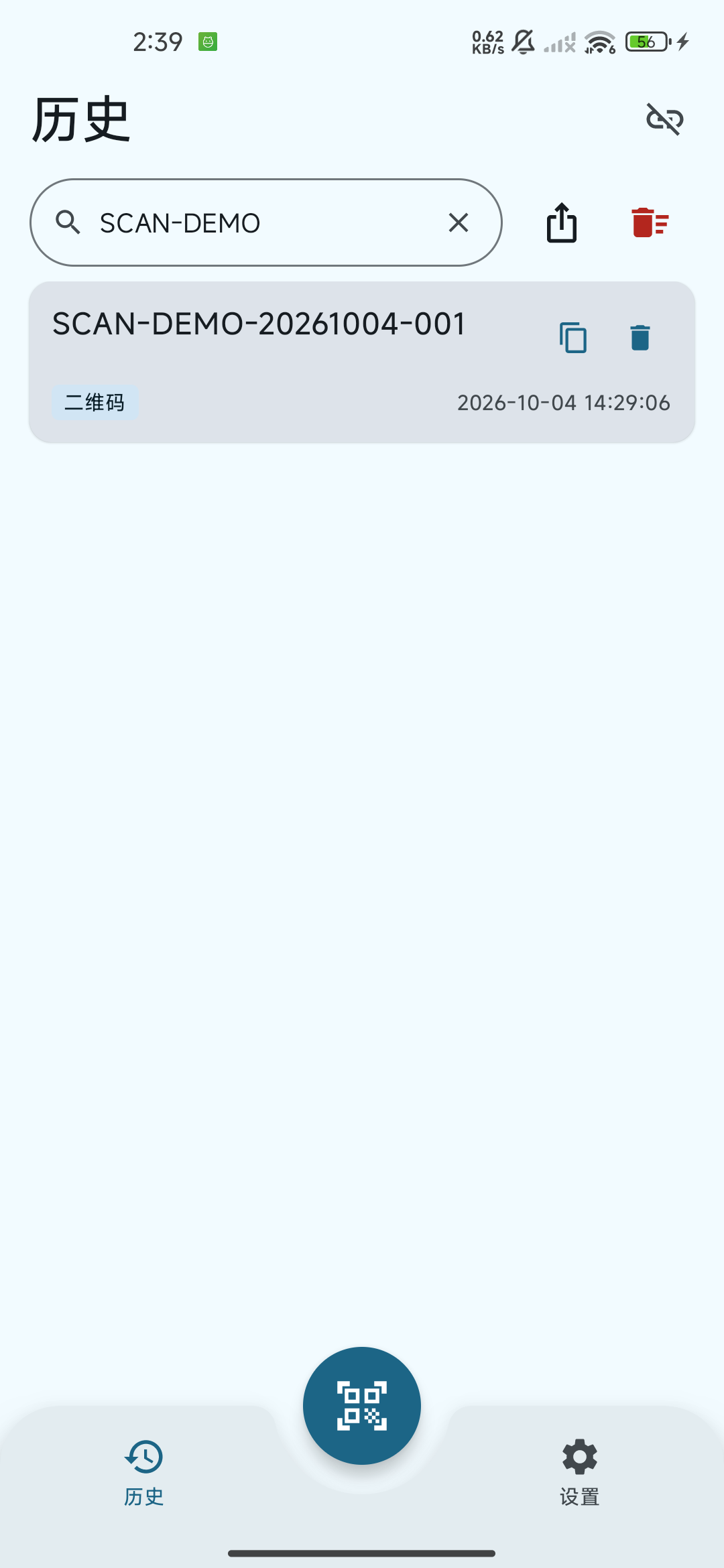
Scan Input Android local scan history
历史页按时间倒序显示本地记录,每条可复制或删除。Local records are shown newest first, with copy and delete actions.
Scan Input Android history filtered by a search keyword
输入关键词筛选内容或类型;清除搜索可恢复全部列表。Enter a keyword to filter content or type; clearing it restores the full list.
  • 搜索:在搜索框输入内容的一部分,或“二维码”“条码”等类型词,列表会筛选匹配结果。点击搜索框中的清除按钮恢复全部记录。Search: enter part of the content or a type label such as QR code or Barcode. The list shows matching records. Use the clear control in the search field to restore all records.
  • 复制:点击该条记录的复制图标,将原始内容放入剪贴板;复制不包含扫码后缀。Copy: tap a record’s copy icon to place its original content on the clipboard. The scan suffix is not included.
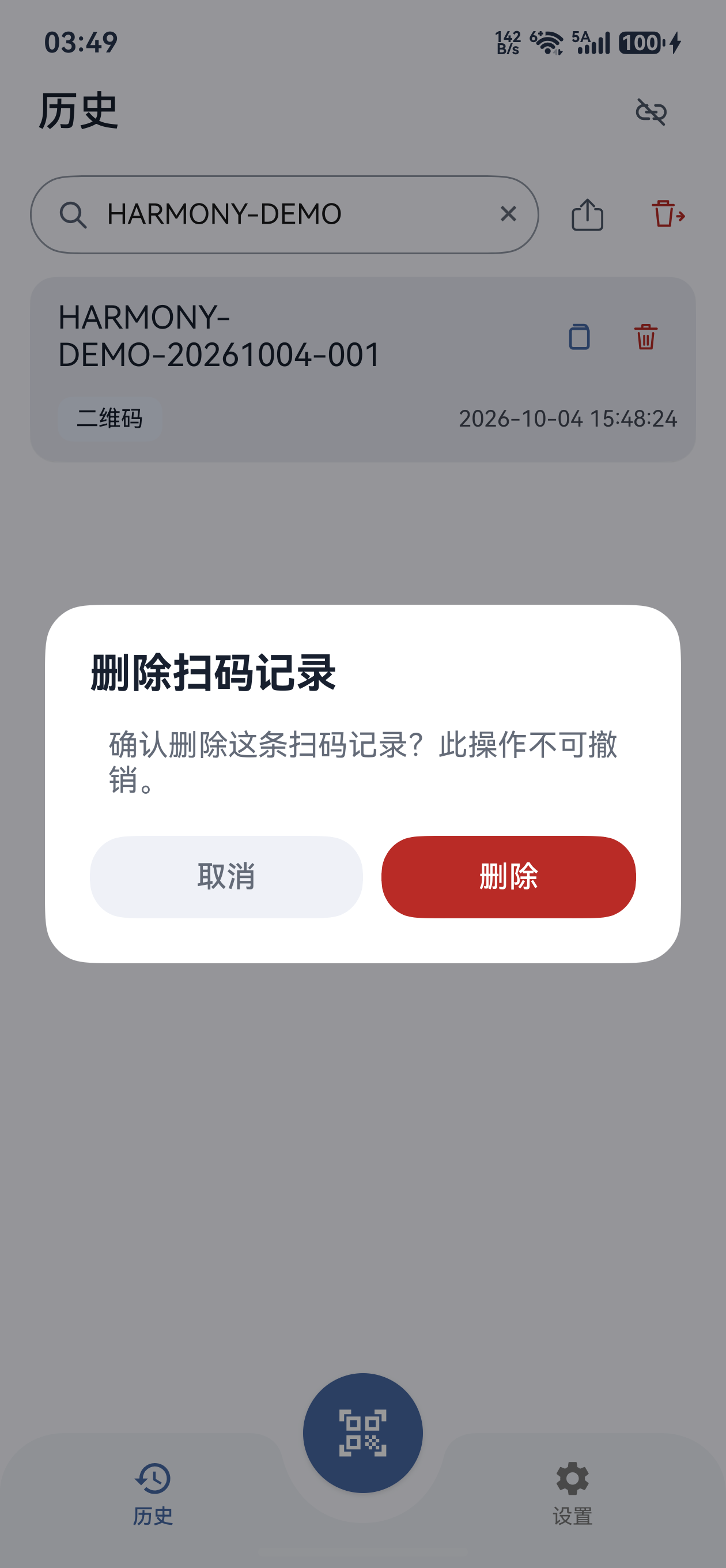
  • 单条删除:点击该条的删除图标,核对确认弹窗中的内容后确认;取消则保留该条。Delete one: tap its delete icon, check the content in the confirmation dialog, and confirm. Cancel keeps the record.
  • 历史页没有“重新发送”功能。复制历史记录后粘贴,是你在目标软件中的操作,不会触发应用自动发送。History has no resend action. Copying an old record and pasting it into a target app is a manual clipboard operation and does not trigger automatic transmission.
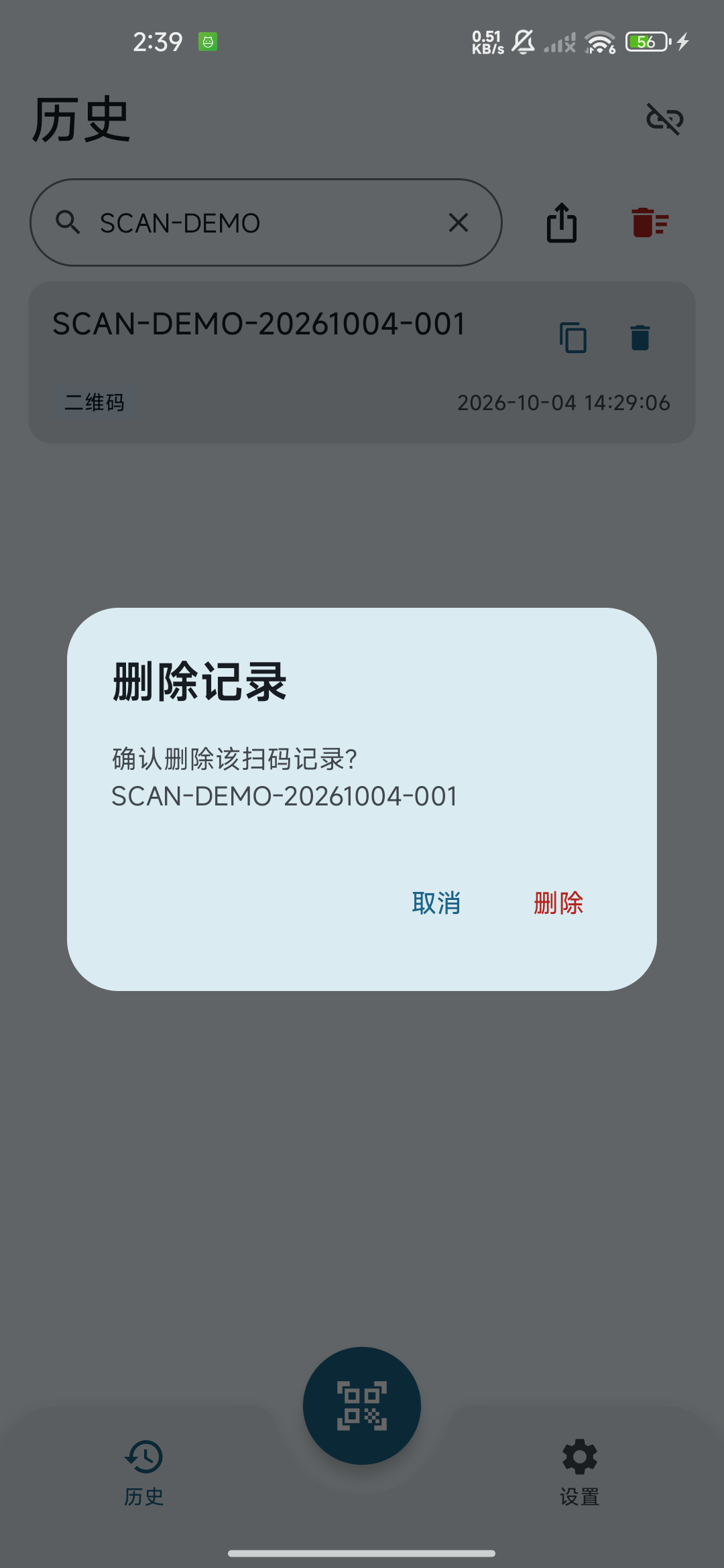
Scan Input Android single-record deletion confirmation
单条删除前核对记录内容;确认后无法在应用中撤销。Check the record before confirming deletion; the app cannot undo it.
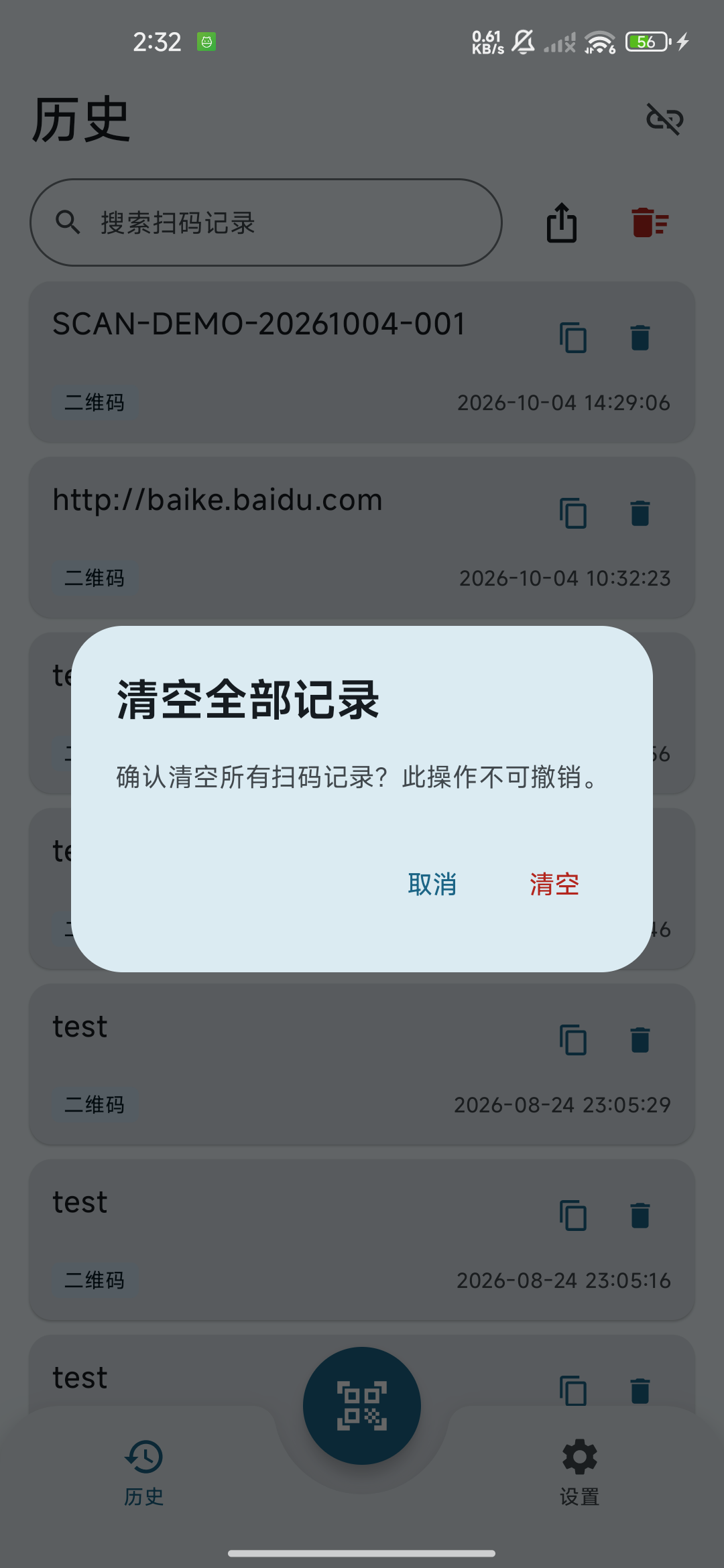
Scan Input Android clear-all-history confirmation
“清空全部”删除本机全部历史,搜索筛选不会限制它的范围。Clear all deletes all local history; a search filter does not limit its scope.
“清空全部”始终作用于全部历史Clear all always affects all history

通过历史页的“清空全部”入口打开确认弹窗。即使搜索框中有关键词,它也会删除本机所有扫码历史,包含搜索结果之外的记录。先导出需要保留的记录并核对文件,再决定是否确认;取消可返回历史页。当前版本没有回收站或应用内恢复。Open the confirmation from Clear all in History. Even with a search keyword, it deletes every local scan record, including records outside the results. Clear the search and export important records first, then decide whether to confirm. Cancel returns to History. There is no recycle bin or in-app recovery.

导出 CSV / Excel 并保存Export CSV / Excel and save

06

先确定导出范围Choose the export scope first

没有搜索条件时直接选择 CSV 或 Excel,导出全部历史。有搜索条件时,先在“选择导出范围”中选择“全部记录”或“搜索结果”,核对记录数,再点“继续”选择格式。导出包含所选范围内的所有记录,不限于屏幕上可见的几条;CSV 与 Excel 使用相同范围。Without a search filter, choose CSV or Excel to export all history. With a filter, use Choose export scope to select All records or Search results, check the counts, then tap Continue to choose a format. Every record in the chosen scope is included, including rows outside the screen. CSV and Excel use the same scope.

07

点击导出并选择格式Tap Export and choose a format

点历史页的导出图标(入口收起时从“更多”打开)。搜索中先确认导出范围,再选择“CSV 文件 (.csv)”或“Excel 文件 (.xls)”。没有任何历史时无法导出;搜索无匹配时仍可明确选择“全部记录”,不会生成空的搜索结果文件。Tap the export icon in History, or open it from More if collapsed. During a search, confirm the export scope before choosing CSV file (.csv) or Excel file (.xls). Empty history cannot be exported. With no search matches, you can explicitly choose All records; no empty search-results file is created.

08

在系统分享面板完成保存或发送Finish saving or sending in the system share sheet

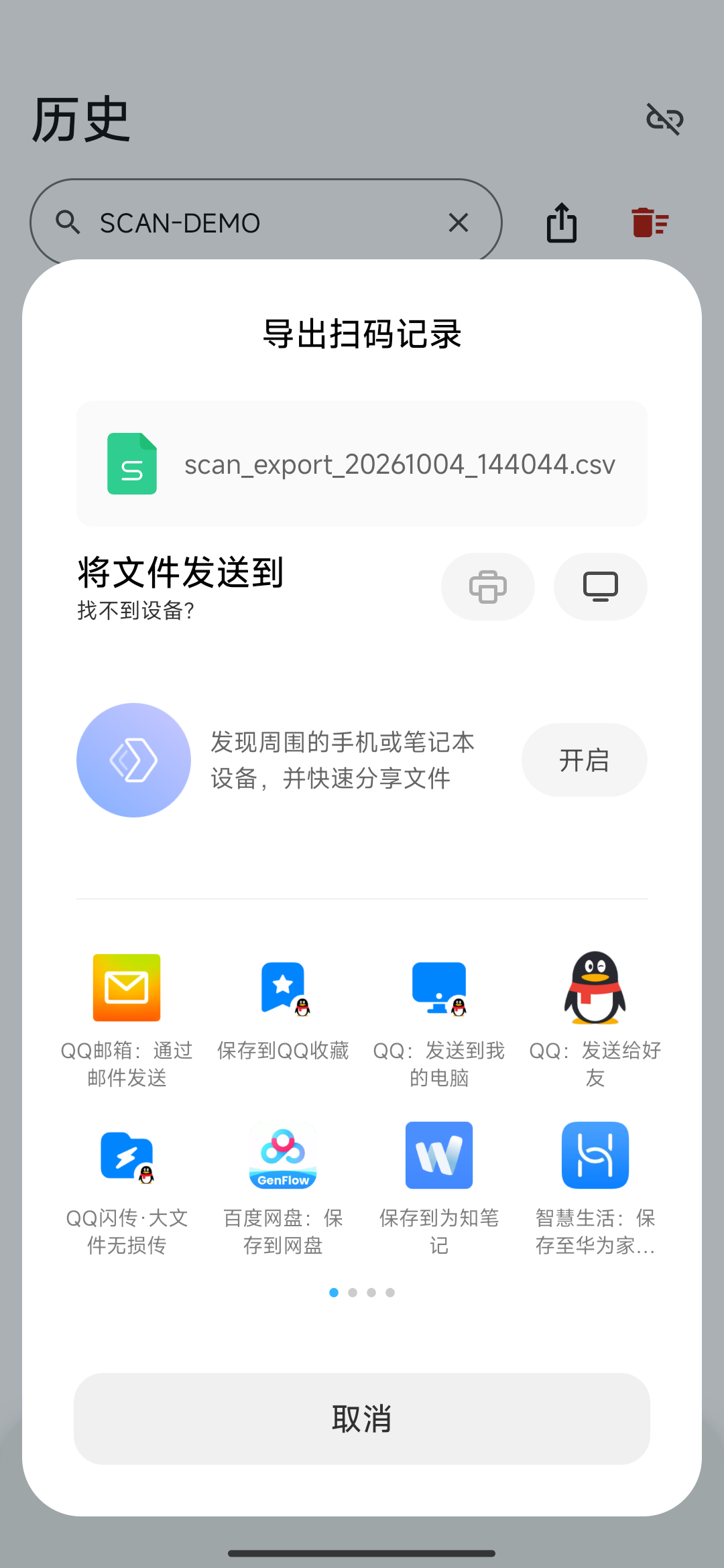
选择格式后会打开 Android 系统分享面板。选择文件管理、云盘、邮件等可接收文件的应用,并在该应用内完成保存或发送;可用选项取决于手机系统和已安装应用。手机扫码枪没有单独的“保存路径”设置,也不会要求你在应用内选择文件夹。After choosing a format, Android opens its share sheet. Select an installed file manager, cloud drive, email app, or another app that accepts files, then finish saving or sending there. Options depend on your system and installed apps. Scan Input has no separate save-path setting and does not ask you to choose a folder within the app.
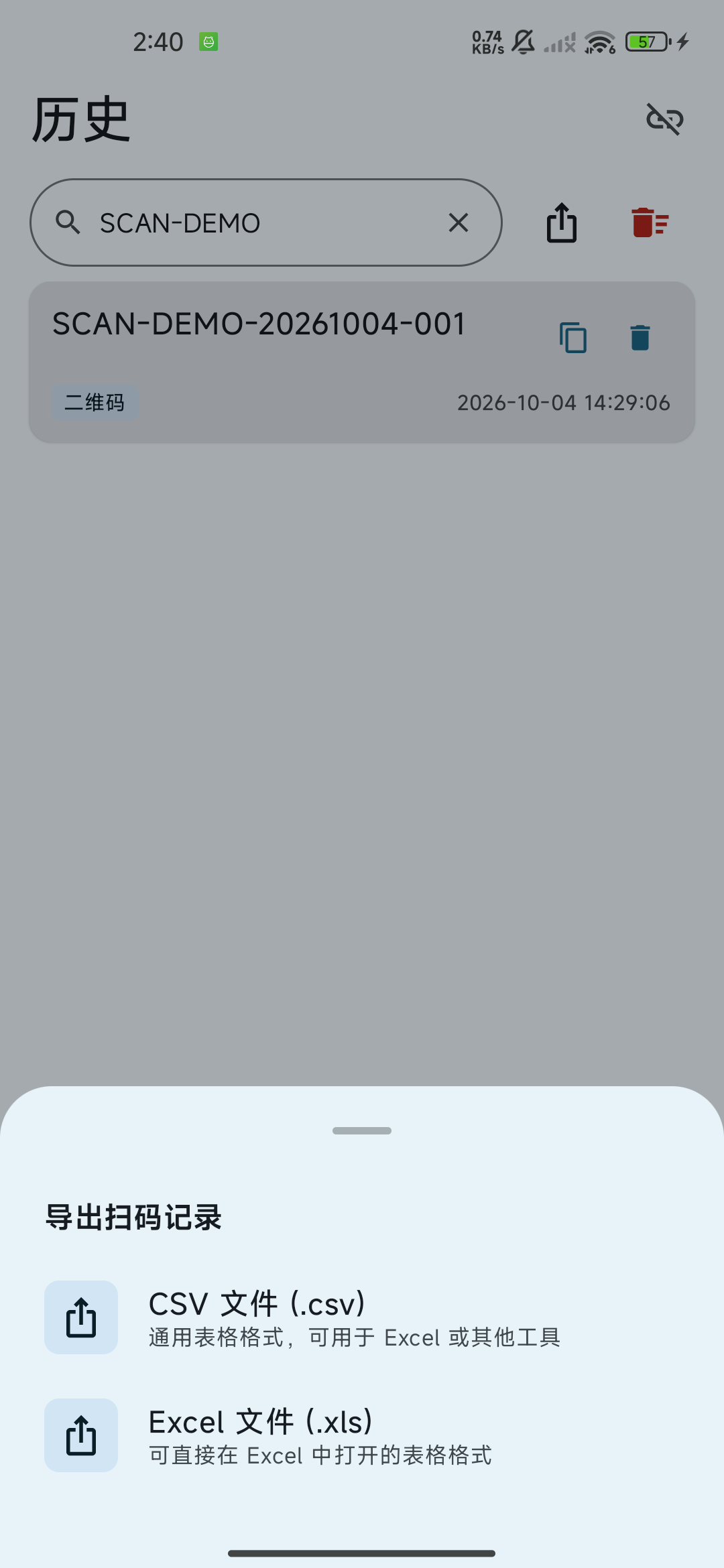
Scan Input Android CSV and Excel export choices
导出格式选择:CSV 文件 (.csv) 或 Excel 文件 (.xls)。Choose CSV file (.csv) or Excel file (.xls).
Android system share sheet for a Scan Input export
下一步在系统分享面板选择接收文件的应用,并完成该应用的保存或发送流程。Next, choose an app in the system share sheet and complete its save or send workflow.

文件内容与格式差异File contents and format differences

  • 两个格式的列依次为:序号、内容、格式、时间。内容保留扫码原文,不包含回车或 Tab 后缀;记录按时间倒序导出。Both formats contain No., Content, Format, and Time, in that order. Content is the original scan text without an Enter or Tab suffix. Records are exported newest first.
  • CSV 是 UTF-8 文本表格,带中文编码识别标记。使用表格软件打开时,长数字和前导零可能受软件自动格式转换影响;需要保留时,将“内容”列按文本导入。CSV is a UTF-8 text table with an encoding marker for Chinese text. Spreadsheet apps may automatically convert long numbers or remove leading zeros; import the Content column as text when those must be preserved.
  • “Excel 文件 (.xls)”实际是可由表格软件读取的 HTML 表格,扩展名为 .xls;不是 .xlsx 工作簿。Excel 可能提示扩展名与格式不匹配,这是该导出格式的特征。确认文件由你刚刚导出后,可按软件提示打开;也可改用 CSV。Excel file (.xls) contains an HTML table readable by spreadsheet apps and uses the .xls extension; it is not an .xlsx workbook. Excel may warn that the extension and format do not match. After confirming it is your freshly exported file, follow the app’s opening prompt, or use CSV instead.
确认文件已经保存Verify that the file was saved

生成分享文件不等于已经存入你指定的位置。完成分享应用的流程后,在接收位置核对文件名、记录数量和内容,再删除手机中的重要历史。Creating a shareable file does not mean it is saved in your chosen destination. Finish the receiving app’s workflow, then verify the file, record count, and content at that destination before deleting important phone history.

本地数据与导出文件Local data and exported files

  • 相机画面在 Android 手机上处理;应用不会把实时扫码画面保存为照片,也不会上传到手机扫码枪服务器。Camera recognition runs on the Android phone. The app does not save the live scanner view as photos or upload it to Scan Input servers.
  • 扫码历史保存在当前设备本地。请主动导出重要记录;卸载应用或清除应用数据前先核对备份。Scan history is stored on the current device. Export important records and verify the backup before uninstalling the app or clearing its data.
  • 蓝牙 HID 通过系统蓝牙发送;Wi-Fi 模式在同一局域网内发送到桌面端。网页自动跳转开启后,浏览器访问由该网页和浏览器处理。Bluetooth HID uses system Bluetooth; Wi-Fi sends to the desktop app on the local network. When automatic webpage opening is enabled, the browser and visited website handle that visit.
  • 导出先生成供系统分享的临时文件。长期保留请完成接收应用的保存操作;保存后的副本由所选位置或应用管理,删除手机扫码历史不会替你删除这些副本。Export creates a temporary file for system sharing. To retain it long term, finish saving it in the receiving app. Copies are managed by that destination or app; deleting phone scan history does not delete those copies.

完整信息处理说明见 隐私政策。See the Privacy policy for the complete information-handling description.

扫码与导出常见问题Scanning and export questions

对准条码但没有结果No result when pointing at a code

清洁镜头,增加光线,保持完整码图案在画面中。缓慢调整距离和角度,减少反光;很小或模糊的码可换用清晰原图进行相册识别。Clean the lens, improve lighting, and keep the entire code visible. Slowly adjust distance and angle to reduce glare. For a very small or blurred code, try gallery recognition with a clear original image.

同一码出现多条历史The same code appears in several records

相机页持续工作,防抖只抑制短时间重复。成功后将码移出画面;历史中不需要的重复条目可逐条删除。The scanner runs continuously, and duplicate suppression lasts only briefly. Move the code out of view after success, and delete unwanted duplicate records individually.

识别成功却没有输入电脑Recognition succeeds but no text reaches the computer

先检查连接状态,再把光标放入电脑可编辑的输入框。若手机仍保留历史而电脑无内容,请按蓝牙 HID 或 Wi-Fi 教程排查连接和权限;历史页没有重新发送按钮。Check the connection, then focus an editable field on the computer. If the phone has a record but the computer receives nothing, follow the Bluetooth HID or Wi-Fi guide to check connectivity and permissions. History has no resend button.

导出的记录看起来少了The export contains fewer records than expected

检查本次或记住的导出范围;选择“全部记录”可导出完整历史。要重新显示确认对话框,到“设置 → 搜索时导出范围”改为“每次询问”。搜索结果导出包含所有匹配项,与是否滚动到该条无关。Check the chosen or remembered export scope. Choose All records for complete history. To restore the confirmation, choose Ask every time in Settings → Export scope while searching. Exporting Search results includes every match, including rows outside the screen.

系统分享面板没有“保存到文件”The share sheet has no Save to files option

这是系统和接收应用提供的选项,手机之间可能不同。选择可接收文件的已安装应用,并在该应用内完成保存;返回手机扫码枪后可以重新导出。Share options come from the system and receiving apps and vary between phones. Choose an installed app that can receive the file and finish saving there. You can return to Scan Input and export again.

误删或清空后怎么恢复How can I recover deleted history?

当前版本无法在应用中恢复已删除历史。有导出文件时,可在文件或表格软件中查阅备份;建议每批采集结束后导出并验证,再进行清理。The current version cannot restore deleted history in the app. If you exported it, view the backup in a file or spreadsheet app. Export and verify each collection batch before cleaning up history.
先设置发送后缀与扫码反馈Set suffix and scan feedback first

  1. 到“设置 → 扫码后缀 → 选择后缀类型”,选“无”“回车”或“Tab”,默认回车。只有发送到电脑的文本追加后缀;历史、复制和导出仍是原文。Open Settings → Scan suffix → Select suffix type and choose None, Enter or Tab; Enter is the default. Only transmitted text gains a suffix. History, copies and exports retain the original content.
  2. 按场景打开或关闭“震动效果”“声音提示”。提示反馈用于识别结果,不是电脑实际录入完成证明;模拟器不验证真实震动与相机。Configure Vibration and Sound for your task. Scan feedback is not proof that the computer field received text. The simulator does not verify physical vibration or camera capture.
  3. “网页自动跳转”默认关闭。开启后 HTTP / HTTPS 网址可能打开系统浏览器;连续盘点时可保持关闭。Automatically open webpages is off by default. When enabled, HTTP/HTTPS results may open the system browser; keep it off for continuous inventory scanning.
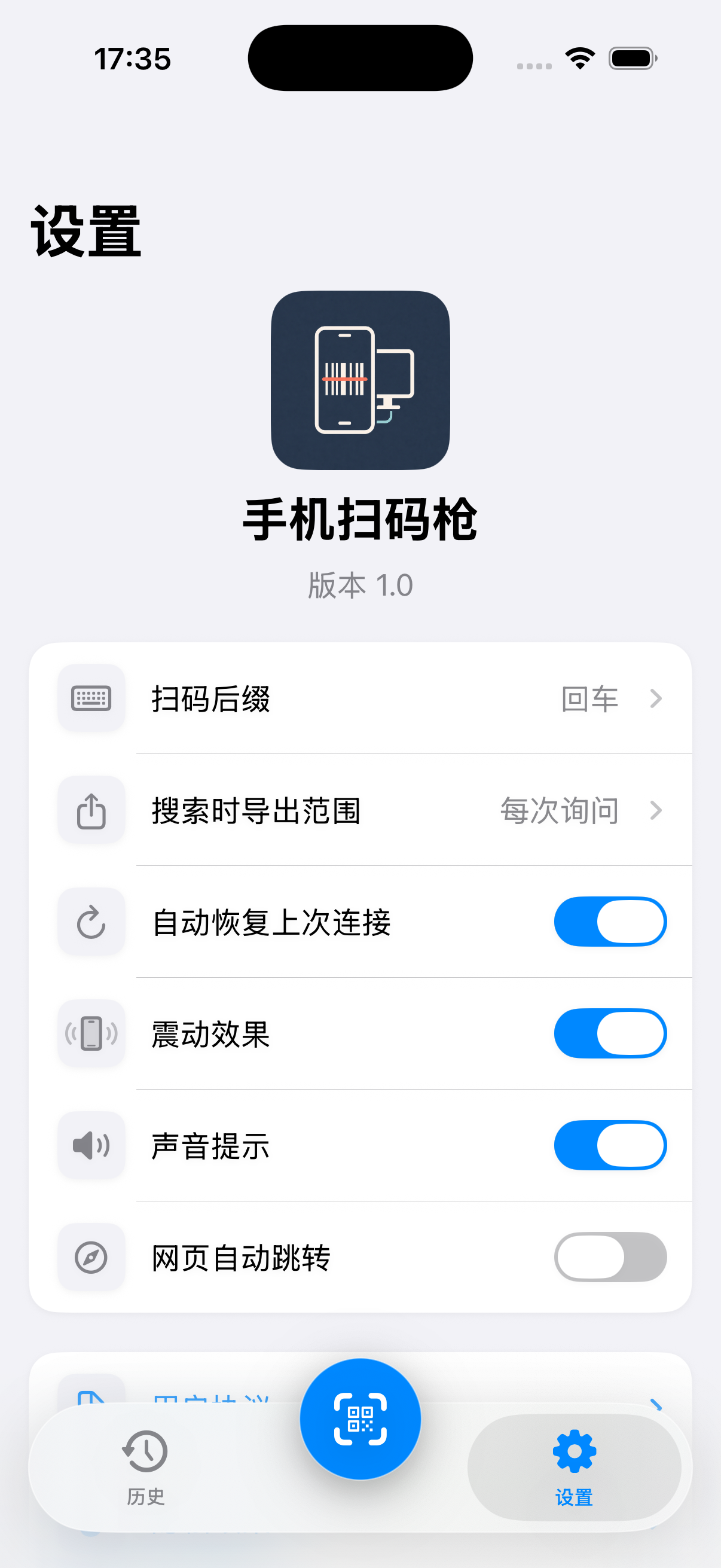
iOS 设置页:后缀、搜索时导出范围、自动恢复、震动、声音与网页自动跳转。
iOS 设置页:后缀、搜索时导出范围、自动恢复、震动、声音与网页自动跳转。iOS Settings: suffix, export scope while searching, restoration, vibration, sound and automatic webpage opening.

相机扫码、切换与连续识别Camera controls and continuous scanning

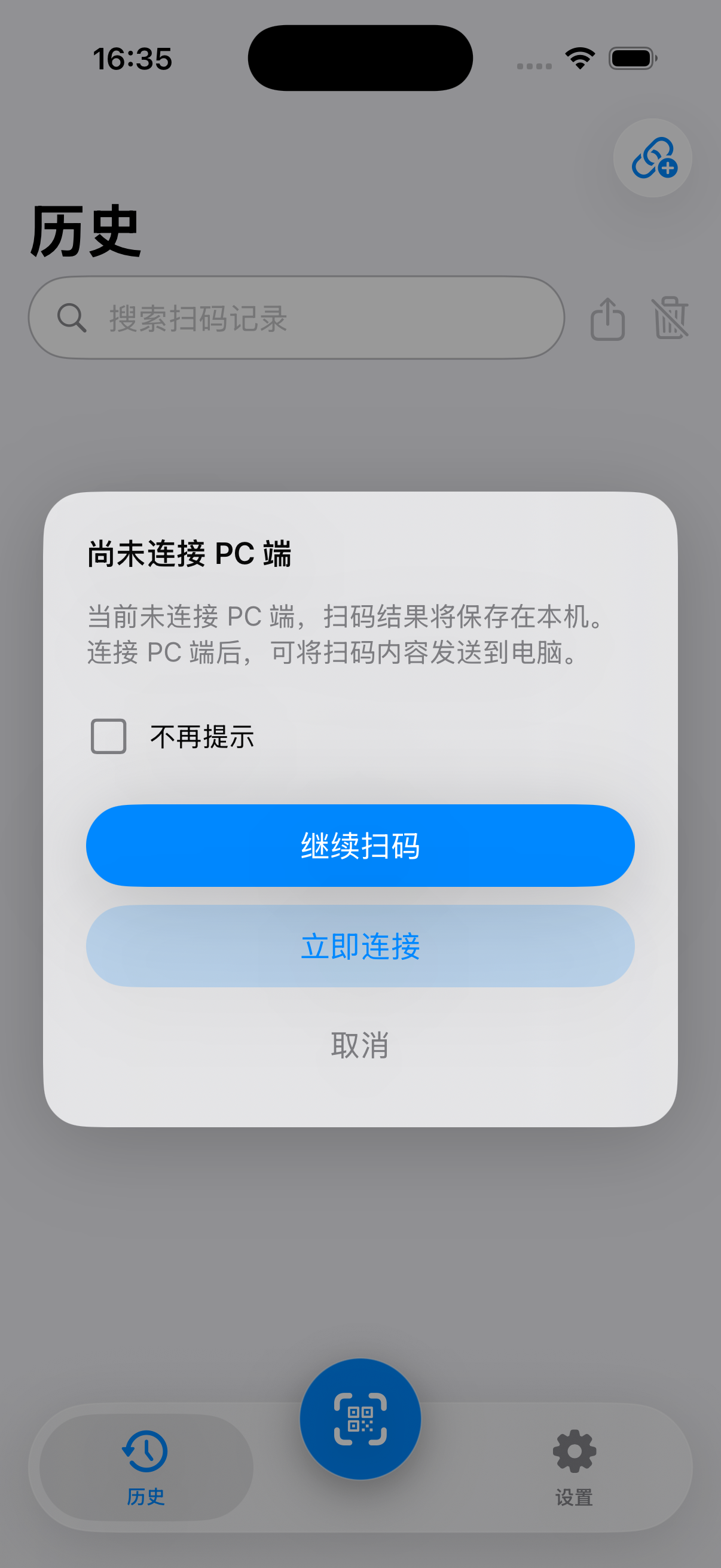
  1. 点中央“扫码”。未连接 PC 时选“继续扫码”保存到手机,或“立即连接”先设 Wi-Fi;按提示允许相机权限。Tap the central Scan button. If disconnected, choose Continue scanning for local history or Connect now to set up Wi-Fi, then allow camera access.
  2. 默认后置相机,将完整二维码或条形码放在画面内,调整距离、光线与对焦。底部“切换”切前后相机;前置相机不能使用闪光灯。The rear camera is the default. Keep the full QR/barcode visible and adjust distance, light and focus. Switch changes rear/front cameras; flashlight is unavailable on the front camera.
  3. 识别后显示“最新扫码结果”,新增历史;连接时尝试发送到电脑。可点结果复制。扫描页保持打开,移开已扫条码再扫下一条。Recognition displays Latest scan result and adds History; when connected it also attempts sending. Copy from the result. The scanner remains open, so move the scanned code away before the next scan.
  4. 同内容短时间内有重复抑制,但长时间对准同一码仍可能再次记录。用左上“返回”或圆形关闭按钮退出扫码。Brief duplicate suppression prevents immediate repeats, but a code left in view can be recorded again later. Exit using Back or the round close button.
相机不可用或权限被拒绝Camera unavailable or permission denied

“需要相机权限以进行扫码”页的“授权相机权限”打开系统设置;允许后返回重试。模拟器无真实相机,使用相册识别演示,不据此判断真机相机故障。Grant camera access on the Camera access is required screen opens system settings. Allow it and return. The simulator has no real camera, so use gallery recognition for demonstration rather than diagnosing a device camera from that screen.

未连接电脑时,可以继续扫码保存本机记录,或先立即连接。
未连接电脑时,可以继续扫码保存本机记录,或先立即连接。When disconnected, continue scanning for local records or connect to the computer first.

同一画面最多 8 个候选,选择一个Choose one of up to eight visible candidates

识别与多码行为需真机验收Recognition and multi-code behavior need device verification

本节步骤依据当前 iOS App 源码说明。模拟器截图没有展示识别成功或多码选择结果,相机、照片解码与候选框操作仍需在 iPhone / iPad 上完成验收。These steps describe the current iOS app source. Simulator screenshots do not demonstrate successful recognition or multi-code selection. Verify camera/photo decoding and candidate selection on an iPhone or iPad.

  1. 一次识别到多个码时画面冻结,提示“检测到多个码,请点击需要的识别框”。查看编号与位置,不会一次把所有结果录入。Multiple codes freeze the frame and prompt you to tap the desired detection box. Check the numbered boxes and positions; the app does not enter every result at once.
  2. 点击需要的码,仅该结果保存到历史并按当前连接发送,随后恢复扫描;未选的结果不记录。Tap the desired code. Only that result is saved and sent through the current connection, then scanning resumes. Unselected results are not recorded.
  3. 不需要这次候选时点“重新扫描”。当前最多展示 8 个有效候选;更多码请分组、调整画面或裁剪相册图片识别。Tap Scan again to discard the candidates. Up to eight valid candidates are shown; split larger groups, adjust the frame or crop a gallery image.

搜索、复制、单条删除与清空Search, copy, delete one record or clear all

  1. 回“历史”核对最新记录的内容、二维码/条码格式与时间。点复制按钮复制原始文本,记录不会因此发送到电脑。Return to History and check the newest content, QR/barcode format and time. Copy copies the original text; it does not send the record to the computer.
  2. 在搜索框输入内容片段,或本地化格式文字(例如“二维码”“条码”)筛选;清掉搜索恢复全部显示。Search a content substring or localized format name such as QR code or Barcode. Clear the query to show all records again.
  3. 单条点删除,在“删除记录”确认框核对内容,点“删除”才执行;“取消”保留记录。Delete one record, verify its content in the Delete record confirmation and tap Delete to proceed, or Cancel to keep it.
  4. “清空”会请求清空全部记录确认。即使当前有搜索条件,清空仍影响所有历史,不能当成只删除筛选结果。Clear asks for confirmation before removing all records. Even during a search, it clears the entire history, not just filtered results.
先保存需要的记录,再删除Save needed records before deleting

删除与清空无法在 App 中撤销。需要保留数据时先导出,并到实际保存位置检查文件后再操作。Deletion and clearing cannot be undone in the app. Export first and check the file at its saved destination before deleting.

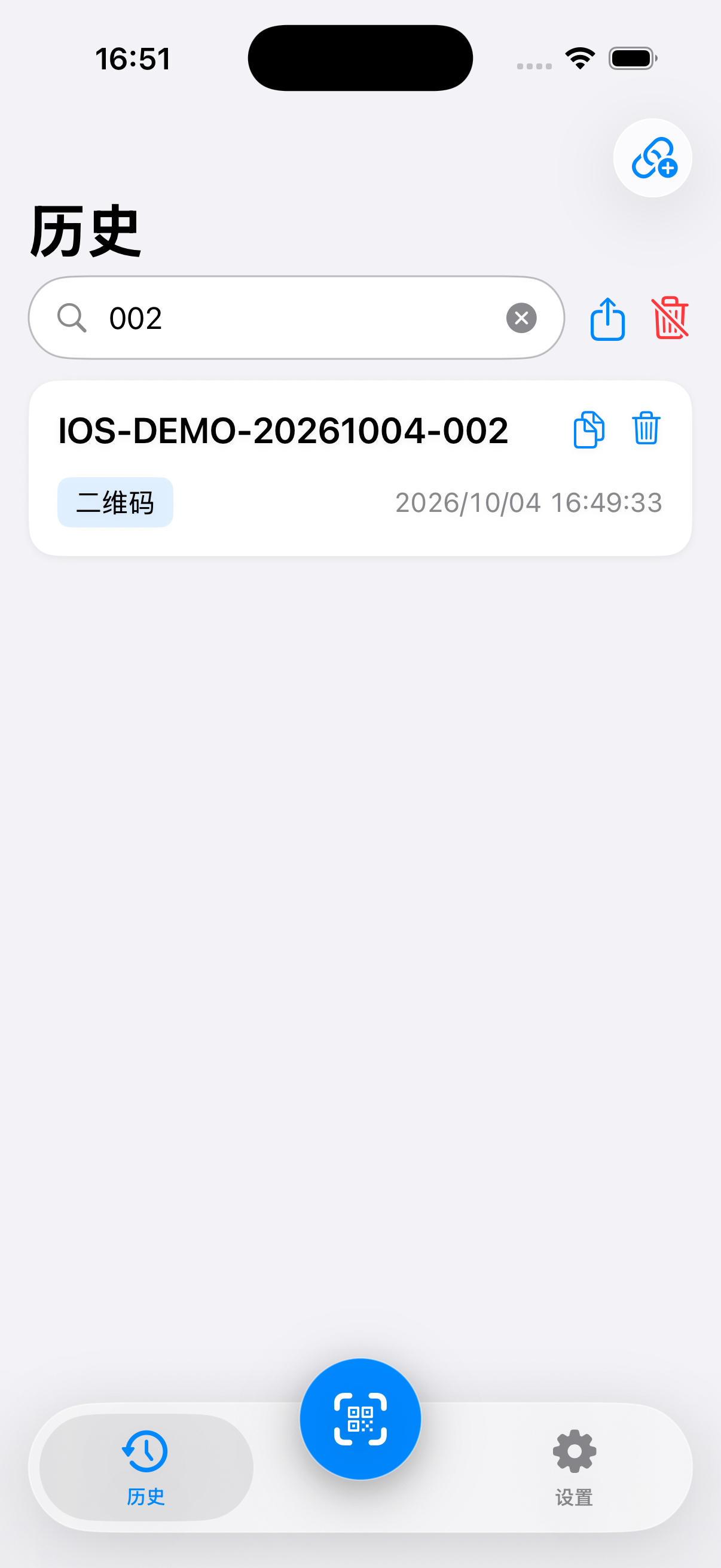
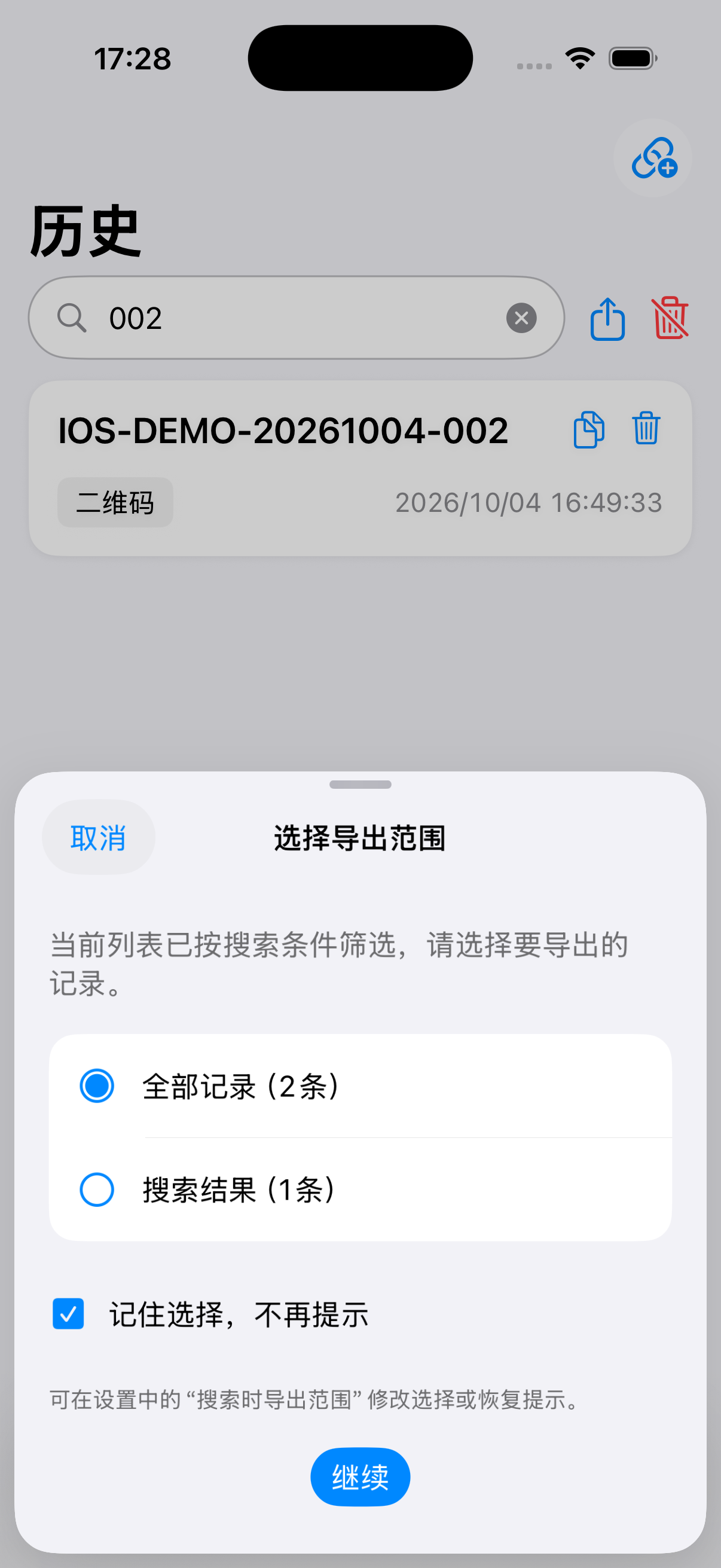
模拟器演示记录:搜索 002 后显示一条;导出时可选全部两条或这一条搜索结果。
模拟器演示记录:搜索 002 后显示一条;导出时可选全部两条或这一条搜索结果。Simulator demo records: searching 002 shows one result. Export can include both records or this single search result.

iOS 选择导出范围,经分享表保存Choose the iOS export scope and save through the share sheet

记住选择与恢复提示Remember a scope or restore the prompt

勾选“记住选择,不再提示”并点“继续”,以后搜索时会直接按所选范围进入格式选择;取消范围对话框不会导出,也不会保存本次选择。记住的范围只作用于搜索中的列表,无搜索时仍导出全部。需要修改或恢复提示时,到“设置 → 搜索时导出范围”选择“每次询问”“全部记录”或“搜索结果”。已记住“搜索结果”但本次无匹配时会提示无法导出,不会改为全部记录。Check Remember my choice and don’t ask again and tap Continue to use that scope directly during future searches. Cancelling the scope dialog neither exports nor saves the choice. A remembered scope applies only while searching; without a filter, all history is exported. Use Settings → Export scope while searching to choose Ask every time, All records or Search results. A remembered Search results scope with no matches reports that nothing can be exported instead of switching to all records.

  1. 没有搜索条件时直接选择 CSV 或 Excel,导出全部历史。有搜索条件时,先在“选择导出范围”中选择“全部记录”或“搜索结果”,核对记录数,再点“继续”选择格式。导出包含所选范围内的所有记录,不限于屏幕上可见的几条;CSV 与 Excel 使用相同范围。Without a search filter, choose CSV or Excel to export all history. With a filter, use Choose export scope to select All records or Search results, check the counts, then tap Continue to choose a format. Every record in the chosen scope is included, including rows outside the screen. CSV and Excel use the same scope.
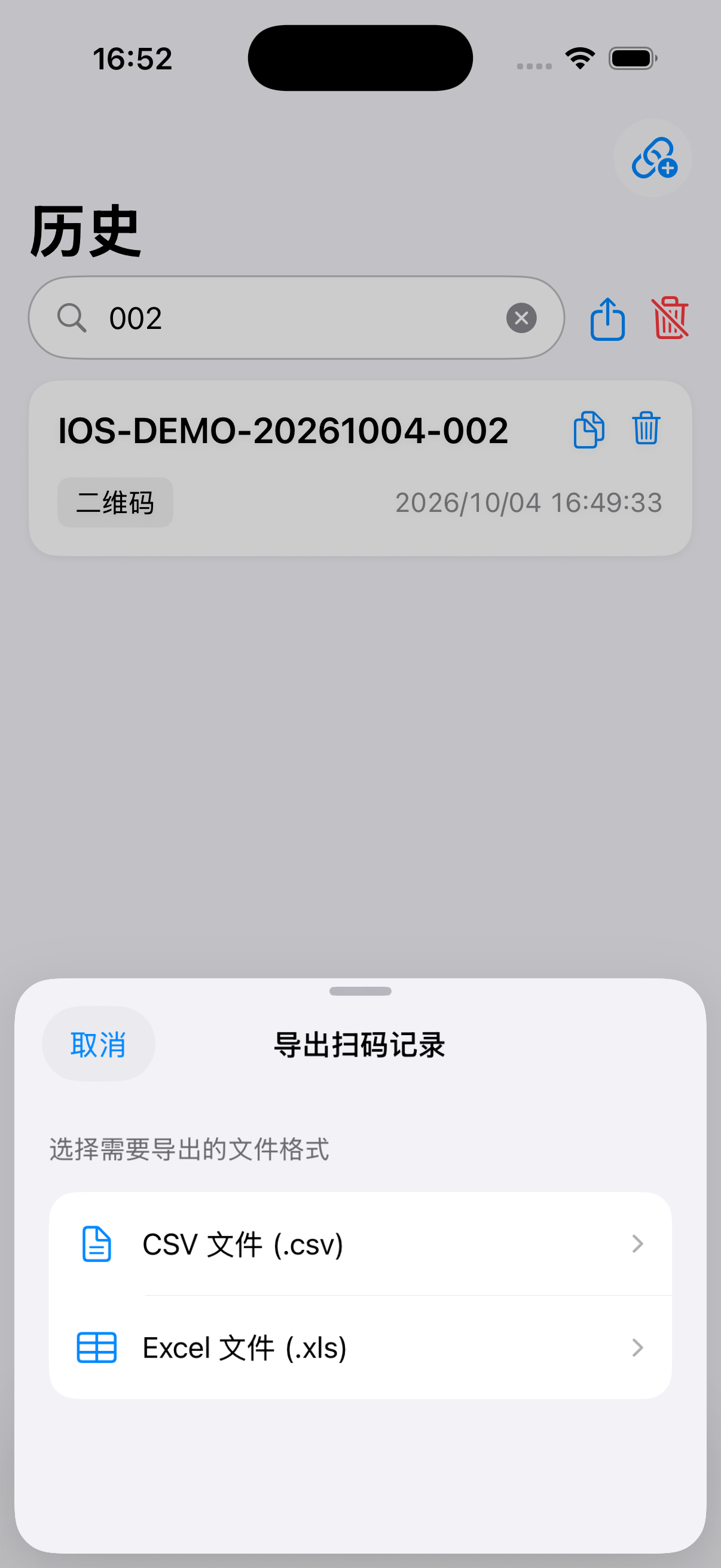
  2. 点历史页导出按钮,搜索中先确认范围,再选择“CSV 文件 (.csv)”或“Excel 文件 (.xls)”。App 按所选范围生成文件后打开 iOS 系统分享表。Tap Export on History and choose CSV file (.csv) or Excel file (.xls). After creating the file, the app opens the iOS system share sheet.
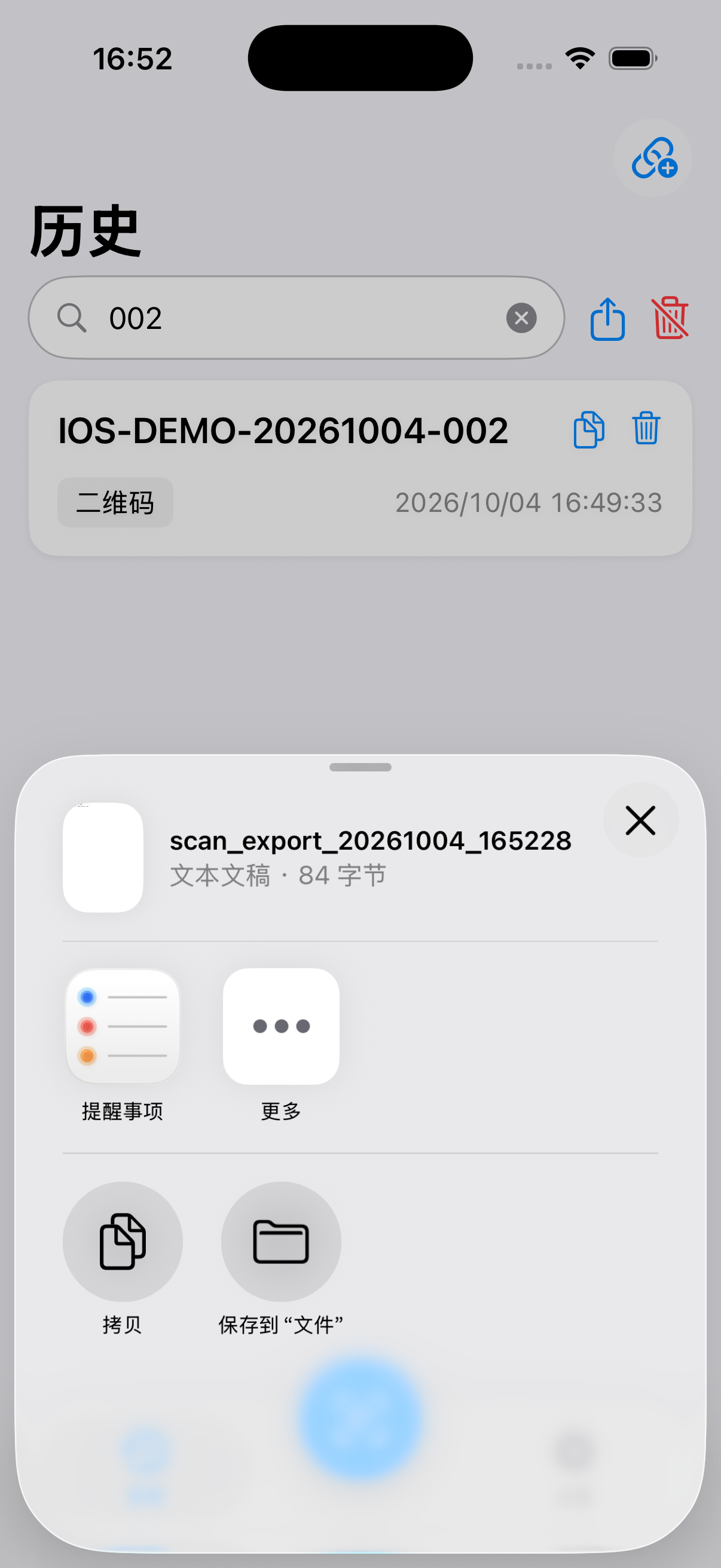
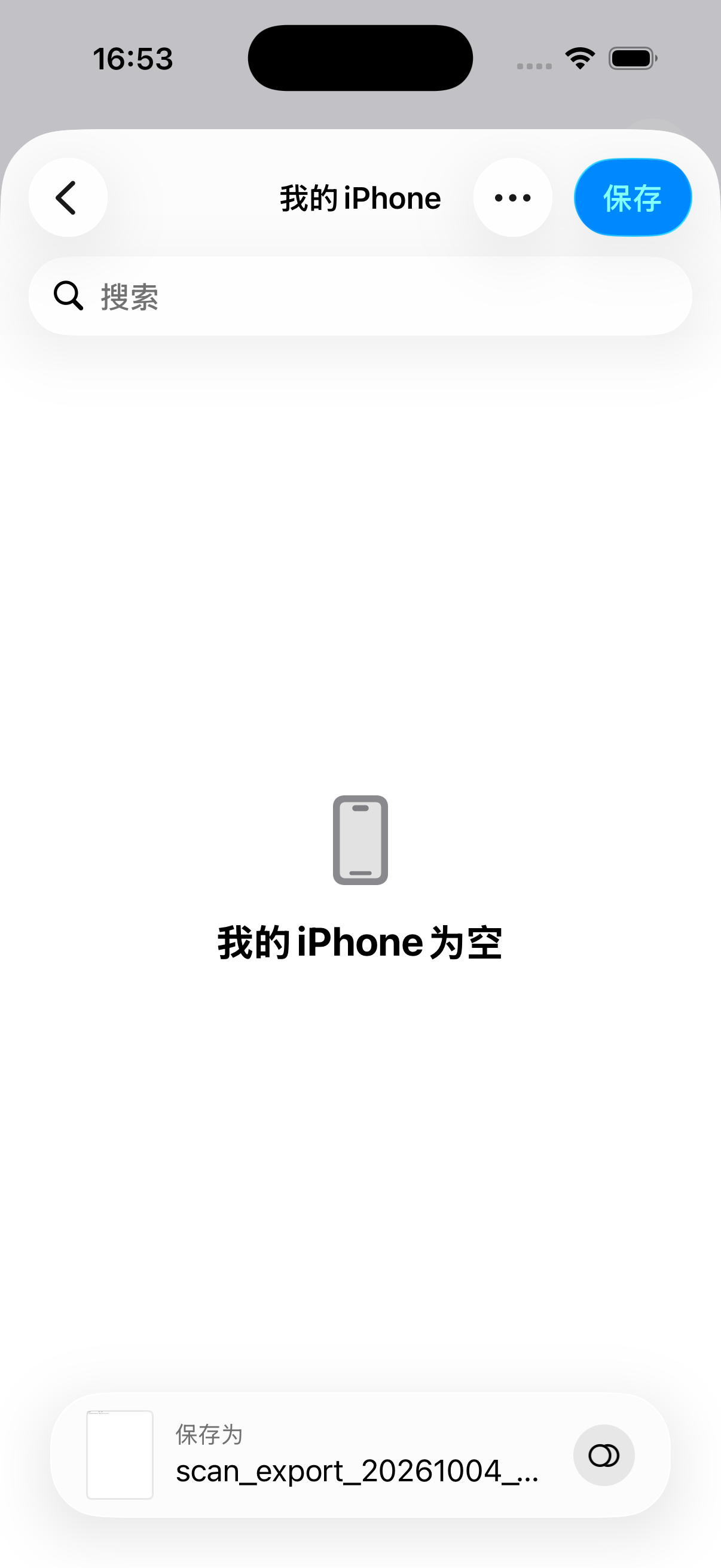
  3. 在分享表选择“保存到‘文件’”(部分版本称“存储到文件”),选 iPhone/iPad 本机位置或自己需要的文件位置,再点“保存”(部分版本称“存储”)。仅打开分享表不算已经保存;取消不会删除历史。Choose Save to Files, select an on-device or other desired destination and tap Save. Merely opening the share sheet does not save the file; canceling does not delete History.
  4. 到“文件”App 的对应位置打开,检查“序号、内容、格式、时间”四列、记录数与中文显示。发送后缀不追加到导出内容。Open the file in the chosen Files location and check No., Content, Format, Time, row count and Unicode text. Sending suffixes are not included.
CSV 与 Excel 文件的实际格式Actual CSV and Excel file formats

CSV 可供表格软件导入,内容列按文本处理可保留前导零与长编号。当前 .xls 为 Excel 可读的 HTML 表格,不是 .xlsx 工作簿;若软件提示扩展名与格式不一致,先核对是自己的导出,再按提示打开或使用 CSV。Import CSV content columns as text to preserve leading zeros and long identifiers. The current .xls is an Excel-readable HTML table, not an .xlsx workbook. If the spreadsheet warns that the extension differs from the format, verify it is your export before opening, or use CSV.

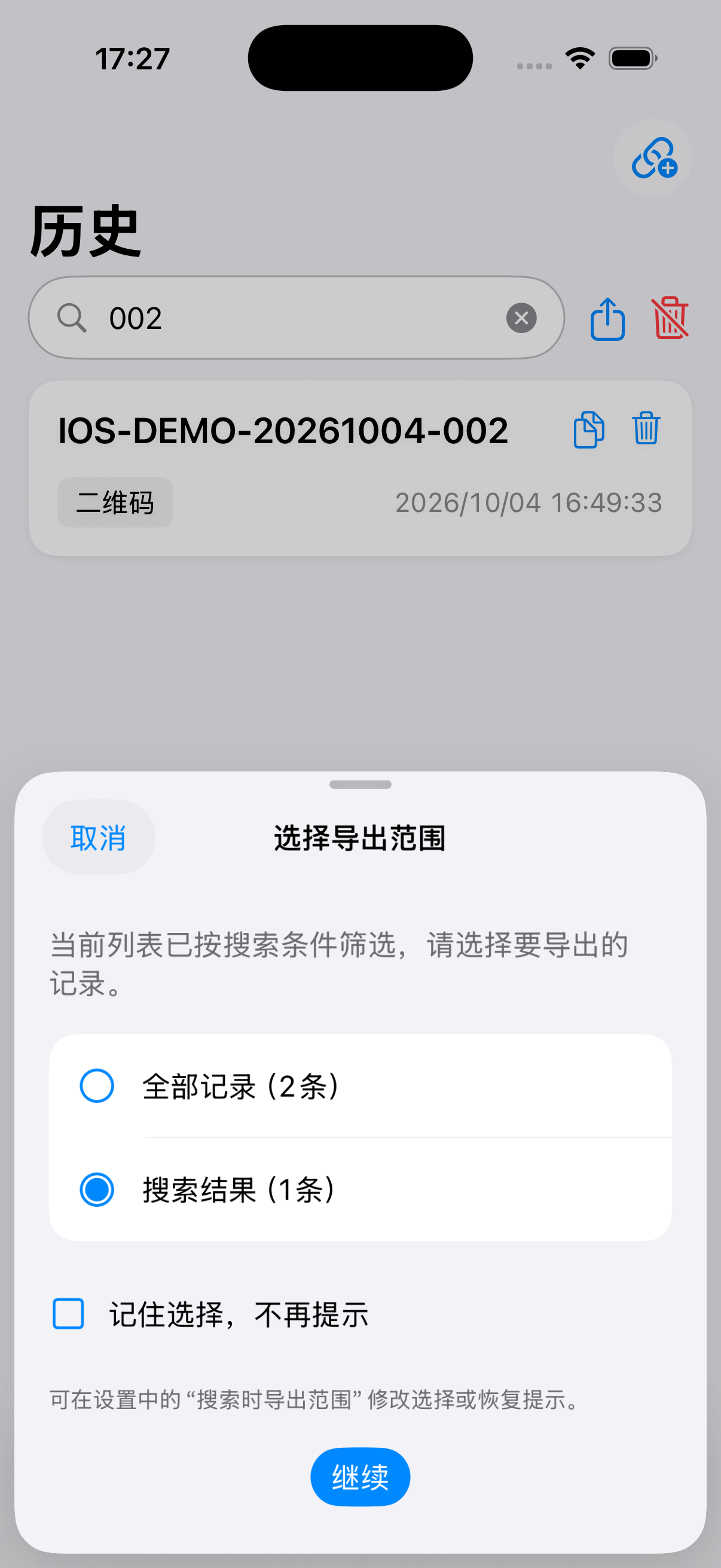
iOS 搜索中的导出范围确认:全部两条与匹配一条
搜索 002 后,“全部记录”包含两条演示记录,“搜索结果”只有匹配的一条。选择范围并点“继续”,再选择 CSV 或 Excel。With 002 in search, All records includes both demo records and Search results includes the single match. Choose a scope and tap Continue, then choose CSV or Excel.
iOS 导出范围选择全部记录并勾选记住选择
本图选择“全部记录”并勾选“记住选择,不再提示”;点“继续”才保存选择,取消不会记住。可在“设置 → 搜索时导出范围”改为“每次询问”,恢复提示。All records and Remember my choice and don’t ask again are selected here. Continue saves the choice; Cancel does not. Restore Ask every time in Settings → Export scope while searching to show the prompt again.
搜索 002 后选择“搜索结果”,本次示例导出一条;选择“全部记录”则导出全部两条,无需清空搜索。
搜索 002 后选择“搜索结果”,本次示例导出一条;选择“全部记录”则导出全部两条,无需清空搜索。Choose Search results after searching 002 to export one record. Choose All records to export both without clearing the search.
iOS 系统分享表:点“保存到‘文件’”,进入文件保存窗口。
iOS 系统分享表:点“保存到‘文件’”,进入文件保存窗口。The iOS share sheet: choose Save to Files to open the file-save window.
选择“我的 iPhone”等目标位置,再点右上“保存”写入文件;文件名显示在底部。
选择“我的 iPhone”等目标位置,再点右上“保存”写入文件;文件名显示在底部。Choose a destination such as On My iPhone, then tap Save at the top right. The filename appears at the bottom.
本次模拟器导出检查Simulator export check

截图使用预先准备的演示记录。本轮已核对:搜索 002 后,选“全部记录”生成两条记录的 CSV,选“搜索结果”生成一条匹配记录;记住选择在重启 App 后仍生效。已记住搜索结果而搜索无匹配时只提示无法导出,清除搜索后即使保留该偏好,Excel 仍包含全部两条记录。CSV 与 .xls 的四列标题、记录数和原文已解析核对;勾选后取消范围对话框不保存选择,也不进入格式选择。此前单条 CSV 已完成系统保存并核对内容。本轮新流程验证到文件生成与分享表,未重复最终系统保存;Excel 的最终保存尚未验收。The screenshots use prepared demo records. In this check, a search for 002 produced a two-record CSV with All records and a one-record CSV with Search results. The remembered choice survived an app restart. A remembered Search results choice with zero matches stopped before format selection; after clearing search, Excel still included both records despite that preference. Column headers, row counts and original values were parsed and checked for CSV and .xls. Cancelling the scope dialog after checking Remember did not save the choice or advance. An earlier one-record CSV was saved through the system and its content checked. This round verified generation and system sharing without repeating final saving; Excel’s final save remains unverified.

完成一次识别到文件保存的检查Check the path from recognition to saved file

  1. 识别已知单码与多码图片各一次,多码仅选一个;核对历史没有未选结果。Recognize a known single-code image and a multi-code image, choosing one of the latter. Check that no unselected result entered History.
  2. 试一次内容搜索和格式搜索,复制检查原文,然后带搜索条件分别选择“全部记录”和“搜索结果”导出,核对文件记录数与所选范围一致。Test content and format searches and copy the raw text. With a query active, export once with All records and once with Search results, checking that each file matches the chosen scope.
  3. 需要电脑录入时先完成 iOS Wi-Fi 连接与实际输入检查。扫码后电脑没有内容,按识别、连接、发送和输入焦点分别排查。For computer entry, complete iOS Wi-Fi setup and typing checks. If no computer text appears, check recognition, connection, sending and target focus separately.

设置后缀、反馈和网页行为Set suffix, feedback and webpage behavior

04

在“设置 → 扫码后缀”选择无、回车或 TabChoose None, Enter or Tab under Settings → Scan suffix

逐行录入可选“回车”;切换输入框或下一列可选“Tab”;只要内容可选“无”。后缀只附加到向电脑发送的文字,不改变历史记录、复制内容或导出的原文。电脑应用决定回车是换行、跳格还是提交表单。默认后缀为回车。Choose Enter for row-by-row entry, Tab for the next field or column, or None for text alone. The suffix is added only to computer output; it does not alter history, copied text or exports. The target app decides whether Enter inserts a line, moves a cell or submits a form. The default is Enter.

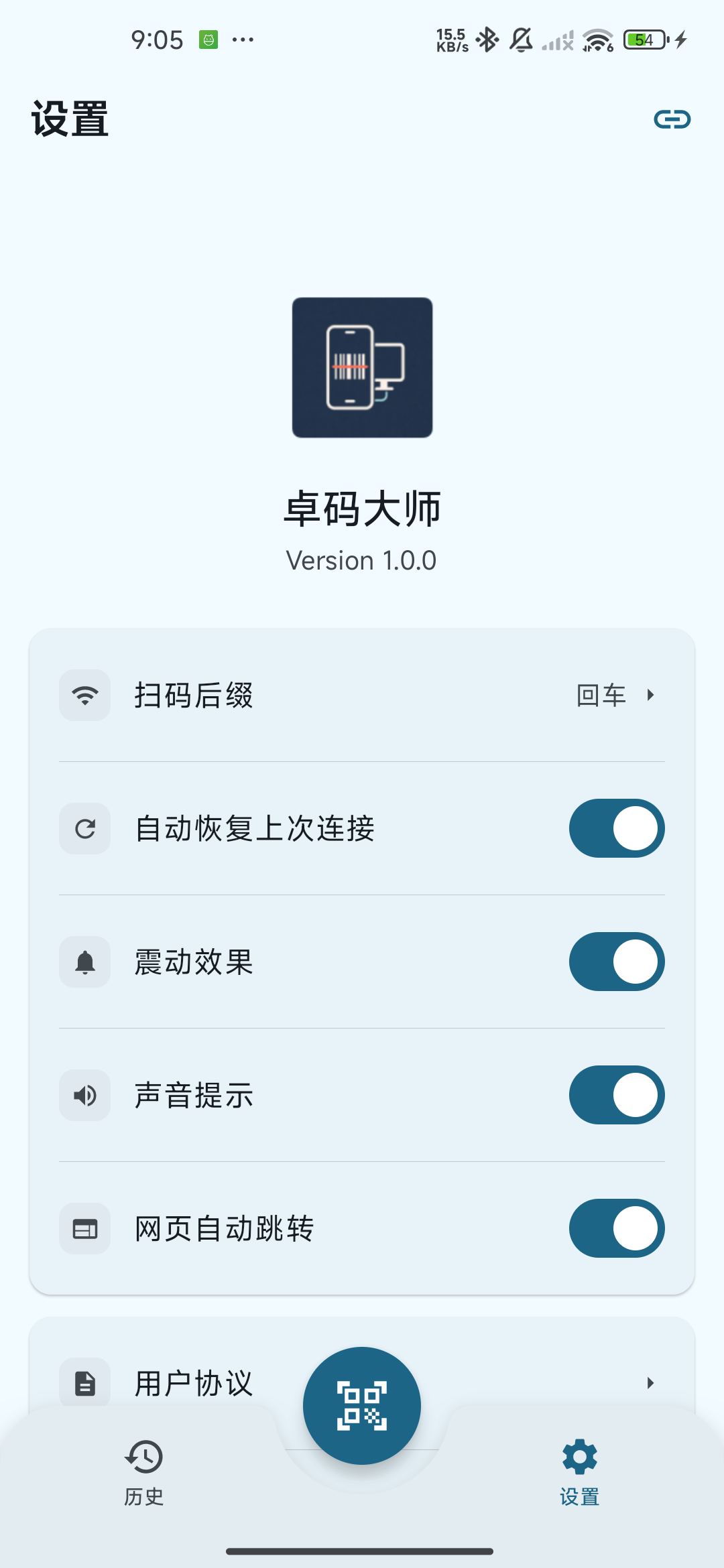
鸿蒙版设置页
常用设置与协议、官网、使用教程、PC 端下载入口。Common settings and links to legal documents, website, guide and desktop download.
鸿蒙扫码后缀选择
选择“无”“回车”或“Tab”;选中后返回设置页。Choose None, Enter or Tab; selection returns to Settings.
05

按使用场景调整反馈和自动打开网页Adjust feedback and automatic webpage opening

“震动效果”“声音提示”默认开启,可按环境关闭。“网页自动跳转”默认关闭;开启后,识别到以 HTTP / HTTPS 开头的网页地址会调用系统浏览器,扫码记录仍会保存。需要连续盘点时可保持关闭,避免识别网址后切换到浏览器。Vibration and Sound are on by default; turn them off when appropriate. Automatically open webpages is off by default. When enabled, recognized HTTP/HTTPS addresses open in the system browser while the scan record remains saved. Keep it off during continuous inventory if browser switching interrupts your work.

自动恢复上次连接的实际范围What connection restore does

“自动恢复上次连接”默认开启。App 启动、加载已保存状态时会尝试恢复最近的蓝牙设备或 Wi-Fi 地址;它不保证每次切回前台、锁屏或网络变化后都能自动重连。电脑应开机且服务或蓝牙可用,恢复失败时点链环手动连接。Automatically restore last connection is on by default. When the app starts and loads saved state, it attempts the previous Bluetooth device or Wi-Fi address. It does not guarantee reconnection after every return to the foreground, lock-screen session or network change. Keep the computer and its service/Bluetooth available; use the link control to reconnect manually if needed.

相机扫码与连续录入Camera scanning and continuous entry

16

打开相机,将完整条码放入画面Open the camera and frame the complete code

点底部中央圆形扫码按钮,允许相机后使用后置摄像头识别条形码或二维码。让码完整、清晰地进入画面,保留四周空白,避免反光;不要贴得太近。底部左侧“闪光灯”可切换补光,右侧“相册识别”进入选图,中间红色关闭按钮或上方“返回”退出。Tap the center round scan button and allow the camera. The rear camera recognizes barcodes and QR codes. Keep the whole code clear in view with space around it, avoid glare and do not hold it too close. Flashlight is at bottom left, Scan from gallery at right, and the red center close button or top Back exits.

鸿蒙全屏相机扫码页
扫码页提供返回、闪光灯、关闭和相册识别;当前界面没有切换摄像头按钮。The scanner offers Back, Flashlight, Close and gallery recognition; this interface has no camera-switch button.
鸿蒙扫码页显示最新识别结果
“最新扫码结果”显示最近内容及复制入口;历史中也会保存对应记录。Latest scan result shows the newest content and copy control; the record is also saved in History.
17

核对结果,扫完移开后继续Verify the result and move the code away

识别成功后,“最新扫码结果”显示内容,记录保存到历史;有连接时会尝试发送。普通单码结果处理后会自动恢复扫描,无需寻找连续扫描开关。相同内容在约 2.5 秒内有重复抑制,但长时间留在镜头前仍可能再次识别,扫完请移开,再放入下一条。After recognition, Latest scan result displays the content, history saves the record and an active connection attempts sending. Scanning resumes automatically after a normal single result; there is no continuous-scan switch to enable. Identical content is suppressed for roughly 2.5 seconds, but a code left in view can be recognized again later. Move it away, then present the next code.

听到提示音后仍需检查文字Check text after the scan sound

“识别成功”与提示音不保证电脑打字完成。点击最新结果旁的复制图标会把原文复制到手机剪贴板,App 没有内建电脑剪贴板同步。若显示“扫码成功,但发送失败”,记录仍在手机;需要重录电脑时先恢复连接重新扫描,或自行将原文转到电脑后再粘贴。Recognition feedback does not guarantee computer typing. Copy beside the latest result places the original text on the phone clipboard; the app has no built-in computer clipboard sync. If sending fails, the phone retains the record. For computer entry, restore the connection and rescan, or transfer the original text to the computer yourself before pasting.

同一画面有多个码时When multiple codes are in one camera frame

18

从候选框选择需要的一条Select one code from the candidate boxes

同时识别到多个有效码时,App 最多展示 4 个候选,暂停画面并提示“检测到多个码,请点击需要的识别框”。点目标框只处理这一条,保存并尝试输出后恢复扫描;不是把所有候选一次录入。定位不完整时按“部分结果无法定位,请从列表中选择”从候选列表点选。When several valid codes are detected, the app displays up to four candidates, freezes the frame and asks you to tap the required box. Selecting one processes only that code, saves it, attempts output and resumes scanning. It does not enter all candidates at once. If positions are incomplete, choose from the candidate list as prompted.

点“重新扫描”会放弃本轮候选并恢复相机,不会把未选择的候选存成多条历史。画面内超过 4 个码时,分组拍摄或移动到只包含目标码,避免遗漏;需要连续录入多个标签时逐条移开并核对。Rescan discards the current candidates and restores the camera without saving unselected candidates. For more than four codes, scan in groups or frame only the target code to avoid omissions. Move each label away and verify the result when entering several codes.

搜索、复制与删除历史Search, copy and delete history

21

用内容关键词搜索记录Search records by their content

回到“历史”,在“搜索扫码记录”中输入完整内容或其中一段,列表即时筛选。搜索按记录内容匹配,忽略字母大小写与查询首尾空白,不搜索格式或日期。点搜索框内“×”清除查询,回到全部记录;最新记录在前。Return to History and enter full content or a substring in Search scan records. The list filters immediately by record content, ignoring letter case and leading/trailing query spaces; it does not search format or date. Tap × in the field to clear the query and show all records, newest first.

22

复制原文,单条删除前确认Copy the original text and confirm single deletion

点击记录右侧复制图标,出现“已复制”后可在手机目标位置粘贴;内容写入手机剪贴板,不追加回车或 Tab,App 没有内建电脑剪贴板同步。点删除图标会弹出“删除扫码记录”,确认目标后选“删除”,或选“取消”保留。记录内容在列表最多显示两行;当前没有展开详情、历史重发或多选操作。需要再次录入电脑时,先恢复连接重新扫描,或自行将原文转到电脑后再粘贴。Tap a record copy icon, then paste at a destination on the phone after Copied appears. It writes to the phone clipboard without Enter or Tab; the app has no built-in computer clipboard sync. The delete icon opens Delete scan record; check the target, then Delete or Cancel. List content is limited to two lines, with no expanded detail, resend or multi-selection. To enter it on the computer again, restore the connection and rescan, or transfer the original text to the computer yourself before pasting.

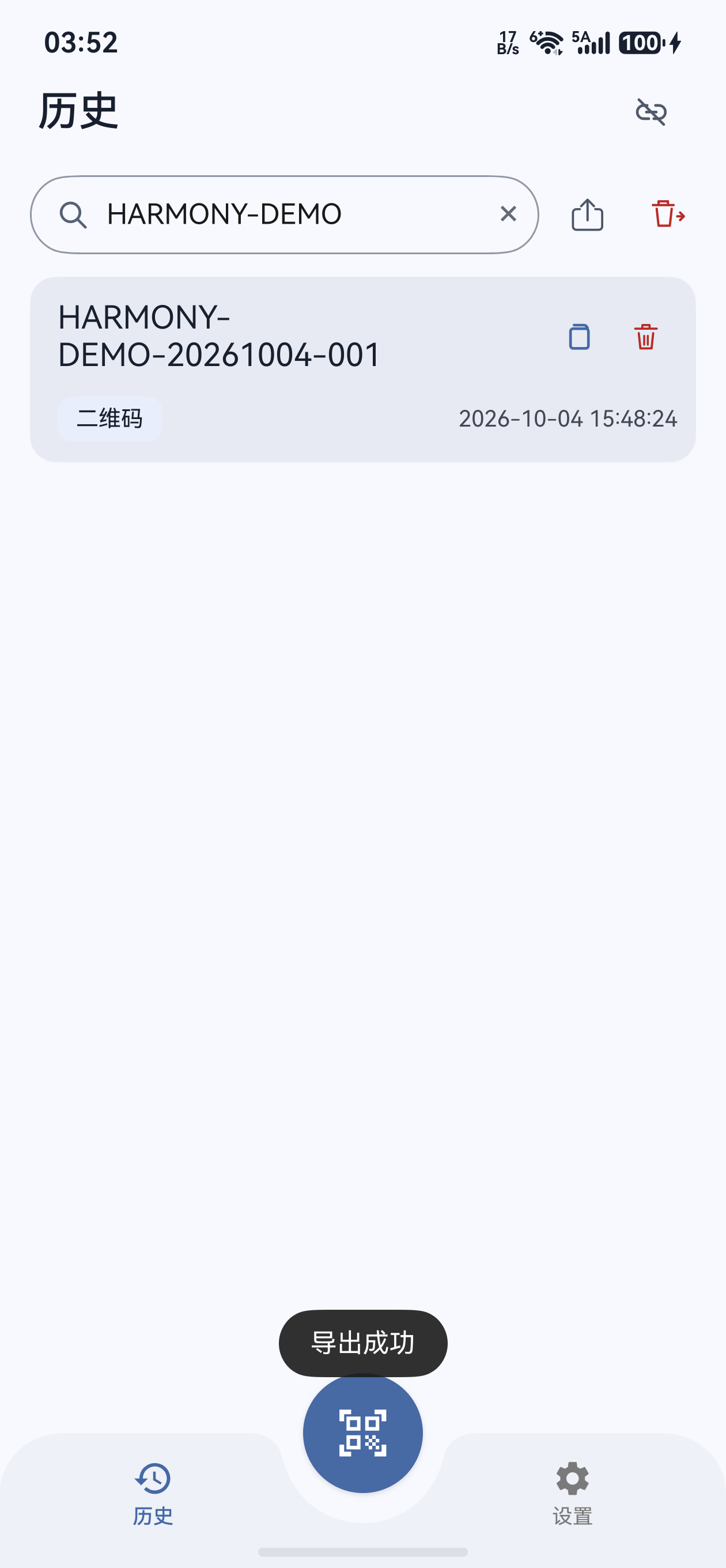
鸿蒙按内容筛选后的历史记录
搜索筛选显示;导出时可选择全部或搜索结果,清空全部仍作用于所有历史。Search filters the displayed list. Export can include all records or search results; Clear all still affects the complete history.
鸿蒙删除单条扫码记录的确认窗口
单条删除需要确认;点击取消保留记录。Single deletion requires confirmation. Cancel keeps the record.
23

清空全部前先保存需要的记录Save needed records before clearing all

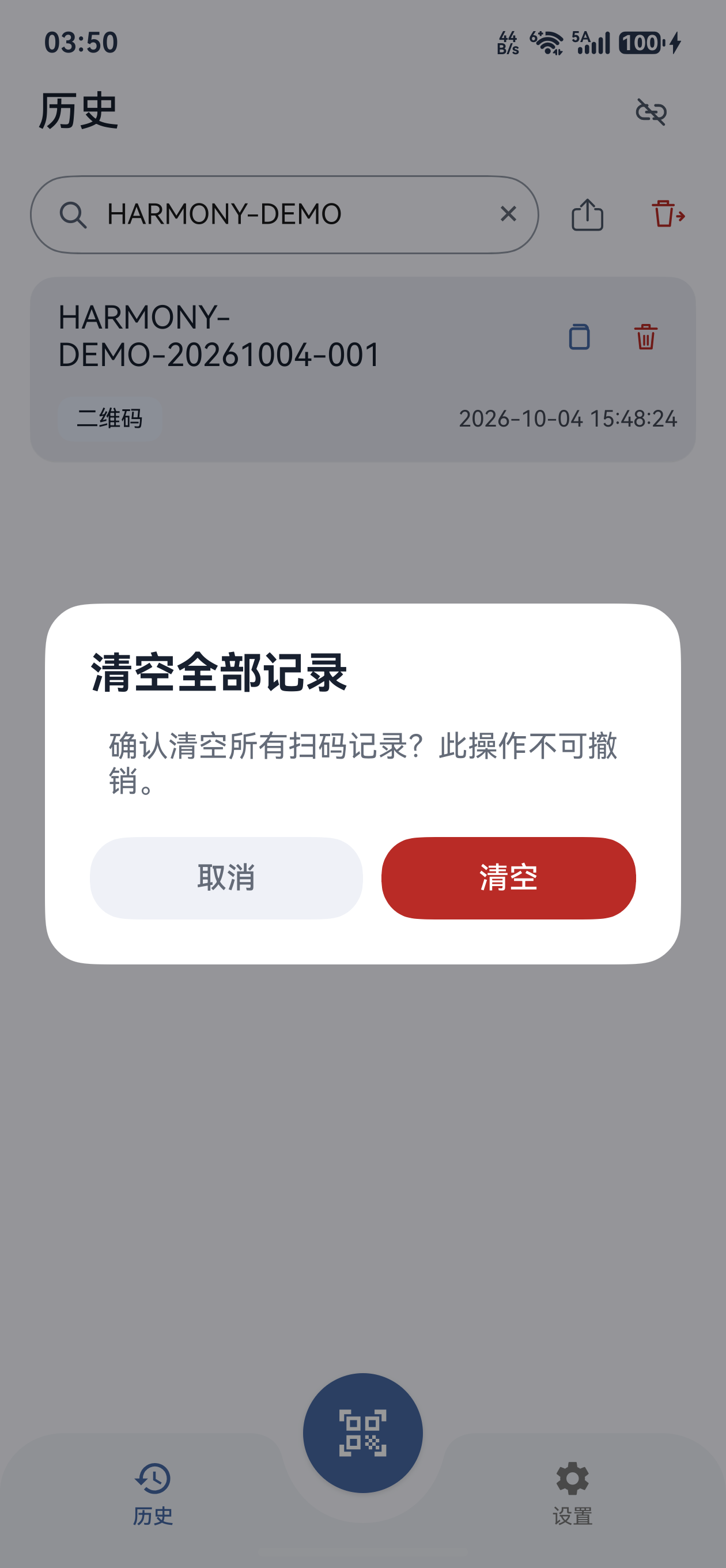
点击搜索框右侧清空图标,出现“清空全部记录”确认。“清空”会删除全部历史,即使正在搜索也不是只删除匹配项;操作不可撤销。需要保留数据时先导出并核对文件,或逐条删除目标记录。Tap Clear beside search to open Clear all records. Confirming Clear deletes the complete history even while a search is active; it does not delete only matches and cannot be undone. Export and verify a file first if you need a copy, or delete individual targets.

鸿蒙清空全部扫码记录前的确认窗口
清空确认针对所有记录;搜索条件不会缩小删除范围。Clear all applies to every record; a search query does not limit deletion.

导出 CSV 或 Excel,并选择范围Export CSV or an Excel-readable table and choose the scope

记住选择与恢复提示Remember a scope or restore the prompt

勾选“记住选择,不再提示”并点“继续”,以后搜索时会直接按所选范围进入格式选择;取消范围对话框不会导出,也不会保存本次选择。记住的范围只作用于搜索中的列表,无搜索时仍导出全部。需要修改或恢复提示时,到“设置 → 搜索时导出范围”选择“每次询问”“全部记录”或“搜索结果”。已记住“搜索结果”但本次无匹配时会提示无法导出,不会改为全部记录。Check Remember my choice and don’t ask again and tap Continue to use that scope directly during future searches. Cancelling the scope dialog neither exports nor saves the choice. A remembered scope applies only while searching; without a filter, all history is exported. Use Settings → Export scope while searching to choose Ask every time, All records or Search results. A remembered Search results scope with no matches reports that nothing can be exported instead of switching to all records.

搜索时确认导出范围Confirm the export scope while searching

没有搜索条件时直接选择 CSV 或 Excel,导出全部历史。有搜索条件时,先在“选择导出范围”中选择“全部记录”或“搜索结果”,核对记录数,再点“继续”选择格式。导出包含所选范围内的所有记录,不限于屏幕上可见的几条;CSV 与 Excel 使用相同范围。Without a search filter, choose CSV or Excel to export all history. With a filter, use Choose export scope to select All records or Search results, check the counts, then tap Continue to choose a format. Every record in the chosen scope is included, including rows outside the screen. CSV and Excel use the same scope.

24

点导出图标,选择文件格式Tap export and choose the file format

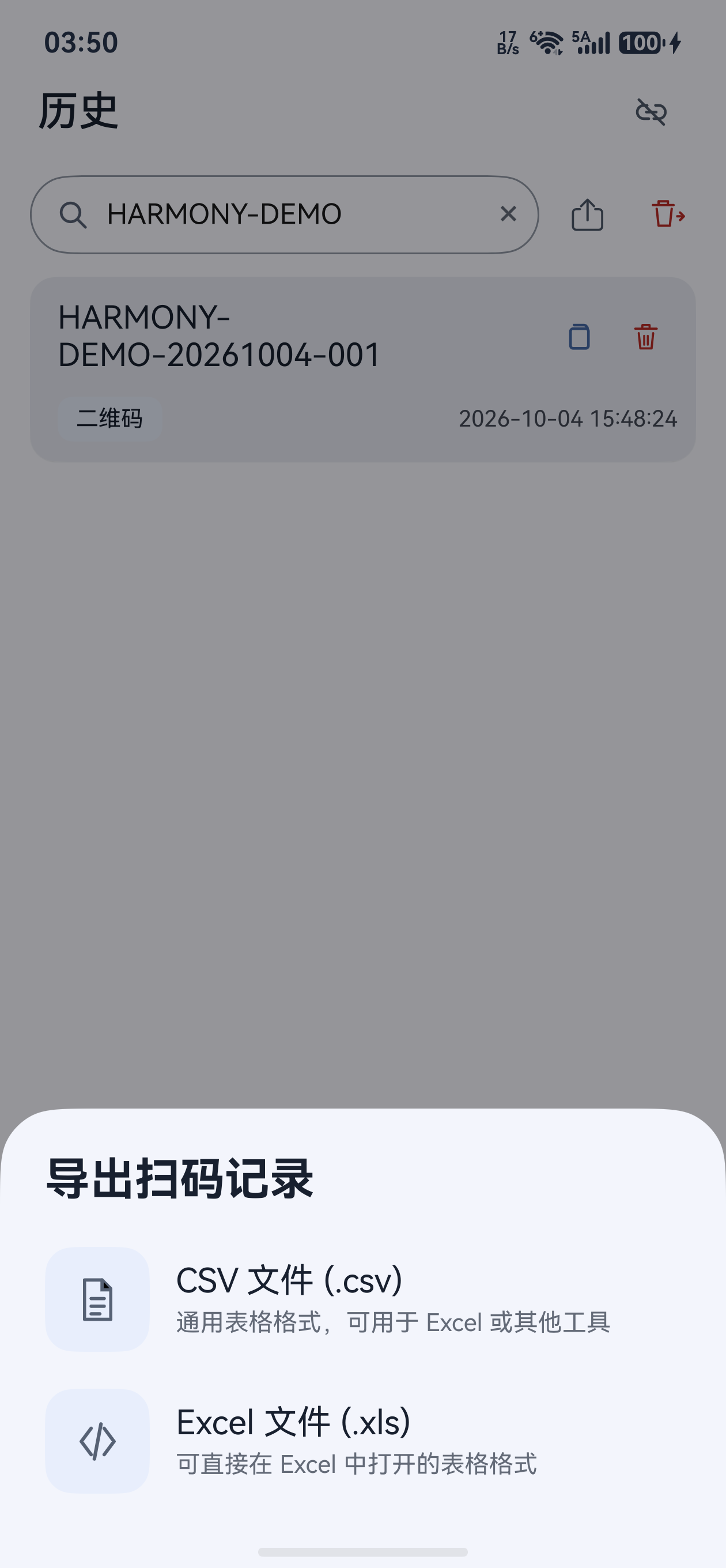
在“历史”搜索框右侧点导出图标;搜索中先确认范围,再选择“CSV 文件 (.csv)”或“Excel 文件 (.xls)”。没有任何记录时无法导出;没有搜索匹配时仍可明确选择全部。两种格式均按已选范围生成文件,再进入系统文件保存窗口。Tap export beside search in History. During a search, confirm the scope before choosing CSV file (.csv) or Excel file (.xls). Empty history cannot be exported; with no matches you can explicitly choose all records. Both formats use the chosen scope before opening the system file-save window.

鸿蒙 CSV 与 Excel 导出格式选择窗口
选择 CSV 或 Excel 格式,下一步进入系统保存窗口。Choose CSV or Excel, then continue to the system save window.
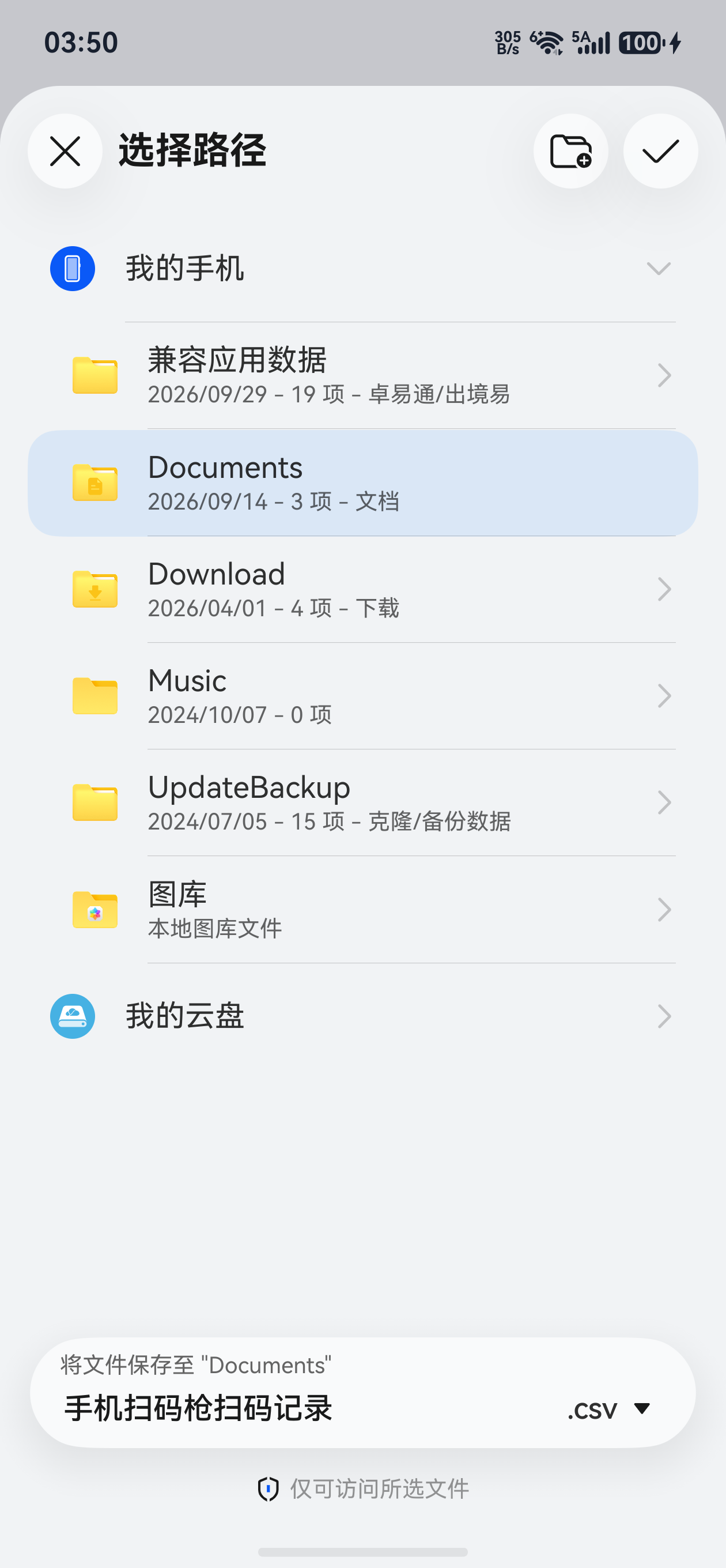
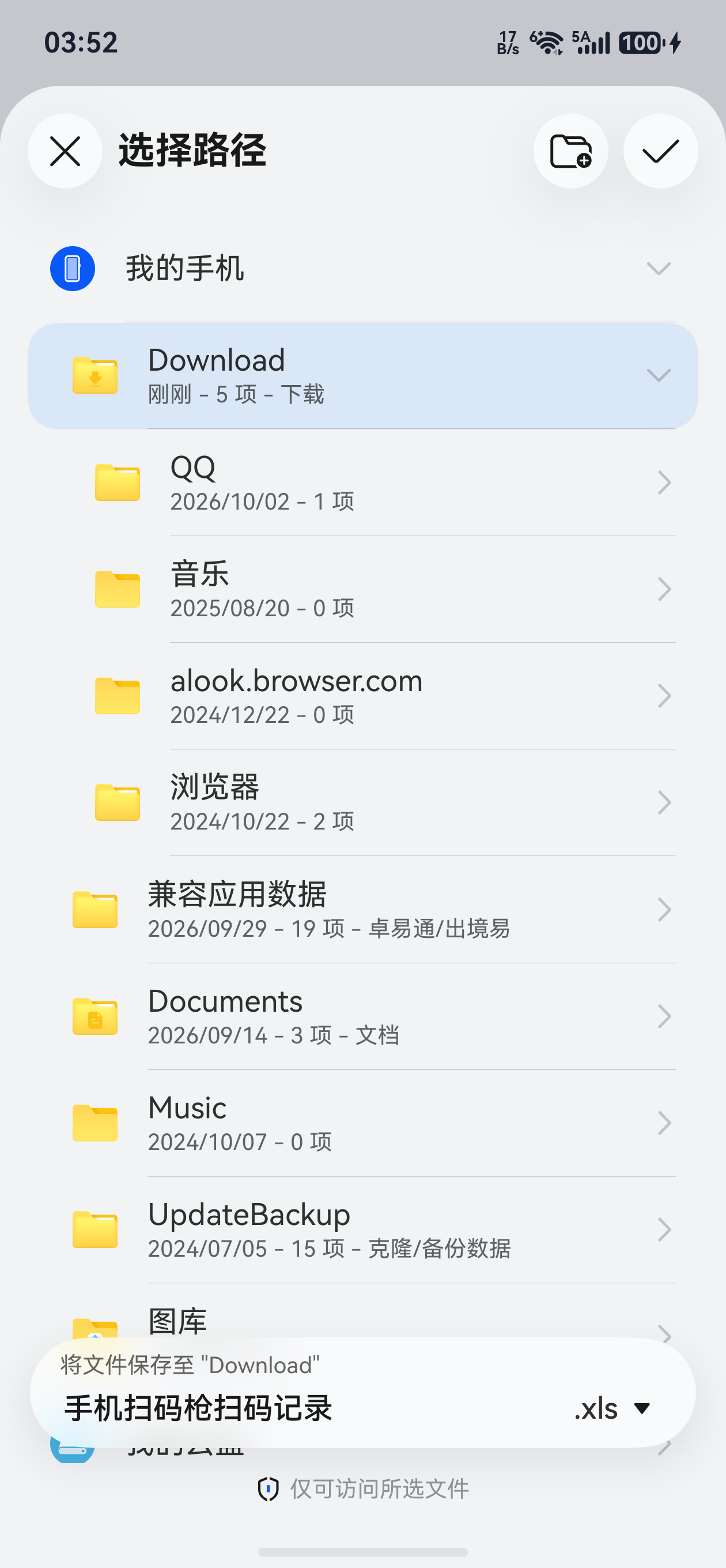
鸿蒙系统 CSV 导出文件保存窗口
系统文件保存窗口中选择目标位置,核对 .csv 文件名后完成保存。Choose a destination and check the .csv filename in the system save window.
25

在系统文件窗口选位置并保存Select a destination and save in the system window

选择你要保存的文件夹,核对默认文件名“手机扫码枪扫码记录.csv”或“.xls”,按系统窗口的保存按钮完成;需要改名时保留正确扩展名。看到“导出成功”后,到刚才选择的位置确认文件。返回或取消导出不会删除历史,也不代表已保存成功。Select the destination folder, check the default Code Scanner History.csv or Code Scanner History.xls filename in the English app and complete the system Save action. Keep the correct extension if renaming. After Export successful, confirm the file at that destination. Cancelling export keeps history and does not confirm a saved file.

鸿蒙系统 Excel 可读 .xls 导出文件保存窗口
Excel 选项同样通过系统窗口保存,文件扩展名为 .xls。The Excel option also saves through the system window and uses the .xls extension.
鸿蒙历史页显示导出成功提示
只有完成系统保存并出现“导出成功”,才表示文件已写入;随后到选定位置核对文件。A successful export message confirms the file was written after system save. Check it at the selected location.
26

打开导出文件,核对四列与记录数Open the export and verify its four columns and count

在文件管理器或电脑表格软件打开文件,核对“序号、内容、格式、时间”四列、所选范围的记录数及中文显示。内容为原始扫码文本,不附加发送后缀。CSV 导入时将商品编号等内容列设为文本,保留前导零,避免长编号转成科学计数法。Open the file in a file manager or desktop spreadsheet app and check No., Content, Format and Time, the chosen scope’s row count and Unicode text. Content is the original scan text without the sending suffix. Import product-code columns as text in CSV to preserve leading zeros and avoid scientific notation for long identifiers.

Excel 格式提示与保存失败Excel-format warnings and save failures

当前 .xls 是 Excel 可打开的 HTML 表格,不是 .xlsx 工作簿。表格软件可能提示格式与扩展名不一致;核对文件是刚才自己的导出后按软件提示打开,或改用 CSV。若提示“文件写入失败”“无法打开文件保存窗口”或“当前页面不可保存文件”,回到 App 重试并选择可写入的位置;仅显示窗口或退出窗口不算完成保存。The current .xls is an HTML table readable by Excel, not an .xlsx workbook. A spreadsheet app may warn that the format and extension differ. Verify it is your export, then follow its prompt or use CSV. For a write failure, unavailable save page or save-window failure, return to the app and retry with a writable destination. Opening or closing the window alone is not a completed save.