安装与你的电脑匹配的桌面端
Install the desktop client for your computer
本页手机操作专用于 Android。Wi-Fi 需要电脑运行手机扫码枪 PC 端;先下载匹配系统和 CPU 架构的官方发布包,并保留包内文件。
The phone instructions here are for Android. Wi-Fi output requires Scan Input Desktop running on the computer. Download the official package for your operating system and CPU architecture and keep its bundled files.
macOS:打开 DMG 并拖入应用程序
macOS: open the DMG and copy the app
- 在“关于本机”确认 Apple 芯片还是 Intel,选对应 DMG。macOS 桌面端要求 macOS 13 及以上。 Check About This Mac for Apple silicon or Intel and choose its DMG. The macOS desktop client requires macOS 13 or later.
- 打开 DMG,将
Scan Input Desktop.app拖入“Applications / 应用程序”,再从应用程序文件夹启动。 Open the DMG, dragScan Input Desktop.appinto Applications, and launch it from there. - 若系统阻止打开,核对官方来源和应用名称后按“隐私与安全性”的系统提示处理。自动输入权限在下方设置。 If opening is blocked, confirm the official source and app name, then follow the system Privacy & Security prompt. Configure typing permission below.
Windows:解压整个 ZIP,再运行 EXE
Windows: extract the full ZIP before running the EXE
- 将
ScanInput-windows-x64.zip解压到固定文件夹,保留所有 DLL、插件、数据库驱动和 legal 等随包目录。 ExtractScanInput-windows-x64.zipto a stable folder. Keep all bundled DLLs, plugins, database drivers, and legal files. - 启动解压目录中的
DroidCodeScannerPC.exe,不要直接在 ZIP 预览中运行或单独移动一个 EXE。 LaunchDroidCodeScannerPC.exein that folder. Do not run it from the ZIP preview or move only the EXE elsewhere. - 启动失败时可运行包内
diagnose_release.bat(若有),将错误信息交给技术支持。 For a launch failure, usediagnose_release.batif included and report its error to support.
Linux:启动 AppDir 或 AppImage
Linux: launch AppDir or AppImage
- 解压
ScanInput-linux-x86_64.tar.gz,先阅读包内RUN_GUIDE.txt(若有)。 ExtractScanInput-linux-x86_64.tar.gzand readRUN_GUIDE.txtif included. - AppDir 包进入
DroidCodeScannerPC.AppDir/usr/bin,运行./DroidCodeScannerPC。保留整个 AppDir;缺少运行库时依据错误和发行版包管理器处理。 For AppDir, openDroidCodeScannerPC.AppDir/usr/binand run./DroidCodeScannerPC. Keep the full AppDir and resolve missing runtime libraries using the error and your distribution’s package manager. - 若包内提供 AppImage,先在文件属性中允许执行,再启动它。Linux 自动输入另需 ydotool 或适用 X11 的 xdotool,详见下方。 If an AppImage is provided, allow execution in file properties and launch it. Linux typing also needs ydotool or xdotool for X11, as explained below.
启动服务并确认 IP / 端口
Start the service and check IP / port
打开“连接服务”标签页
Open Connection service
电脑端启动会自动尝试开启 TCP 服务。“连接服务”页显示二维码、“连接设置”、本机 IP、“监听端口”和服务状态。默认 TCP 端口为 9876。
The desktop app automatically attempts to start its TCP service. Connection service shows its QR code, Connection settings, local IP, Listening port, and service status. The default TCP port is 9876.
- 确认“服务运行中(端口 …)”及“等待客户端连接…”。显示“服务已停止”时点“开启服务”。 Check for Running (port …) and Waiting for client connection…. If stopped, click Start service.
- 端口被占用时选择 1~65535 内另一个可用端口,点“应用端口”。运行中改端口会重启服务,需让手机按新端口/二维码重新连接。 For a busy port, choose another available port from 1–65535 and click Apply port. Changing a running service’s port restarts it; reconnect the phone using the new port or QR code.
- 点“刷新 IP”更新地址。未找到 IP 或服务未监听时不生成连接二维码。 Click Refresh IP for the current address. A QR code is not generated without a usable IP and running listener.
- 电脑防火墙询问传入连接时,允许桌面端在你使用的本地网络接收连接;所选 TCP 端口须允许手机访问。 If the firewall prompts for incoming access, allow the desktop client on your local network and make its selected TCP port reachable from the phone.
扫码期间不要“停止服务”或从托盘“退出”。有可用托盘时关闭主窗口可能只是隐藏,请按服务状态和实际连接检查。
Do not stop the service or quit from the tray while scanning. Closing the window can merely hide it when a tray is available; check the service and actual connection.
确保手机能访问电脑局域网地址
Make the computer’s local address reachable
- 手机与电脑位于可互通的本地网络;电脑接路由器网线、手机接同一路由器 Wi-Fi 也可以,不必都无线。 Use a reachable local network. The computer can be wired to the router while the phone uses its Wi-Fi; both need not be wireless.
- 2.4 GHz / 5 GHz 通常可互通,但访客网络、AP 隔离或企业网络规则可能阻止设备互访。 A router’s 2.4 GHz and 5 GHz networks commonly communicate, but guest networks, AP isolation, or enterprise rules can block access.
- 用电脑实际局域网 IPv4,不要填写手机 IP、
127.0.0.1、公网或示例地址。换网络或地址变化后重新刷新。 Use the computer’s actual local IPv4, not the phone’s IP,127.0.0.1, a public IP, or an example. Refresh after network/address changes. - VPN 和多网卡可能影响二维码地址。如果地址不是手机可达的网段,用手动连接填写电脑实际可达地址。 VPNs and multiple adapters can affect the QR address. If it is unreachable from the phone, enter the computer’s reachable address manually.
结果通过本地 TCP 发送,不需要手机扫码枪账号。相机画面在手机识别;电脑收到扫码文本。
Results are sent through local TCP without a Scan Input account. Recognition occurs on the phone; the computer receives the scan text.
方式一:扫描电脑连接二维码
Option 1: scan the computer’s connection QR code
打开 Android 相机扫码
Open the Android scanner
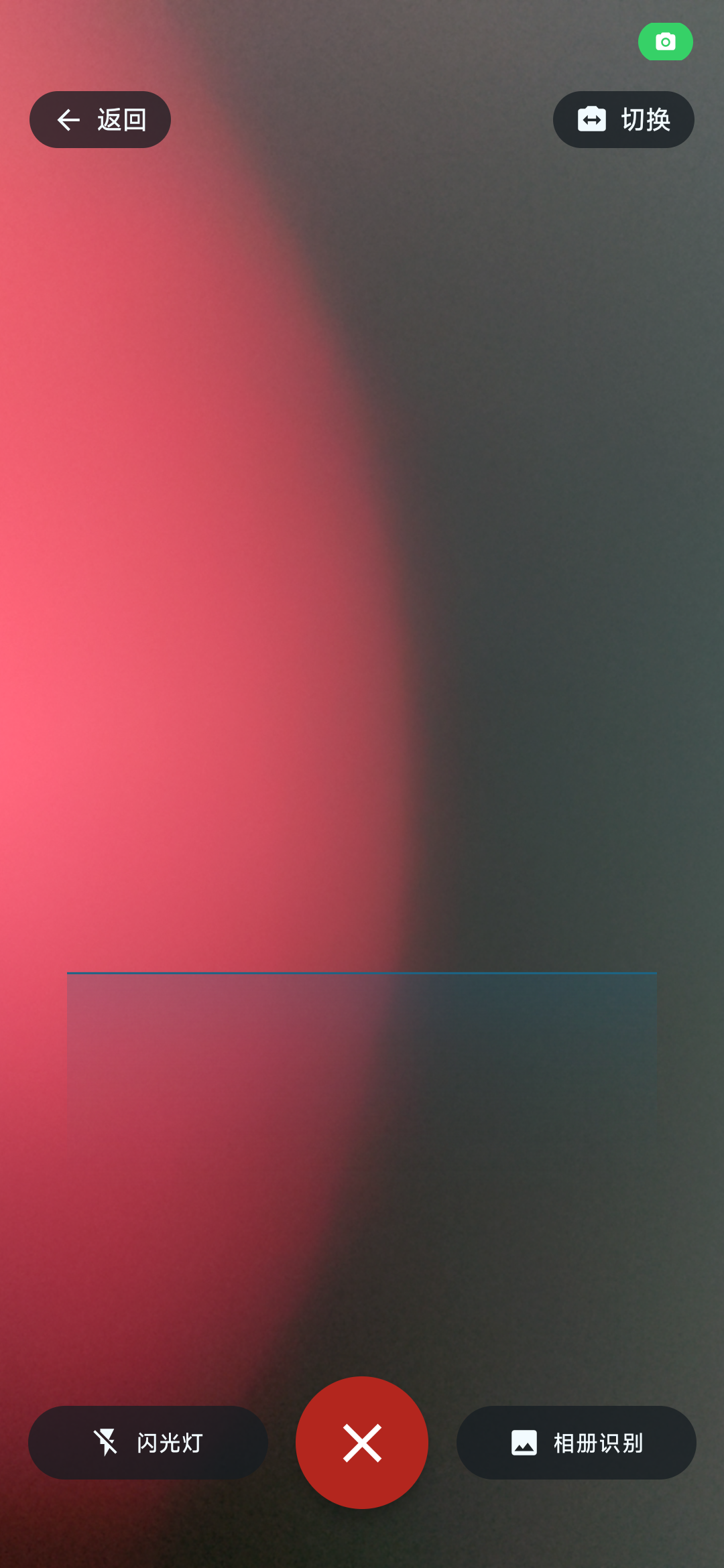
点手机底部中央“扫码”,按提示授权相机,对准电脑“连接服务”页二维码。与普通扫码使用相同入口,App 会区分连接二维码。
Tap Scan at the bottom center, grant camera access when prompted, and aim at the desktop Connection service QR code. It uses the ordinary scanner, which identifies connection codes separately.
核对“扫码连接”并确认
Check Connect from scan and confirm
“扫码连接”显示“检测到连接二维码”及 IP、端口;与电脑一致后点“连接”。“不连接”关闭提示,不建立连接。已有其他连接时会提示连接新设备将断开当前连接。
Connect from scan shows a detected connection QR code with its IP and port. Verify the computer and tap Connect. Don’t connect closes the prompt without connecting. An existing connection is reported before switching to the new target.
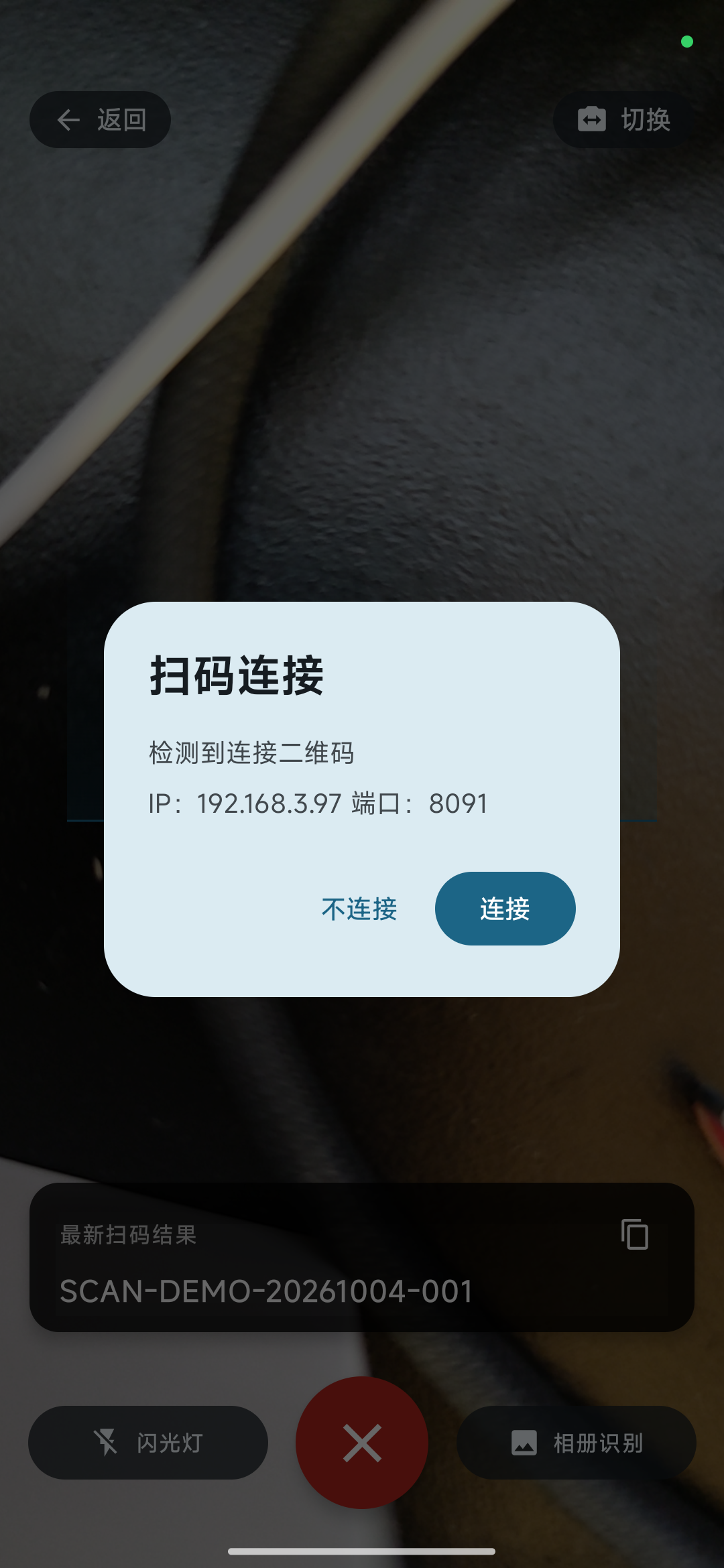
接受和拒绝都不保存有效连接二维码到历史。确认后可退出扫码,回“历史”核对连接图标;再按下方步骤检查实际录入。
A valid connection QR is not saved to history whether accepted or declined. Return to History to check the link state, then verify actual output below.
方式二:手动填 IP 地址与端口
Option 2: enter the IP address and port manually
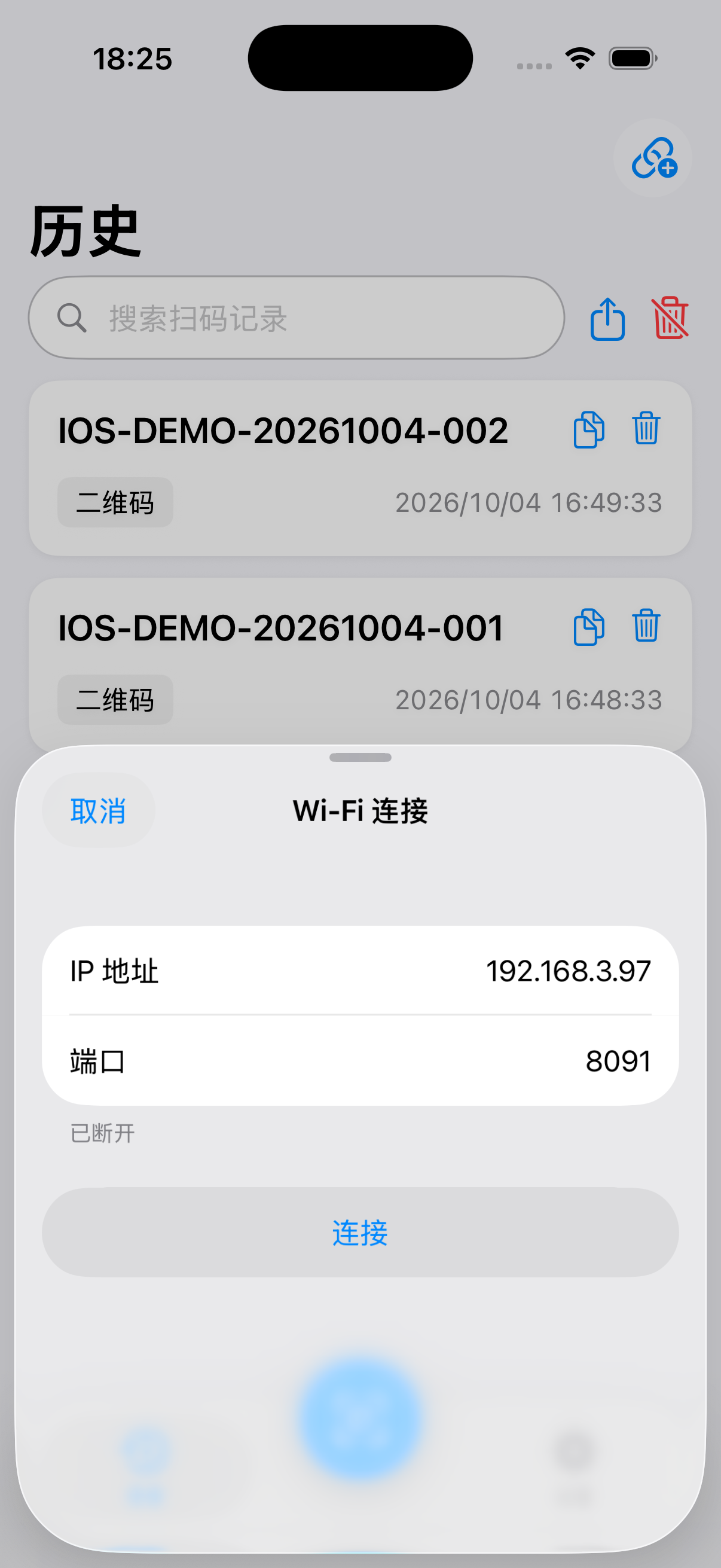
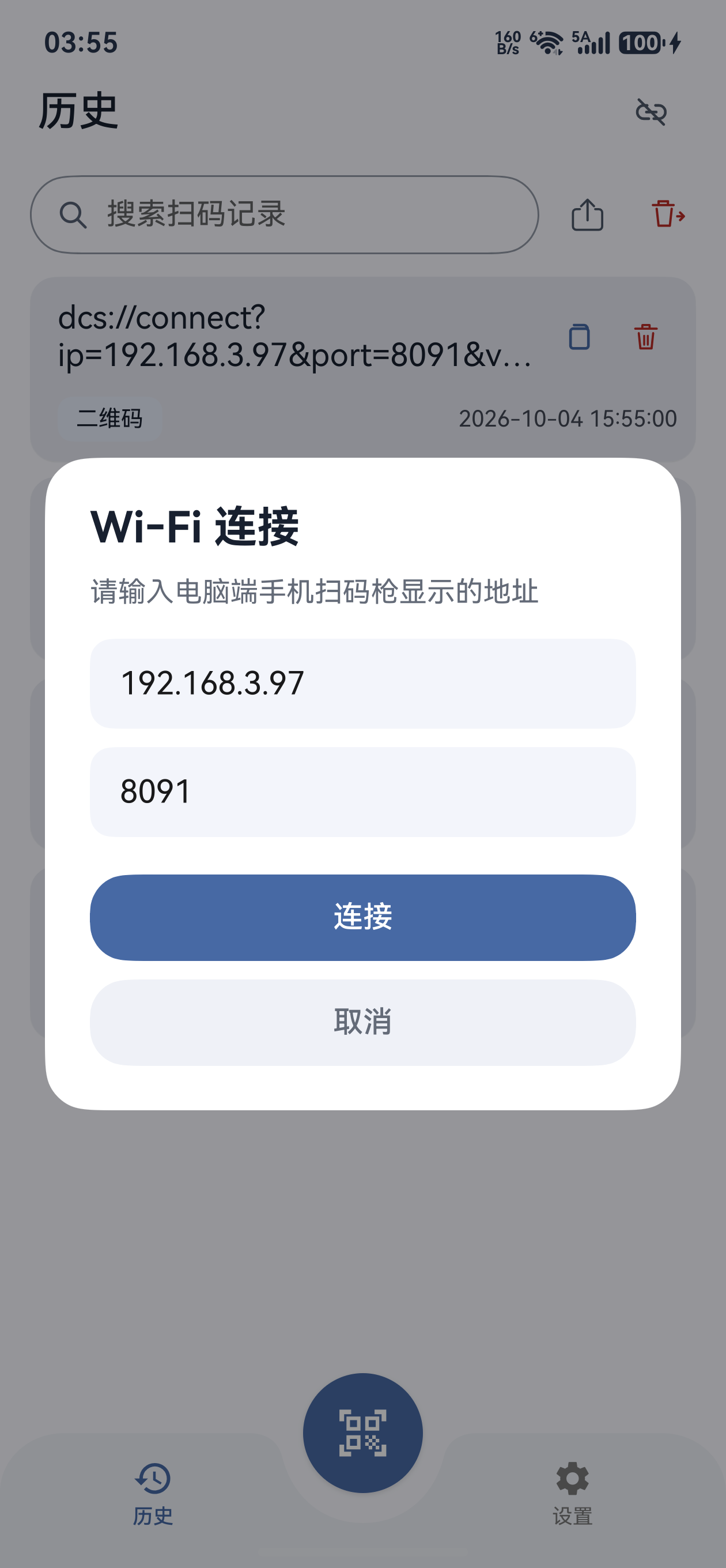
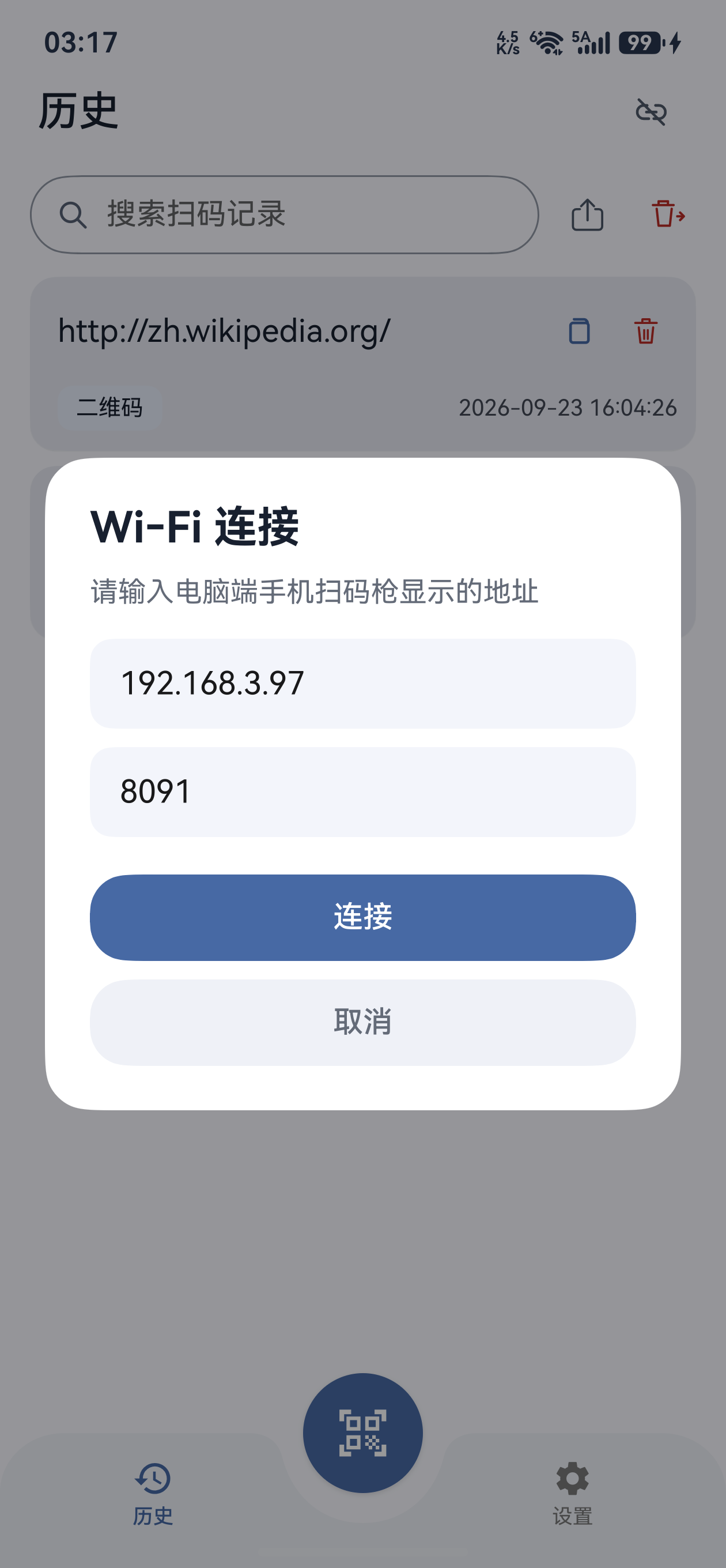
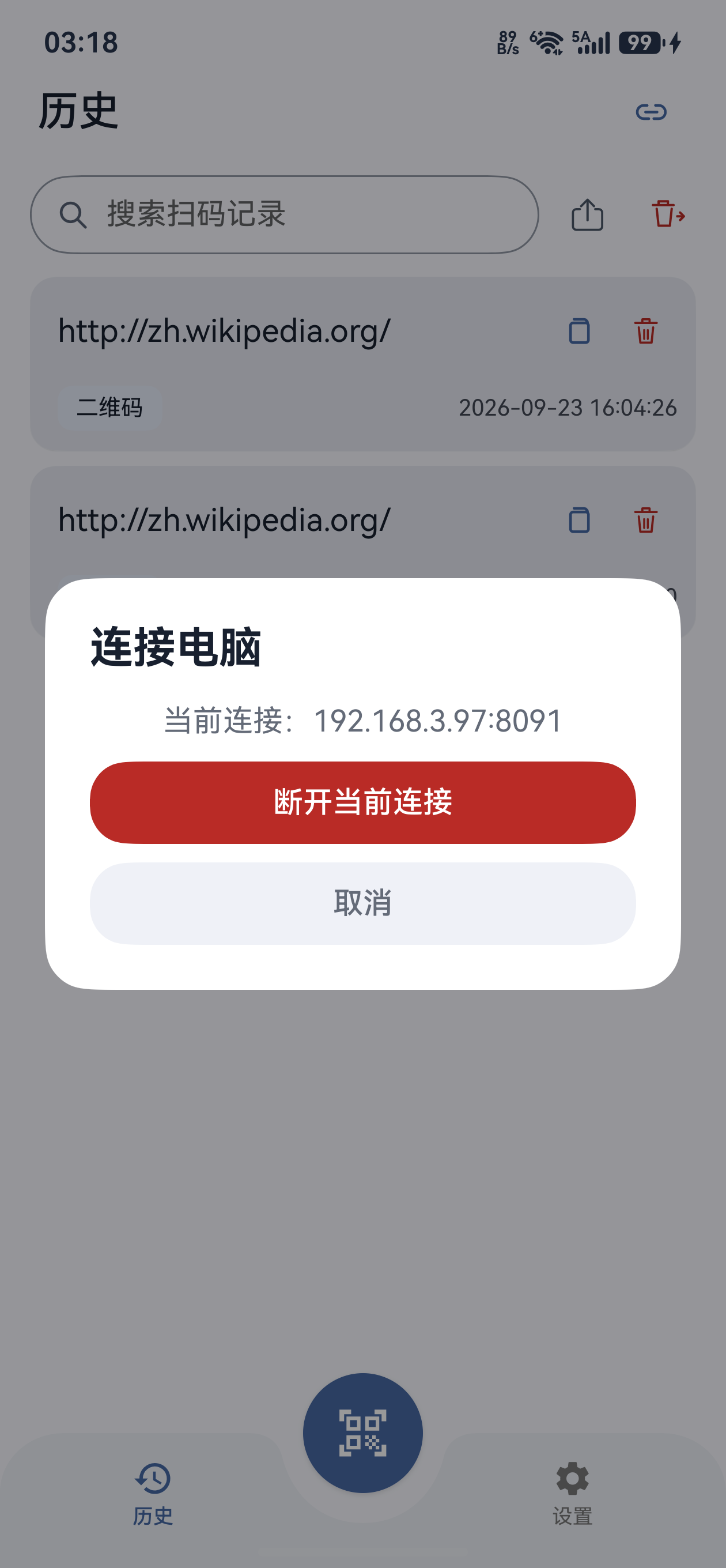
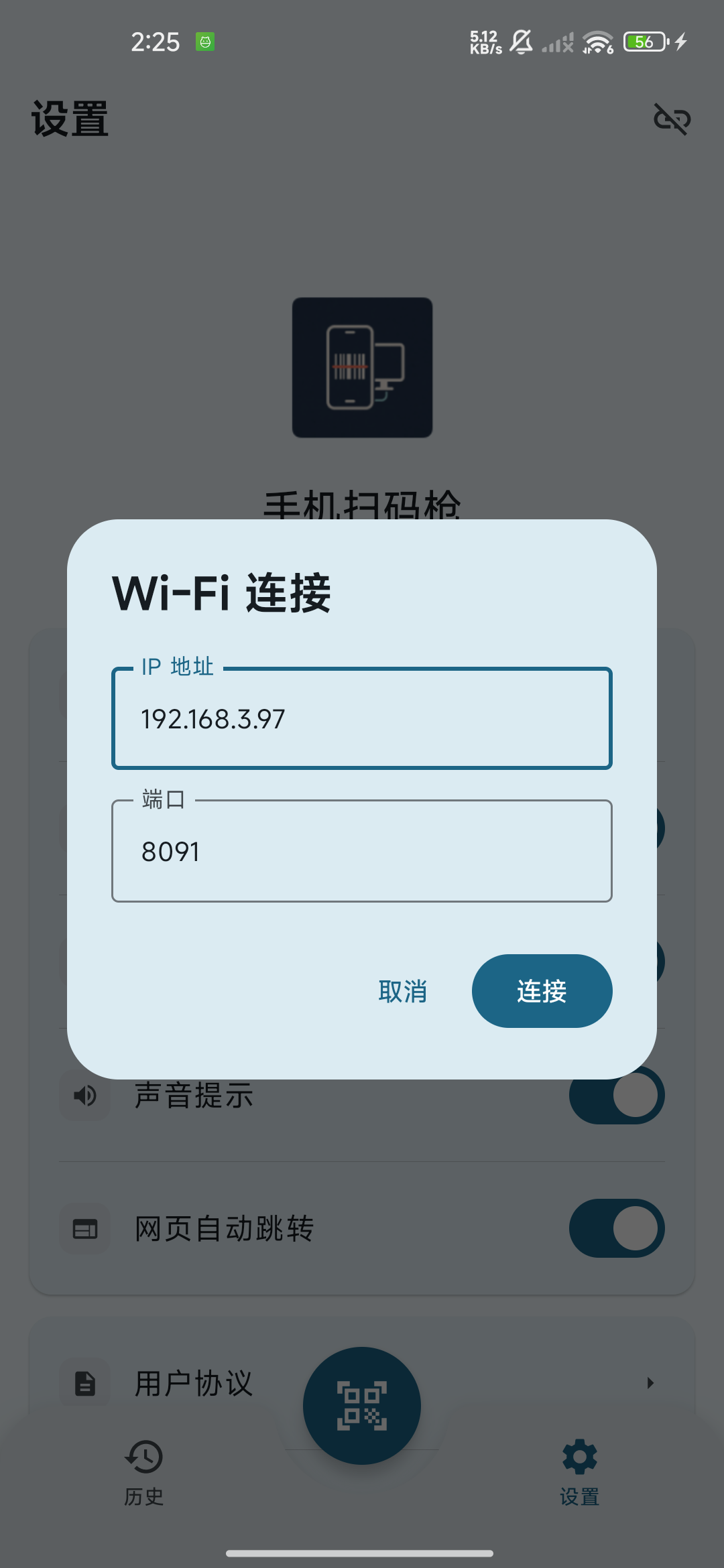
- 在“历史”或“设置”点右上角连接图标;已有连接先“断开”,再打开连接入口。 Tap the top-right connection icon on History or Settings. Disconnect an existing connection before reopening the entry.
- Android 9+ 选择菜单“Wi-Fi 连接”;Android 6~8 直接出现 Wi-Fi 弹窗。 On Android 9 or later choose Wi-Fi connection; Android 6–8 opens its dialog directly.
- “IP 地址”填目标电脑可达的局域网 IPv4,“端口”填电脑正在监听的端口,默认
9876。 Enter the target’s reachable local IPv4 in IP address and its current listening Port, default9876. - 点“连接”,弹窗随请求关闭。右上角转圈时等待;“连接成功”后图标变为闭合链环。 Tap Connect. The dialog closes after the request. Wait for the top-right progress indicator; a successful connection shows a closed link.
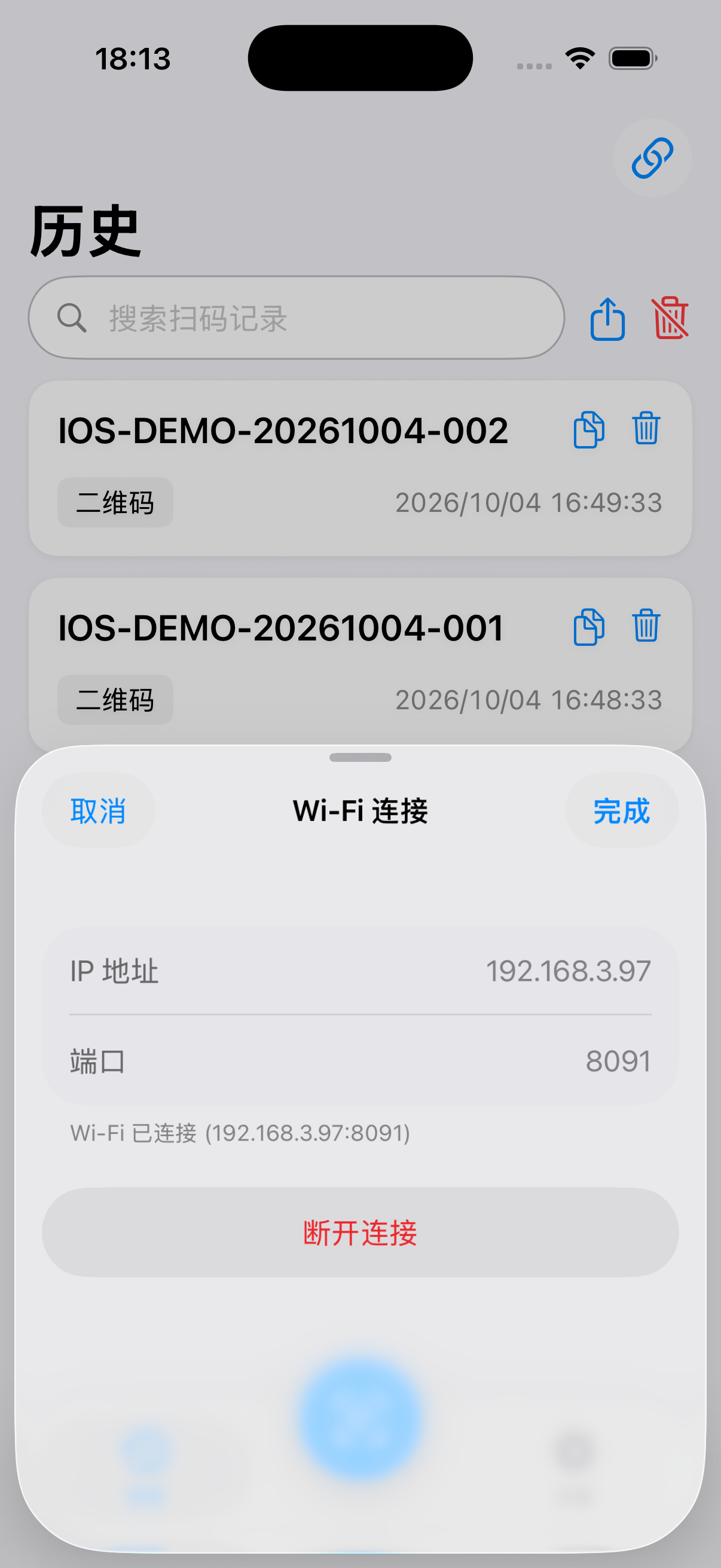
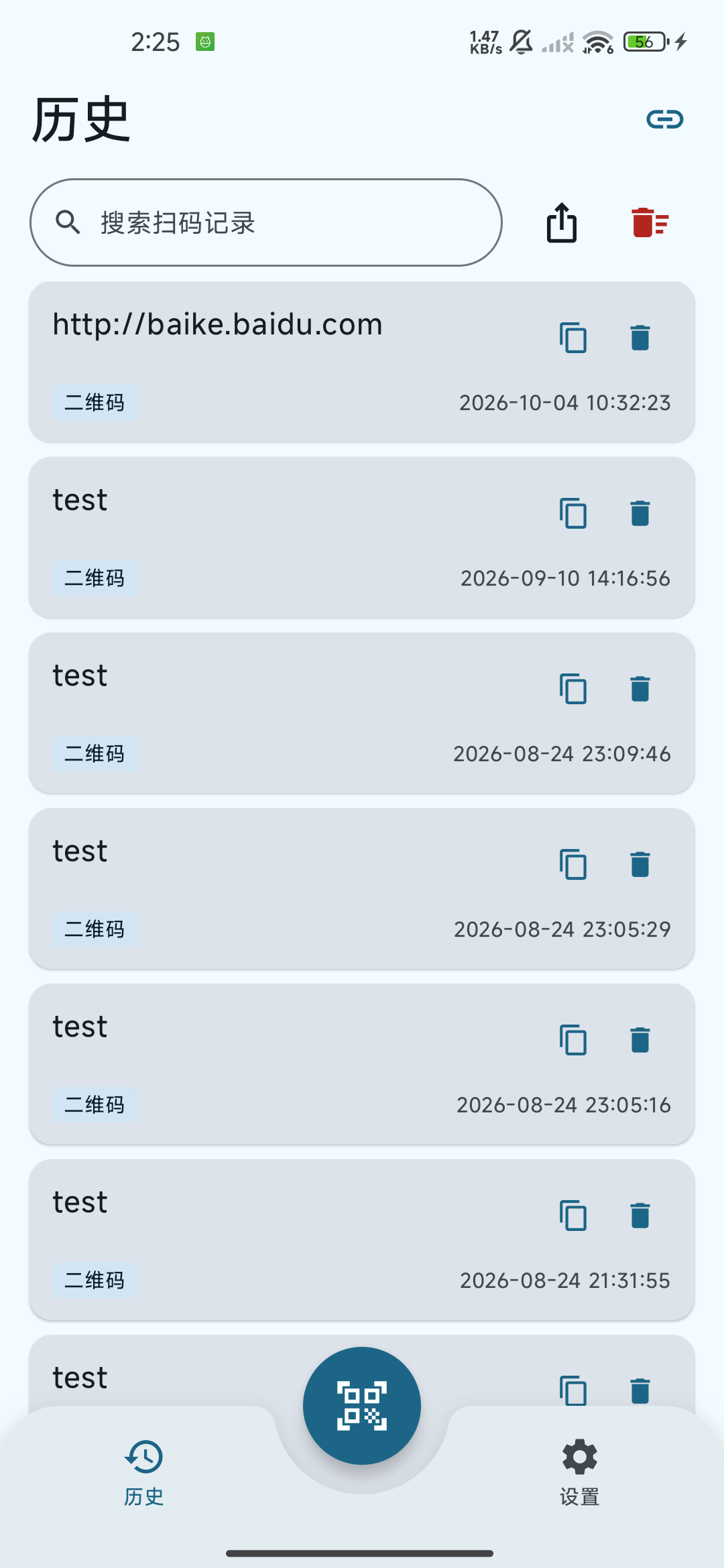
手机点闭合链环可查看“Wi-Fi 已连接(IP:端口)”;电脑连接面板应显示“客户端已连接(共 … 个)”。确认目标正确后,再做实际输入检查。
Tap the phone’s link icon to inspect Wi-Fi connected (IP:port). The desktop panel should show Client connected (… connected). Check the target, then test actual typing.
按电脑系统配置自动输入
Configure typing for the computer’s system
macOS:允许辅助功能访问
macOS: allow Accessibility access
桌面端通过系统键盘事件输入。权限提示出现时到“系统设置 → 隐私与安全性 → 辅助功能”,允许正在运行的 Scan Input Desktop / 手机扫码枪 PC 端;必要时退出再启动。再在普通文本编辑器中点光标并测试。
The client types through system keyboard events. If prompted, open System Settings → Privacy & Security → Accessibility and allow the running Scan Input Desktop app. Restart if needed, then focus and test a plain text editor.
Windows:可编辑焦点与程序权限层级
Windows: editable focus and process privileges
Windows 端模拟 Unicode 键盘输入,不需要额外打字工具。先点击普通文本编辑器或表格单元格。如果目标以管理员权限运行、桌面端为普通权限,系统可能阻止注入;优先让目标以普通权限运行并测试。依据 Microsoft SendInput 文档。
Windows sends Unicode keyboard events without an extra typing tool. Click a plain text editor or spreadsheet cell first. A normally running client may be blocked from typing into an administrator-level target; test the target without elevation first. See Microsoft’s SendInput documentation.
Linux:输入工具与桌面会话条件
Linux: typing tools and desktop session requirements
- 优先调用
ydotool type:ydotool 必须在桌面端进程 PATH 中可找到,并能访问可用 ydotoold 服务和 socket;只安装命令未必能输入。 The client triesydotool typefirst. It must be on the desktop process’s PATH and able to reach a working ydotoold service/socket. Installing the command alone may not enable typing. - ydotoold 需访问
/dev/uinput,按发行版与 ydotool 官方说明配置服务和权限。完成后用普通编辑器测试短英文/数字内容。 ydotoold needs/dev/uinputaccess. Configure its service/permissions using your distribution and the ydotool documentation, then test short English/numeric content in a plain editor. - 仅 ydotool 无法启动时才尝试
xdotool type --clearmodifiers。xdotool 适用 X11,不适用于普通 Wayland 应用;Wayland 使用配置好的 ydotool。参见 xdotool 官方说明。 Only if ydotool cannot start does the client tryxdotool type --clearmodifiers. xdotool suits X11, not ordinary Wayland applications; use a configured ydotool setup for Wayland. See the xdotool documentation. - ydotool 已启动但返回错误时,当前版本不会自动回退 xdotool,需检查服务、socket 和权限。 If ydotool starts but returns an error, this version does not fall back to xdotool automatically. Check the service, socket, and permissions.
Wi-Fi 能传输中文等 Unicode 文本,自动输入仍受系统、输入工具、键盘布局和目标应用影响。尤其 Linux,请在正式录入前逐项测试中文、空格、回车与 Tab;电脑已有记录不等于目标已输入。
Wi-Fi carries Unicode text, including Chinese. Typing still depends on the system, tool, layout, and target app. On Linux especially, test Chinese, spaces, Enter, and Tab before actual use. A desktop record does not prove target input.
完成一次实际录入检查
Check one known scan end to end
先在电脑选择输入位置
Focus the target field
保持桌面端服务运行,把电脑前台切到目标编辑器、表格或业务系统,点击可编辑位置。收到内容后直接输入当前焦点,不会自动查找业务系统字段。
Keep the service running, bring your editor, spreadsheet, or business app forward, and click an editable position. Received text goes to the current focus; the client does not locate a business field automatically.
选择后缀,扫描已知条码
Choose a suffix and scan a known code
手机“设置 → 扫码后缀”默认“回车”,可选“无”或“Tab”。打开“扫码”扫描一条已知内容,查看“最新扫码结果”;识别后相机页仍开放,可继续扫描。
Settings → Scan suffix defaults to Enter; choose None or Tab if needed. Scan a code with known content and inspect Latest scan result. The camera stays open for further codes.
- 核对手机最新结果/历史与预期原文;提示音或震动只证明手机处理了识别结果。 Compare the latest phone result/history with the expected raw content. A beep or vibration only confirms recognition handling.
- 查看电脑“连接服务”日志和“扫码记录”,确认收到了该条;再检查目标输入框是否得到相同文字。 Check the desktop connection log and Scan history for receipt, then inspect the target field for the same text.
- 检查回车/Tab 后光标行为;扫完移开同一码,避免持续对准导致再录入。 Check the cursor behavior after Enter/Tab. Move away from the same code after reading it to avoid another entry.
电脑有记录但输入框空时检查焦点和上方系统输入条件;仅手机有记录时检查网络。手机发送失败仍保存记录。Android 无历史“重发”按钮,可恢复连接后重新扫描,或复制并自行粘贴。
If the desktop has the item but the target is empty, check focus and platform typing setup. If only the phone has it, inspect the network. Failed sending still retains phone history. Android has no history Resend button; reconnect and scan again, or copy/paste manually.
相机多码冻结后点选一个;相册识别处理所选单张图片的全部解码结果。更多历史与导出操作见 Android 全流程教程。
Multiple live codes freeze for choosing one. Scan from gallery processes every decoded result from the chosen single image. See the Android walkthrough for history and export.
断开、更换网络与自动恢复
Disconnect, change networks, and restore
上次成功 IP / 端口会保存并回填。“自动恢复上次连接”默认开启,App 回到前台且未连接、未手动断开、无连接进行时可尝试恢复;不保证后台持续重连。
The last successful IP/port is saved and prefilled. Automatic restoration is enabled by default and can retry when the app returns to the foreground while disconnected, not manually disconnected, and without an ongoing attempt. It does not guarantee continual background reconnection.
- 停止输出:在历史/设置页点闭合链环 → “断开”。仅退出扫码不会断开电脑。 Stop output with the link icon → Disconnect on History/Settings. Exiting the scanner alone does not disconnect.
- 换目标:扫码新电脑连接二维码并确认,或先断开再手动填新 IP / 端口。 Switch targets by scanning the new computer’s connection QR and confirming, or disconnect and enter its IP/port manually.
- 换网络/端口:电脑刷新 IP、检查服务运行,手机用新二维码/地址重连。旧缓存不代表当前可达。 After a network/port change, refresh the desktop IP and service state, then reconnect with the new code/address. A saved address may no longer be reachable.
故障排查:区分识别、网络与输入
Troubleshoot recognition, network, and typing
二维码为空或服务启动失败
Empty QR code or service start failure
确认电脑联网,点“刷新 IP”“开启服务”。端口启动失败时换可用端口并应用,同步修改手机输入值。只有服务监听且有可用 IP 才显示二维码。
Check the network and click Refresh IP/Start service. For a port start failure, apply an available port and update the phone. A QR code requires an active listener and usable IP.
手机连接失败或持续等待
Phone connection failure or prolonged waiting
依次检查电脑端运行、监听端口一致、电脑局域网 IP 正确、网络可互访、防火墙允许传入 TCP;排除访客隔离与 VPN 路由影响。多网卡可用手动连接填实际可达地址。
Check that the client runs, ports match, the local IP is correct, devices can communicate, and incoming TCP is allowed. Check guest isolation and VPN routing. For multiple adapters, manually enter a reachable address.
手机有结果,电脑没有新增记录
Phone result but no new desktop item
核对手机“Wi-Fi 已连接”及目标 IP,确认扫描的是普通码而不是连接码。恢复后移开镜头再扫描已知条码;手机识别成功不表示电脑收到。
Check Wi-Fi connected and its target IP, and confirm the scanned item is ordinary content rather than a connection code. Reconnect, move away, and rescan a known code. Recognition does not prove desktop receipt.
电脑记录已有,目标输入框为空
Desktop record but an empty target field
点击普通可编辑字段,避免焦点在电脑端按钮或只读区域。Mac 查辅助功能,Windows 查权限层级,Linux 查 ydotoold / xdotool 条件。当前没有“开启自动输入”开关,收到普通扫码结果就会尝试打字。
Focus a normal editable field rather than a client button or read-only area. Check Accessibility on Mac, privilege levels on Windows, and typing tools on Linux. There is no Enable automatic typing switch; each received ordinary result triggers a typing attempt.
重复录入、后缀或分隔符不符合预期
Repeated entries or unexpected suffixes/separators
扫码后移开镜头,按目标软件选“无/回车/Tab”。手机历史保存原文,发送时加后缀并把不可输入控制分隔符转为空格。正式录入前用已知内容核对。
Move the camera away and choose None/Enter/Tab for the target app. Phone history retains raw text; output adds the suffix and replaces untypable control separators with spaces. Check known content before actual use.