安装前准备Before installation
准备一台 Android 6.0 或更高版本的手机,以及可以访问 Google Play 的网络。进入手机“设置 → 关于手机”查看 Android 版本;不同品牌的菜单名称可能略有差异。Prepare a phone running Android 6.0 or later and a network that can access Google Play. Check the Android version in Settings → About phone; menu names vary by manufacturer.
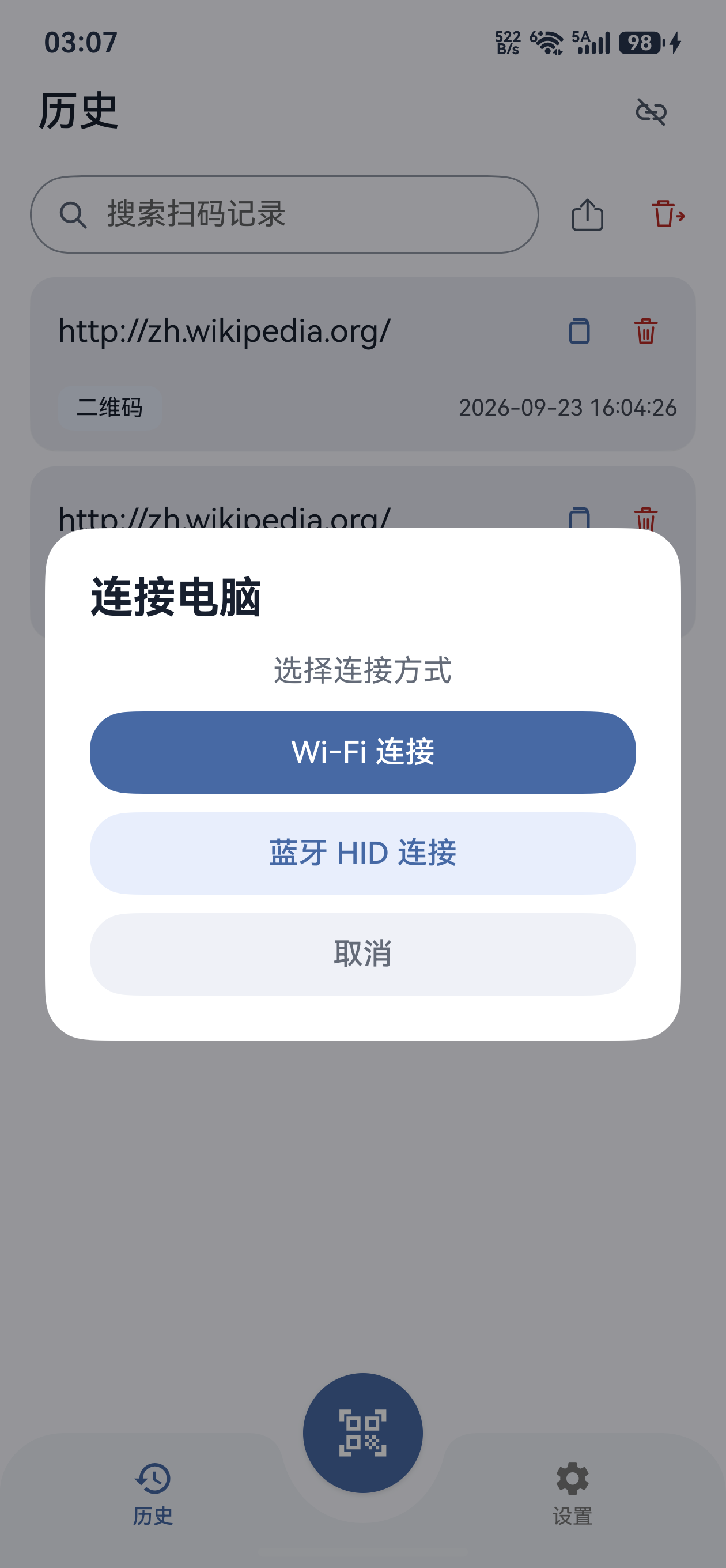
需要让手机作为蓝牙键盘连接电脑时,系统必须支持 HID Device,且至少为 Android 9。Android 6~8 可以使用 Wi-Fi 局域网模式,扫码和本地历史也可以独立使用。Using the phone as a Bluetooth keyboard requires Android 9 or later and system HID Device support. Android 6–8 can use the local Wi-Fi mode; scanning and local history also work independently.
本教程对应手机扫码枪 Android 1.0.0;截图来自 Android 实机。iOS、鸿蒙的安装入口和权限界面不同,请在教程中心选择对应平台。This guide covers Scan Input for Android 1.0.0 and uses screenshots from a real Android phone. iOS and HarmonyOS have different installation and permission screens; select the matching platform in the guide center.
通过 Google Play 安装Install from Google Play
打开官方应用页面Open the official app page
点击下方 Google Play 按钮,或在 Android 手机上的 Google Play 搜索“手机扫码枪”。确认应用属于深圳市信言软件工作室;官方页面地址中的应用标识为 com.xinyanruanjian.droidcodescanner。Use the Google Play link below, or search for Scan Input in Google Play on your Android phone. Check that the app is from Shenzhen Xinyan Software Studio. Its official app ID is com.xinyanruanjian.droidcodescanner.
点击“安装”,完成后点击“打开”Tap Install, then Open
在 Google Play 页面点击“安装”,等待下载和安装完成,再点击“打开”,或从手机桌面打开手机扫码枪。Google Play 安装不需要开启“安装未知应用”权限。Tap Install in Google Play and wait for the download and installation to finish. Tap Open, or launch Scan Input from your home screen. Installing through Google Play does not require permission to install unknown apps.
官网的 Android 下载入口指向 Google Play。若设备无法访问该商店,请先解决 Google Play 访问问题;本教程不包含侧载 APK 流程。The Android download link on this website opens Google Play. If your phone cannot access the store, resolve that access issue first. This guide does not include APK sideloading.
首次启动:协议和教程入口First launch: agreements and guide
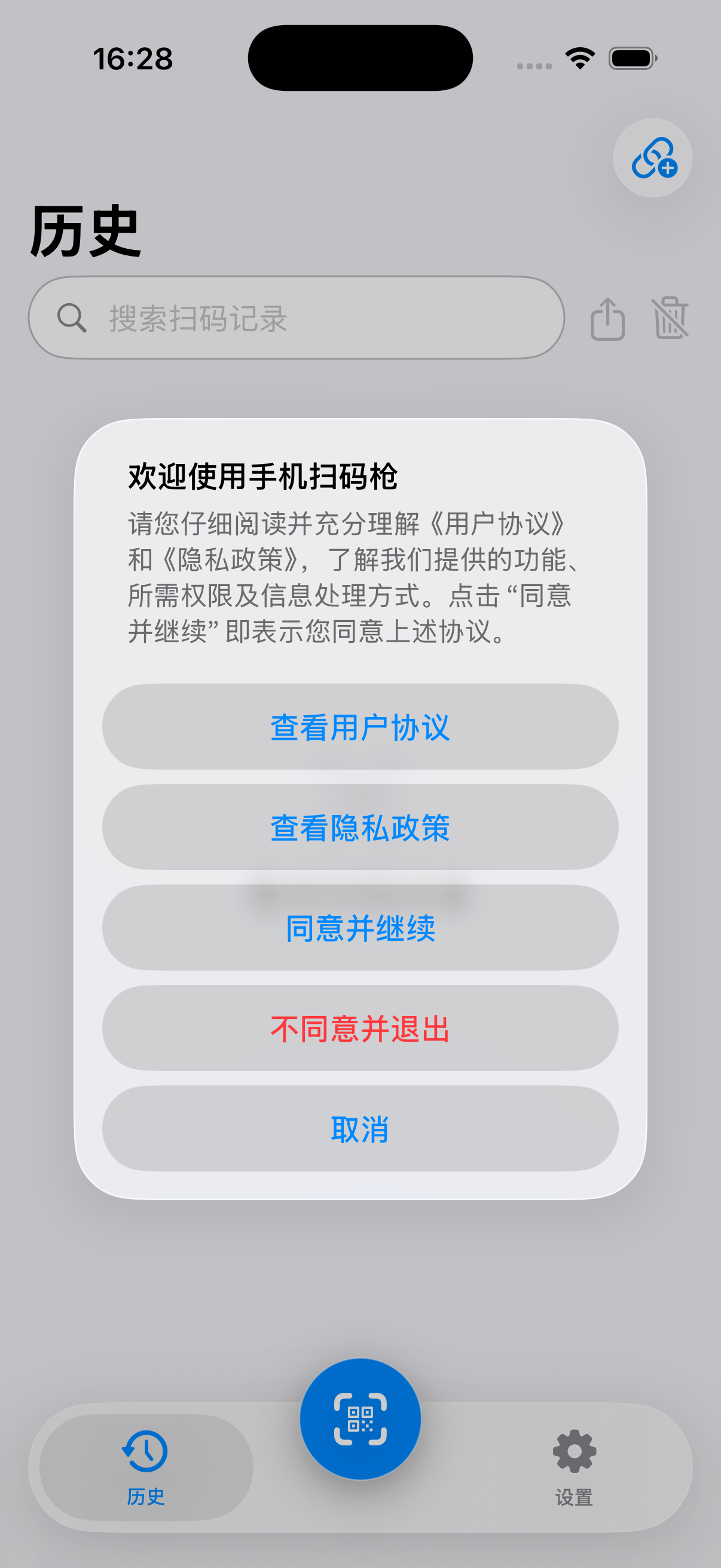
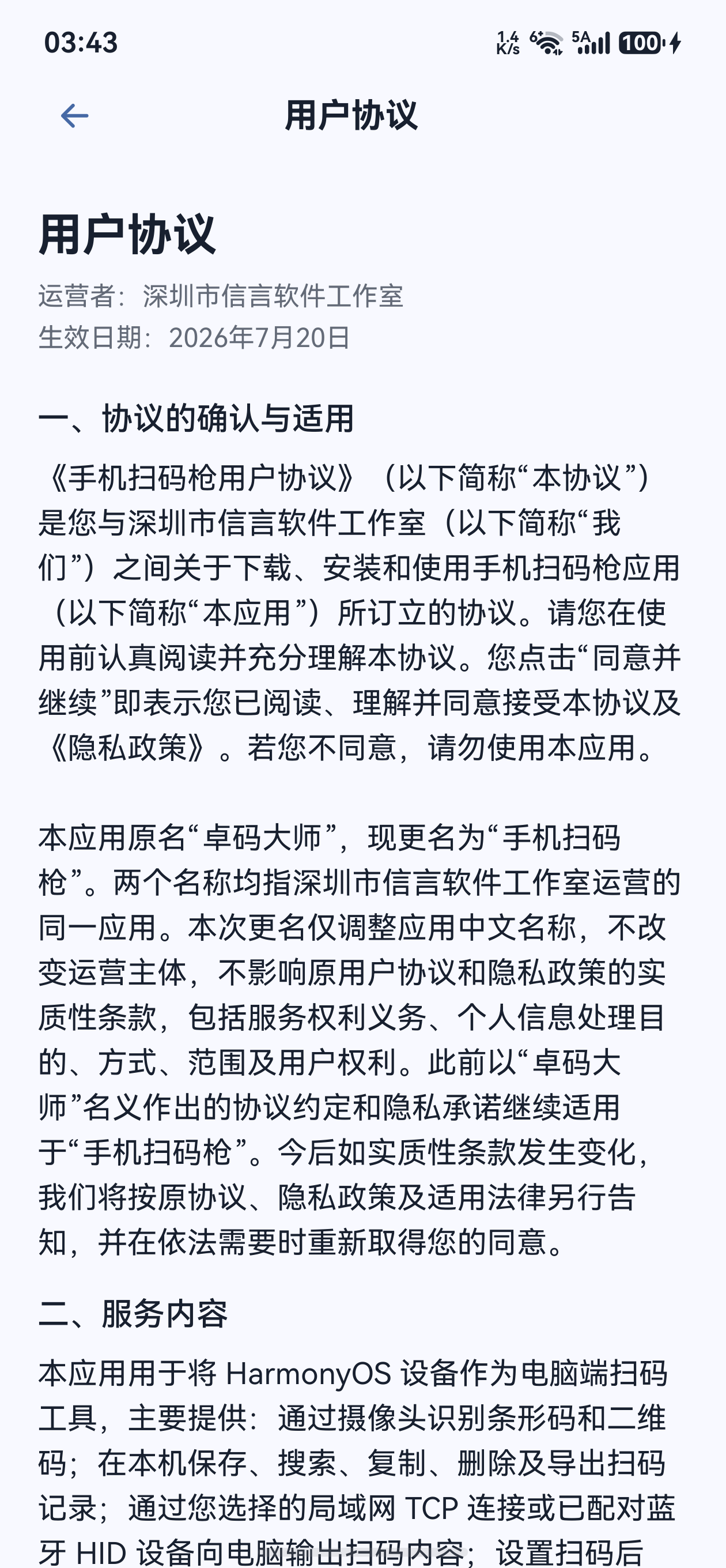
在欢迎弹窗中阅读协议Read the documents in the welcome dialog
首次打开会出现“欢迎使用手机扫码枪”。分别点击“查看用户协议”和“查看隐私政策”阅读文档,阅读后返回欢迎弹窗。On first launch, the Welcome to Scan Input dialog appears. Open View user agreement and View privacy policy to read both documents, then return to the welcome dialog.
选择“同意并继续”Choose Agree and continue
理解并接受协议后点击“同意并继续”,进入应用。“不同意并退出”会关闭应用;下次打开仍需完成该步骤。After reading and accepting the documents, tap Agree and continue to enter the app. Decline and exit closes the app; you will need to complete this step when you open it again.

查看使用教程,或稍后查看View the user guide, or view it later
同意协议后会出现“开始使用手机扫码枪”提示。点击“查看使用教程”打开官网教程,或点击“稍后查看”继续使用。以后可在底部“设置 → 使用教程”再次打开教程。After accepting, the Get started with Scan Input prompt appears. Tap View user guide to open the official guides, or View later to continue. You can reopen the guides from Settings → User guide.
第一次扫码:允许相机权限First scan: allow camera access
点击底部中央扫码按钮Tap the center scan button
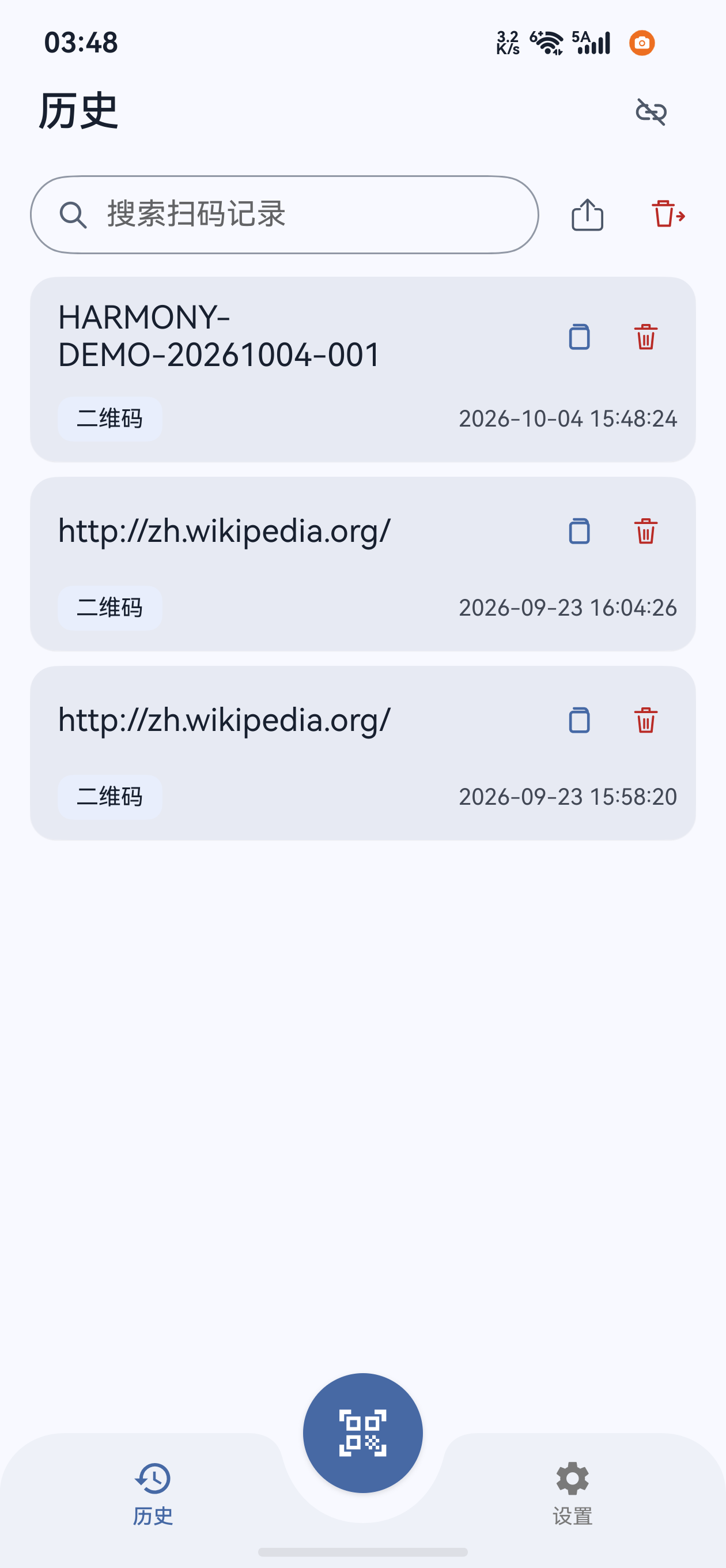
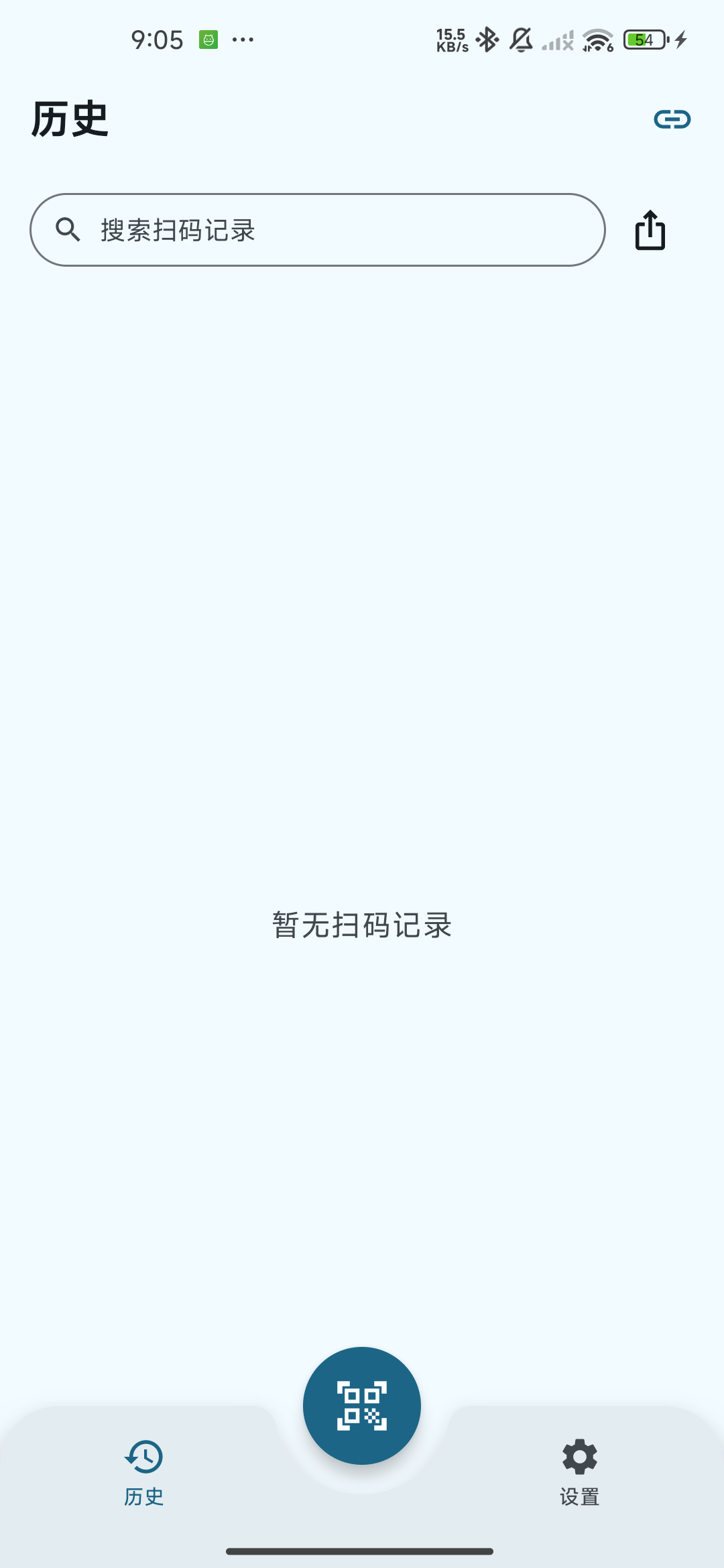
进入主界面后,底部有“历史”、中央扫码按钮和“设置”。点击中央扫码按钮进入独立扫码页;首次使用时,Android 会请求相机权限。The main screen has History, a center scan button, and Settings along the bottom. Tap the center button to open the scanner. Android requests camera permission when you use it for the first time.
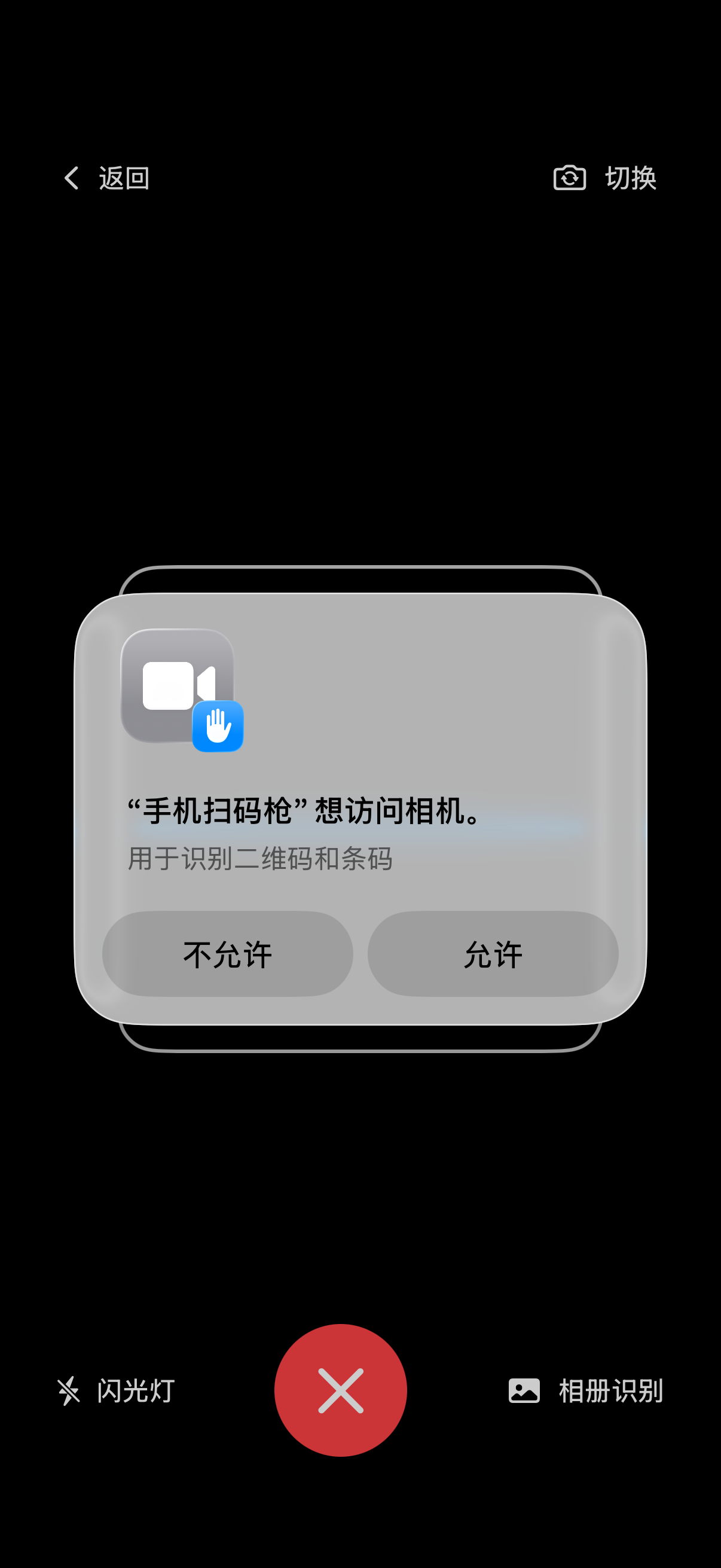
在系统弹窗中允许相机访问Allow camera access in the system dialog
在本机示例中选择“仅在使用中允许”,或系统提供的相应允许选项。权限名称由 Android 版本和手机厂商决定。允许后,扫码页会显示实时相机画面。Choose While using the app or the equivalent allow option offered by your system. The wording depends on Android version and manufacturer. Once allowed, the scanner displays a live camera preview.

扫码页会显示相机权限提示,点击“授权相机权限”重新请求。如果系统不再弹出权限窗口,进入“系统设置 → 应用 → 手机扫码枪 → 权限 → 相机”允许,再返回应用。无需为相机扫码授予全部照片或存储权限。Tap Grant camera permission on the scanner permission screen to request access again. If the system stops showing the dialog, allow Camera in system Settings → Apps → Scan Input → Permissions, then return to the app. Camera scanning does not require full photo or storage access.
蓝牙所需的系统权限会在使用蓝牙连接流程时另行提示。完成相机授权后,可以先扫码并查看本地历史,再选择电脑连接方式。Bluetooth-related system permissions are requested separately during Bluetooth setup. After allowing the camera, you can scan and inspect local history before choosing a computer connection.
确认安装和首次设置完成Verify installation and first setup
- 点击中央扫码按钮后出现相机画面,顶部有“返回”和“切换”,底部有“闪光灯”、关闭按钮与“相册识别”。The scanner shows a camera preview, Back and Switch at the top, and Flashlight, a close button, and Scan from gallery at the bottom.
- 扫码成功后,结果出现在扫码页底部,扫码页仍保持打开。点击返回后,可在“历史”页看到内容、类型和时间。After a successful scan, the result appears near the bottom and the scanner stays open. Return to History to see its content, type, and time.
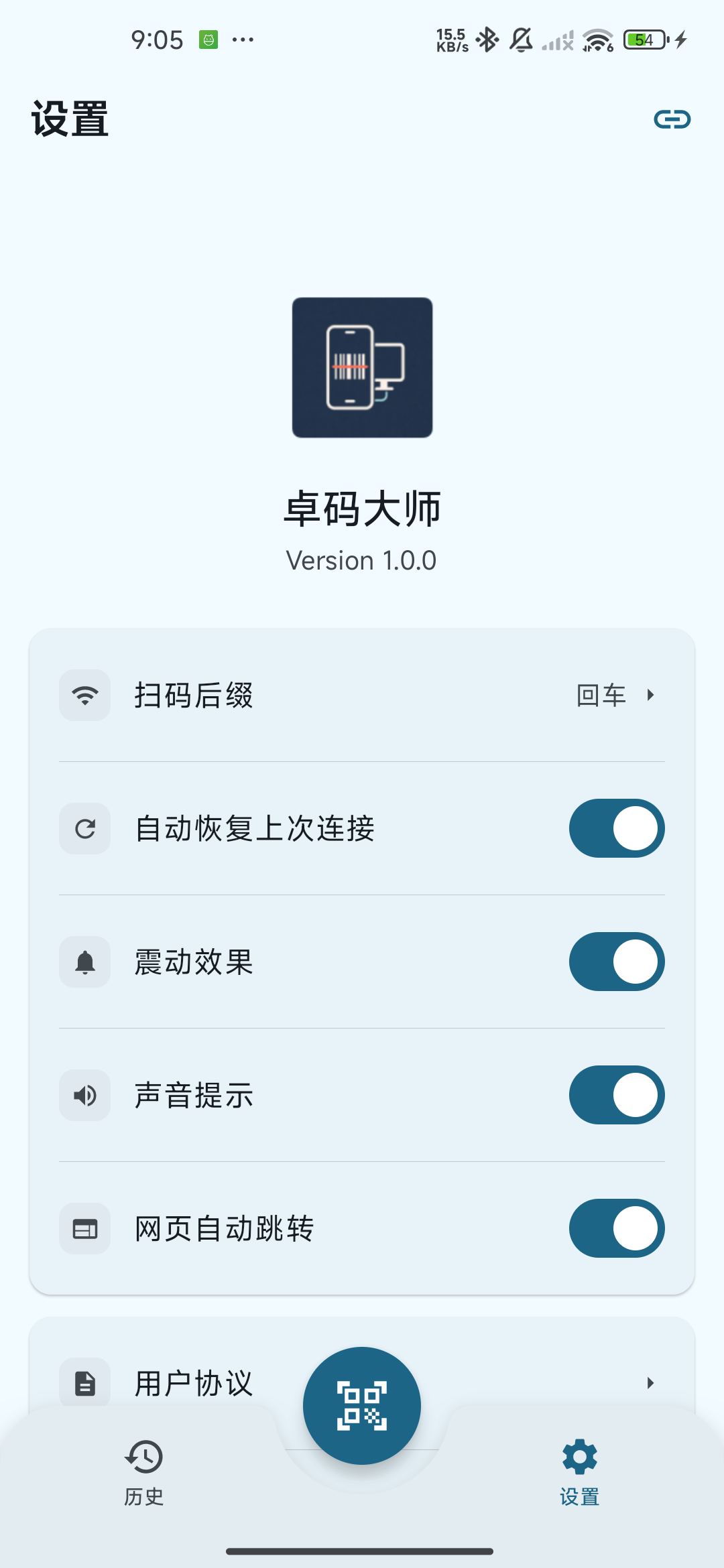
- 打开底部“设置”,查看版本信息和“扫码后缀”“自动恢复上次连接”“震动效果”“声音提示”“网页自动跳转”等选项。Open Settings to check the version and options for scan suffix, automatic connection restoration, vibration, sound, and webpage opening.
已经可以在手机上扫码。需要把结果输入电脑时,继续 Android 全流程中的蓝牙 HID 或 Wi-Fi 连接步骤;只在手机上采集时,可直接继续扫码、历史与导出教程。You can now scan on the phone. To type results into a computer, follow the Bluetooth HID or Wi-Fi steps in the complete Android guide. For phone-only collection, continue with scanning, history, and export.
安装与权限常见问题Installation and permission questions
Google Play 中找不到或无法安装Google Play cannot find or install the app
通过本页官方 Google Play 链接重新打开,并检查网络、Google Play 可用性和 Android 系统版本。安装入口以该商店页面为准;官网没有 APK 下载按钮。Reopen the official Google Play link on this page and check your network, Google Play access, and Android version. The store listing is the installation source; the website has no APK download button.
相机预览黑屏或仍提示权限The camera preview is black or permission is still required
确认已允许相机权限,关闭其他占用相机的应用,再退出扫码页重新进入。若系统权限已被永久拒绝,请在系统应用设置中修改;更换到前置摄像头后黑屏时,可切回后置摄像头。Check camera access, close other apps using the camera, then leave and reopen the scanner. If permission was permanently denied, change it in system app settings. If the front camera is unavailable, switch back to the rear camera.
接受协议后还能再查看吗?Can I read the documents again after accepting?
可以。进入“设置”,点击“用户协议”“隐私政策”或“使用教程”即可再次查看。Yes. Open Settings and choose User agreement, Privacy policy, or User guide to view them again.